Demo
Highlight Plus for Unreal · Demo
The plugin includes a demo level, a row of objects where each one has a different look. The level and its profiles are in the content of the plugin, in the folder Demo.
Open the demo level
- In the Content Browser, click the gear icon at the top right and, under Content, enable Plugin Content. If you installed the plugin to the engine from Fab, enable Engine Content too.
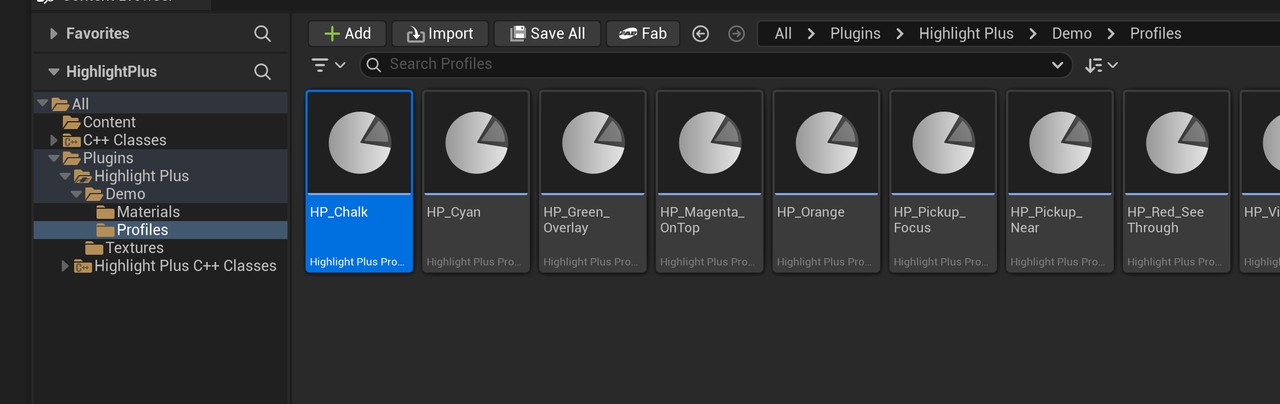
- Open the folder Plugins > Highlight Plus > Demo, or Engine > Plugins > Highlight Plus > Demo if the plugin is installed to the engine.
- Double-click the level Demo.
Play the demo
- Press Play. Move with the W, A, S and D keys, and hold the right mouse button to look around.
- Put the mouse over an object to show its effects.
- Click an object to flash it.
- Walk to the small objects on the left. They get an outline when you are near, and the one under the mouse takes the focus.
- Press H to hide the help.
The objects of the demo
| Object | Profile | What it shows |
|---|---|---|
| Cube | HP_Green_Overlay | An overlay with the Polka Dots pattern. |
| Sphere | HP_Chalk | An outline with the Stylized style. |
| Cylinder | HP_Yellow_Dashed | An outline with the Dashed style and an inner glow. |
| Character | HP_Cyan | An outline, a target mark, and a flash in the Local mode when you click it. |
| Aura Cone | HP_Orange | An outer glow with the Aura animation. |
| Moving Sphere | HP_Violet | An outer glow with the Pulse animation and some padding, on an object that moves. |
| Cone Behind Wall | HP_Magenta_OnTop | The Always on Top visibility and an outline with a gradient. |
| Cone See-Through | HP_Red_SeeThrough | The See-Through effect. |
| Blocker Post | None | A Highlight Plus Blocker. The effects of the cone behind it stop on it. |
| Pickups | HP_Pickup_Near and HP_Pickup_Focus | The proximity highlight with a fade by distance, and the Focus effect under the mouse. |
Look at how it is made
The level has two managers. Hover Manager has no profile, so it highlights the actors that have a Highlight Plus component and uses the profile of each one. Pickup Manager highlights the actors with the tag Pickup, which have no component, with its own two profiles.
Stop Play, select an object and open the Highlight Plus tab of the Details panel to see its component. The profiles are in the folder Demo > Profiles of the plugin content. Open a profile, enable Highlighted on the component of an object that uses it, and change any value to see the result at once.
The level uses its own game mode, so it works in any project. The click that flashes an object is made with the Hit FX function, in the C++ HUD class of the demo.
Suggest an improvement
Help us improve this documentation page.