Parameters
intermediate conceptsGlobal Snow & Rain 3 · Core Concepts
All settings live in the Global Snow component on the camera. The inspector starts with the Weather block, followed by seven foldouts. A dot after a label (for example Snow •) means that effect is on. Move the mouse over any label in the inspector to read a short description.
Weather
The top block sets what falls from the sky with Temperature and Intensity, the snow on the ground and the standing water, followed by the Sun, the Profile and the Performance Level. The profile inspector shows the same block without the Sun and the Profile.
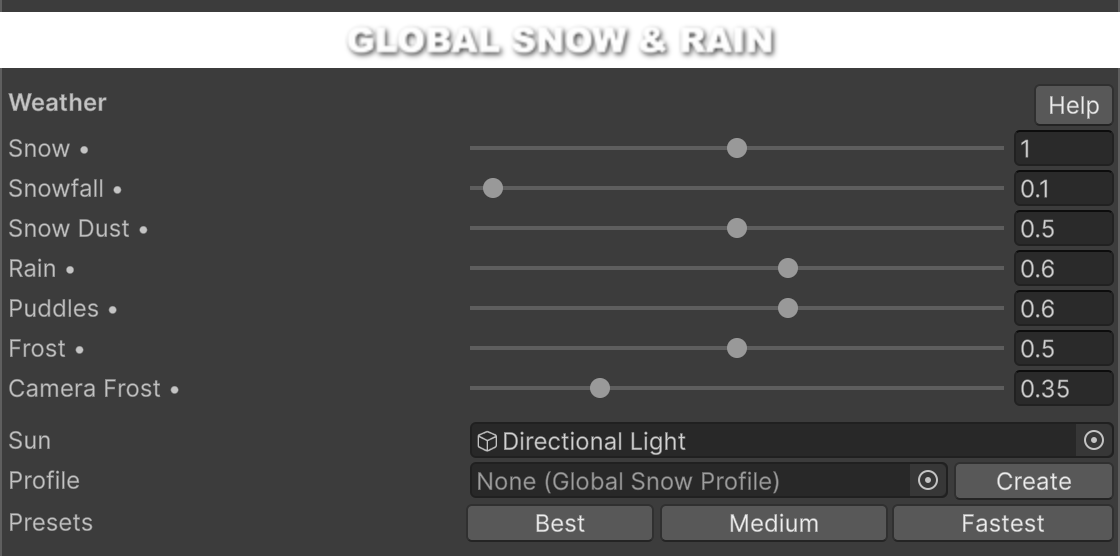
| Parameter | Description |
|---|---|
| Temperature (°C) | Air temperature. It decides what falls: snow up to -2 °C, wet snow up to +1 °C (bigger, heavier and darker flakes with less blowing snow), snow and rain mixed up to +3 °C, and rain above. Below -10 °C the flakes are smaller. Below -2 °C it also adds frost, full at -15 °C, and below 0 °C it freezes the puddles, solid at -4 °C. It does not melt the snow on the ground. Range -20 to +10. Default -5. |
| Precipitation | Name of what falls now, from Temperature and Intensity, for example Medium Wet Snow or Rain Storm. |
| Precipitation > Intensity | How much falls: 0 none, 1 light, 2 medium, 3 heavy, 4 storm, 5 extreme. Default 2. |
| Snow | Global snow amount. From 0 to 1 the snow fades in, from 1 to 2 it grows thicker. Default 1. |
| Puddles | How much standing water the scene has. It works on its own, also without rain. Range 0 to 1. Default 0. |
| Sun | Directional light used for the snow lighting. If empty, Global Snow uses the first directional light it finds in the scene. |
| Profile | Optional Global Snow Profile asset with snow and rain settings to reuse. Assigning a profile applies it. Create makes a new profile from the current settings. |
| Profile > Revert | Loads the settings from the profile. |
| Profile > Apply | Saves the current settings into the profile. |
| Performance Level | Best, Medium, Fastest or Custom. Best, Medium and Fastest limit Complexity, Mesh Detail, Coverage Quality and Collision Marks Extents: they lower a setting only when it is higher than the level allows, so your lower values are kept. Medium and Fastest also turn Running Drops Half Resolution on, and Fastest draws half the snowflakes and turns off Snow Accumulation, Running Drops and Rain Splashes: those settings keep their value and show "Off with Performance Level Fastest". The settings stay editable with their own values, and when a level lowers one the inspector says so under it, for example "Performance Level Medium uses Normal Mapping." Custom uses your settings as they are. Scripts can change the level and those settings at runtime under any level, for example from the graphics menu of a game. See Performance Tips for the limits of each level. Default Best. |
Moving Temperature or Intensity sets Snowfall and Snow Dust with the look of the flakes and the puffs, Rain with its Speed, Camera Rain, Frost, Camera Frost, the puddle Ice and the wind Speed and Gustiness. With the wind Source set to Wind Zone, the wind is left to the zone. You can fine-tune all of them in their sections afterwards, until one of the two sliders moves again. Snowfall, Snow Dust, Frost, Camera Frost, Rain and Camera Rain are at the top of their sections.
Coverage
Controls where snow can appear: layers, excluded objects, altitude, the top-down coverage capture, slopes, terrain grass, vegetation layers, objects drawn only in the forward pass and the coverage mask.
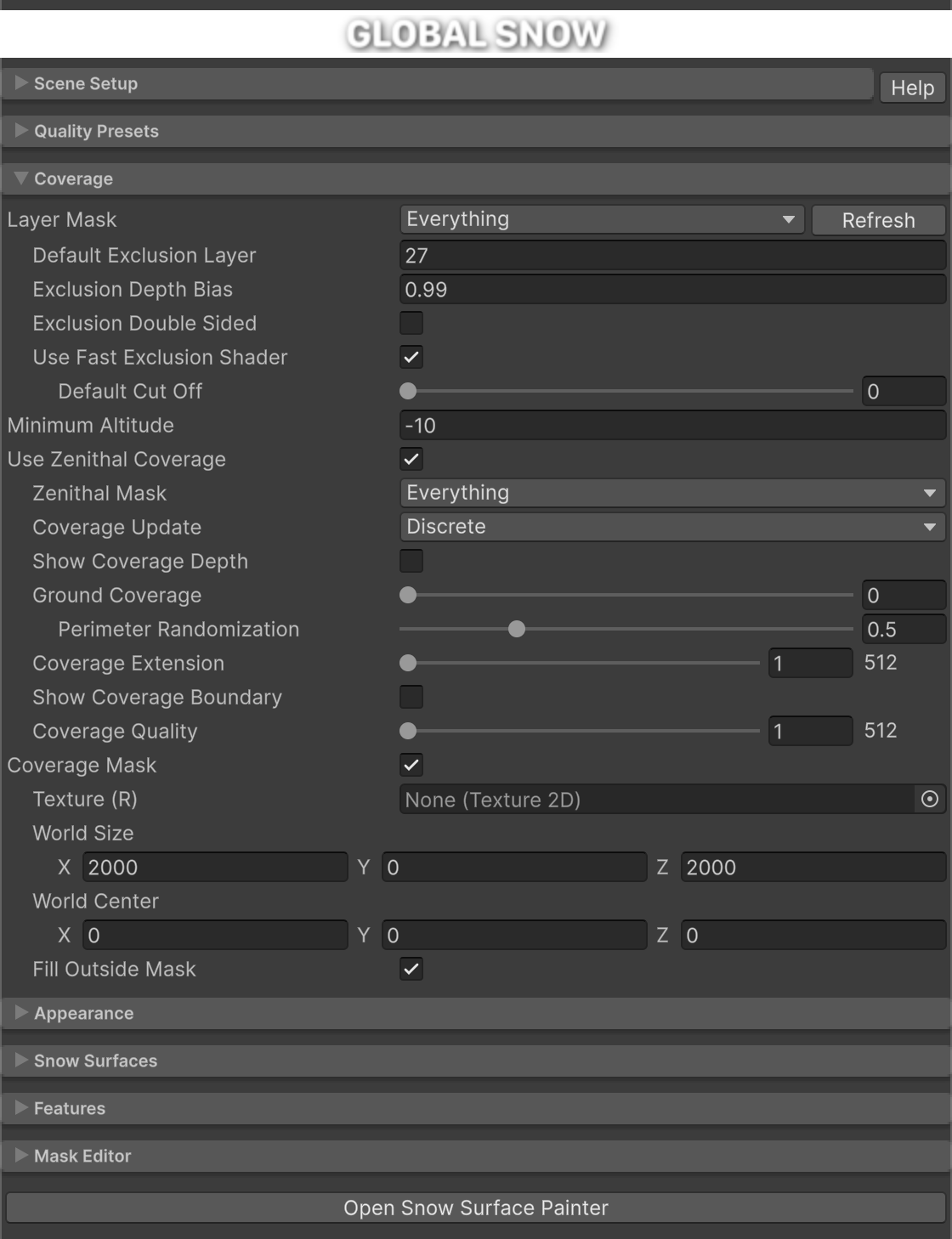
| Parameter | Description |
|---|---|
| Layer Mask | Layers that can receive snow, for objects and terrains (each terrain by its own layer). Objects and terrains on other layers get no snow. The terrain grass, plants with the Global Snow Vegetation node and Snow Dust follow the terrains, so they get no snow when no terrain does. With Nothing there is no snow, except on objects with Global Snow Ignore Coverage and Receive Snow. Refresh applies the change. Default: all layers. |
| Layer Mask > Default Exclusion Layer | Layer used internally to keep snow off excluded objects. Pick a layer that no object uses. Default 27. |
| Layer Mask > Exclusion Depth Bias | Depth comparison bias for excluded objects. Change it if snow shows at the borders of excluded objects. Default 0.99. |
| Layer Mask > Exclusion Double Sided | Enable it when you exclude double sided objects. Default off. |
| Layer Mask > Use Fast Exclusion Shader | Uses a fast mask shader to exclude objects. Disable it for objects with vertex animation, like trees or vegetation, so Global Snow uses their own material instead. Default on. |
| Use Fast Exclusion Shader > Default Cut Off | Alpha cut off used when excluding objects: only the parts with alpha above it keep the snow off. 0 uses the alpha clip of each material when it has one. The Global Snow Ignore Coverage component can set its own value per object. Range 0 to 1. Default 0. |
| Minimum Altitude | Snow level. There is no snow below this world height. Default -100. In scenes with water, set it just above the water surface so the ground under the water gets no snow. |
| Minimum Altitude > Altitude Range | Height in meters above Minimum Altitude where the snow appears in growing patches. Above that height only Scatter applies. 0 makes the snow start right at Minimum Altitude. Its effect fades out as Snow goes from 1.5 to 2. Default 0. |
| Use Zenithal Coverage | Computes the snow coverage automatically with a top-down capture, so surfaces under roofs, porches, bridges or vehicles get no snow. Trees painted on terrains do not block it, so the ground under them gets full snow; trees placed as GameObjects do, unless you leave them out as shown in Trees Placed as Objects. Snowfall, rain and puddles also use it to stay out from under cover. The snow reaches the foot of walls and goes slightly under them. Under doorways, arches, bridges and eaves it fades in with a grainy edge about 30 cm deep. Behind walls thinner than one coverage texel (0.5 m at Best with Coverage Extension 1), a little snow can get into the room. Raise Coverage Margin or Coverage Quality to reduce it. Default on. |
| Use Zenithal Coverage > Zenithal Mask | Layers that take part in the top-down capture. Objects on top keep the snow off what is below them. Exclude particle systems and small moving objects. Default: all layers. |
| Use Zenithal Coverage > Coverage Update | When the coverage is captured again. Every Frame, Discrete (after the camera moves the Update Distance), Manual (call UpdateSnowCoverage() from a script) or Disabled. In Edit Mode it is also captured again when objects in the scene change (moved, rotated, scaled, created, duplicated or deleted) or a terrain is painted, but not while you only move around the Scene View. Changes made by scripts without Undo need a call to UpdateSnowCoverage(). Default Discrete. |
| Use Zenithal Coverage > Coverage Update > Update Distance | Meters a camera must move before a Discrete capture. Higher values mean fewer captures, which helps in large scenes with a high Coverage Extension. Shows when Coverage Update is Discrete. Default 50. |
| Use Zenithal Coverage > Cull Mode | Normal respects the culling of each material. Both Faces also captures the back faces of single sided roofs, so they block snow, rain and puddles underneath. Default Normal. |
| Use Zenithal Coverage > Coverage Margin | Meters the snow stays out from walls and other covers. The snow reaches slightly under walls, so raise it when thin walls let snow into rooms. About 0.7 m keeps the snow out of rooms with paper-thin walls under a low roof, but it also leaves a bare strip at the foot of thick walls. The grainy edge under doorways and arches moves out with it. It goes up to two coverage texels, 1 m at Best with Coverage Extension 1. Range 0 to 1. Default 0. |
| Slope Options > Threshold | Steepest slope where snow can stay. Range 0 to 1. Default 0.7. |
| Slope Options > Sharpness | Sharpness of the snow edge on slopes. Range 0 to 1. Default 0.5. |
| Slope Options > Noise | Random variation in the area between low and high slopes. Range 0 to 1. Default 0.5. |
| Slope Options > Deep Snow Cutoff | With Snow above 1, the steepest slope the extra snow fills. It compares the surface normal Y, so lower values reach steeper slopes. Range 0 to 1. Default 0.45. |
| Add Snow To Terrain Grass | Uses a grass shader with snow for the grass painted on Unity terrains: Grass Texture details and Detail Meshes in Grass mode without GPU Instancing. It only changes the terrain grass. For grass and plants placed as objects, use the Vegetation Layers below (see Add Snow to Vegetation). Stop and start the scene to see the change. Default off. |
| Grass Coverage > Altitude Offset | Height offset added to Minimum Altitude for terrain grass only. Default 0. |
| Grass Coverage > Coverage | Share of each grass blade buried in snow, from the base, with a soft fade toward the top. It also sets the snow of plants that use the Global Snow Vegetation node. Range 0 to 1. Default 0.35. |
| Vegetation Layers | Layers of grass and plants placed as objects with their own shader. They get snow with their own Slope Threshold and a snowy base up to Snow Height over the ground, and they do not hide the ground from the snow. Use it for plant meshes whose normals point sideways, as in most grass and bush packs. It costs one more draw of the objects on those layers per camera. Default Nothing. |
| Vegetation Layers > Slope Threshold | Steepest slope where snow can stay on the plants. Lower values put snow on more upright leaves. Shown when Vegetation Layers is not Nothing. Range 0 to 1. Default 0.3. |
| Vegetation Layers > Snow Height | Height in meters of the snowy base of the plants over the ground. Shown when Vegetation Layers is not Nothing. Minimum 0. Default 0.15. |
| Add Snow To Forward Opaques | Adds snow to opaque objects whose shader draws only in the forward pass, such as some tree leaves, with an extra pass after the opaque objects. It costs that pass on those pixels and, without SSAO, a depth and normals pass of those objects. Default off. |
| Coverage Extension | Size of the area around each camera that shows snow covered by the top-down capture: 1 = 512 m, 2 = 1024 m, 3 = 2048 m, 4 = 4096 m. A larger area gives less detail. Default 1. |
| Coverage Quality | Resolution of the coverage texture: 1 = 512, 2 = 1024, 3 = 2048, 4 = 4096 pixels. With a Coverage Extension above 1, the quality is at least 2. Performance Level limits it from the Coverage Extension: pixels of at least 0.5 m and up to 2048 pixels at Best and Medium, pixels of at least 1 m and up to 1024 pixels at Fastest. Default 2, which gives 1024 pixels of 0.5 m with Coverage Extension 1. |
| Coverage Mask | Uses a texture to choose where snow appears. It only shapes the snow and the snow dust. Rain wetness, puddles, running drops and rain impacts do not follow it, so where it removes the snow the ground gets wet and holds puddles like any bare ground. Default off. |
| Coverage Mask > Texture (R) | Mask texture. Black means no snow, white means full snow. On the snow accumulation, gray makes the snow thinner and keeps it whole down to a grainy edge near black, so painted edges slope down gently. If the inspector warns about the import settings, click Fix Texture Import Settings. |
| Coverage Mask > World Size | World size covered by the mask texture. Usually it matches the terrain size. Default 2000 x 2000. |
| Coverage Mask > World Center | World position of the mask center. Use it to place the mask over a given area. Default 0, 0, 0. |
| Coverage Mask > Fill Outside Mask | Fills the area outside the mask with snow. Default on. |
| Show Coverage Boundary | Shows a fence in the Scene View around the Coverage Mask area when Coverage Mask is on, or around the Coverage Extension area otherwise. Shown when Use Zenithal Coverage is on. Default off. |
| Show Coverage Depth | Shows in the inspector the heights seen from above that the coverage uses, lighter for higher surfaces. Shown when Use Zenithal Coverage is on and Coverage Update is not Disabled. Default off. |
Global Snow Ignore Coverage component give extra control per area and per object.
What Gets Snow and What Blocks It
The options that choose which surfaces get snow and what blocks it, with the steps for each case, are in Control Snow Placement.
Mask Editor
The Mask Editor paints the coverage mask directly in the Scene View. Click and drag over objects that have colliders. It shows when a single Global Snow component is selected. It only works in Edit mode: in Play mode its options are hidden and the brush does nothing. The brush only paints inside the area set by World Size and World Center. Outside it, the ring turns red and the label says so. The label also shows the cursor X and Z and the mask area.
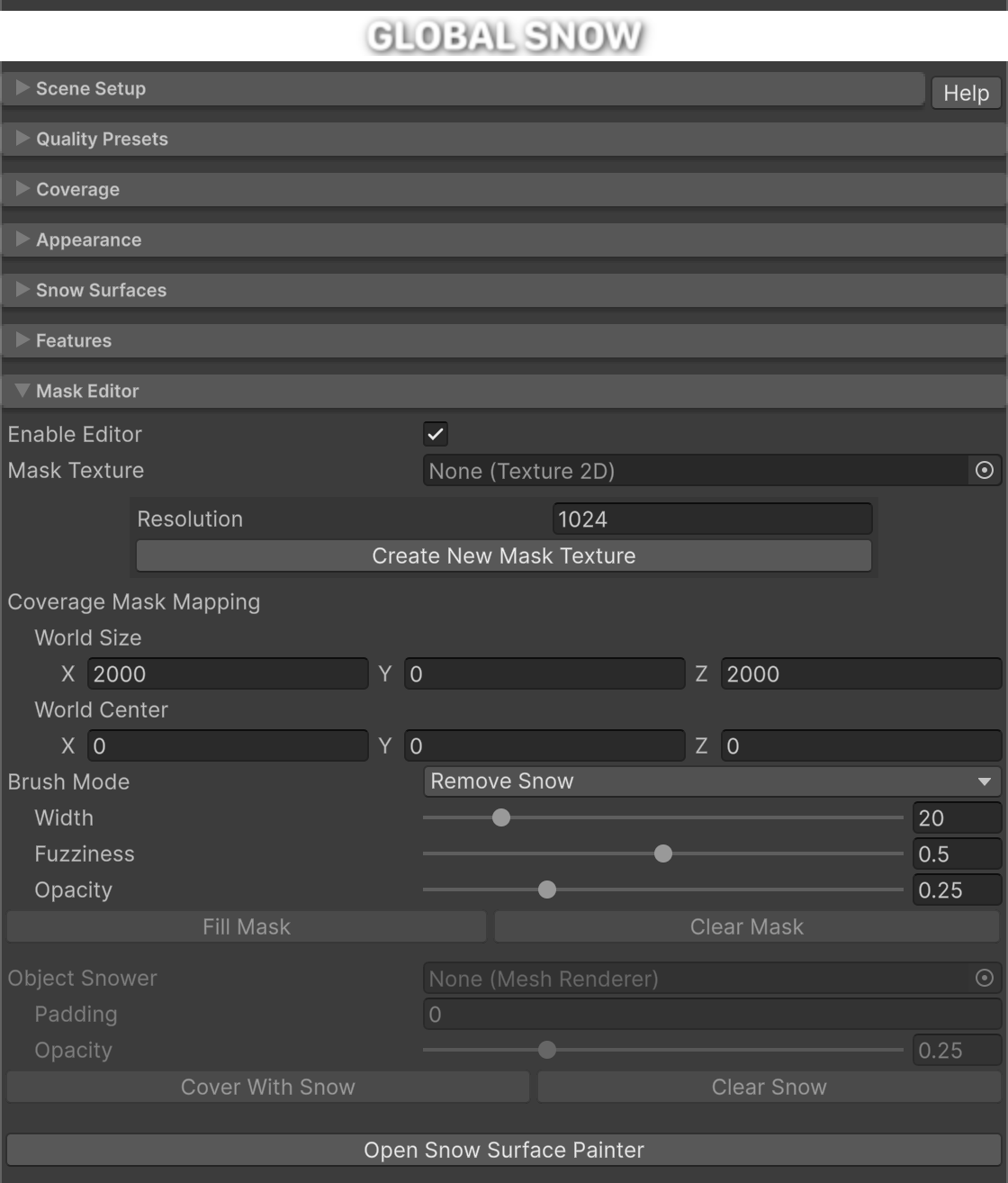
| Parameter | Description |
|---|---|
| Enable Mask Editor | Turns on the brush in the Scene View. If Coverage Mask is off, a button offers to enable it. Turning it on turns off the Puddle Editor. |
| Texture Size / Texture Path | Size and asset path of the current mask texture. |
| Resolution | Size in pixels of a new mask texture, from 256 to 8192. Higher values give more detail but paint slower. Default 1024. |
| Create New Mask Texture | Creates a mask texture asset filled with snow (Assets/SnowMaskTexture.asset) and assigns it. |
| Brush Mode | Add Snow or Remove Snow. Hold Shift while painting to use the other mode. Default Remove Snow. |
| Brush Mode > Radius | Brush radius in meters. Each pixel of the mask covers World Size divided by the texture size, and the label in the Scene View warns when the brush is smaller than one pixel. Minimum 0.1. Default 20. |
| Brush Mode > Fuzziness | Soft edge of the brush: 0 paints a solid circle, 1 fades from the center to the edge so the snow accumulation slopes down to the ground. Range 0 to 1. Default 0.5. |
| Brush Mode > Opacity | How much each brush stamp changes the mask. Stamps add up while you drag or click again, and 1 paints fully at once. Range 0 to 1. Default 0.25. |
| Fill Mask / Clear Mask | Fills the whole mask with snow, or removes all the snow. |
| Object Snower | A Mesh Renderer in the scene. The buttons below add or remove snow under its shape seen from above, for example along a road. It must be inside the mask area set by World Size and World Center: otherwise a warning shows and the buttons are disabled. When only part of it is inside, a note says that only that part changes. |
| Object Snower > Padding | Extra border around the area of the object. |
| Object Snower > Opacity | How much each press changes the mask. 1 adds or clears the snow at once. At 0 nothing changes and the buttons are disabled. Range 0 to 1. Default 0.25. |
| Object Snower > Cover With Snow / Clear Snow | Adds or removes snow over the area of the object. |
Snow Appearance
The look of the snow: shading detail, the snow accumulation, bare patches, color and lighting. The Snow slider of the Weather block also shows at the top. The slope options are in Coverage.
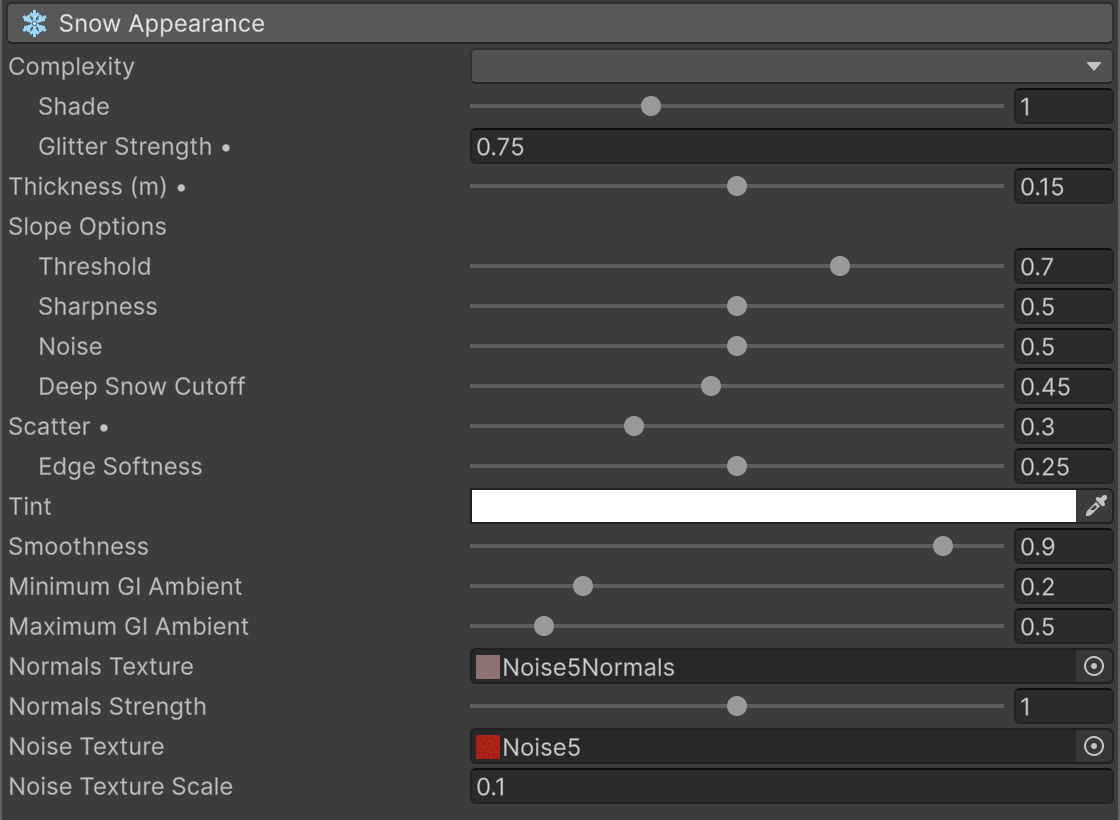
| Parameter | Description |
|---|---|
| Complexity | Shading of the snow. Flat Shading is the fastest, Normal Mapping adds normal detail, Relief Mapping adds relief with depth, from a scanned snow height map by default, without visible repetition. Performance Level can limit it: Medium uses at most Normal Mapping and Fastest uses Flat Shading. Default Relief Mapping. |
| Complexity > Relief Amount | Relief depth. Only with Relief Mapping. Range 0.05 to 0.3. Default 0.3, a relief of about 5 cm. |
| Complexity > Relief Height | Height map of the relief, read from its red channel. Only with Relief Mapping. If empty, the built-in scanned snow is used. |
| Complexity > Relief Normals | Normal map of the same relief. Only with Relief Mapping. If empty, the built-in one is used. |
| Complexity > Relief Size | World size in meters of one tile of the relief textures. Only with Relief Mapping. Default 1. |
| Complexity > Shade | How much the snow relief, the marks and the accumulation edges are shaded toward the sun, also in shadow. 0 uses only the scene lighting, above 1 is more dramatic. Not with Flat Shading. Range 0 to 3. Default 1. |
| Complexity > Glitter Strength | Sparkle on the snow. The crystals twinkle as the camera moves and fade in the pressed snow inside marks. 0 turns it off and values above 1 make it brighter. With HDR off on the camera it cannot be brighter than sunlit snow, so it shows mostly on snow in shade. Not with Flat Shading. Default 0.75. |
| Complexity > Glitter Density | How many crystals sparkle. 1 gives one crystal per grain of snow, lower values leave fewer, and values up to 3 add more at a higher GPU cost. Not with Flat Shading. Range 0 to 3. Default 1. |
| Snow Accumulation | Piles the snow up over the Receivers. It buries what rests in it, and Deep Marks dig into it. When it is off, or Thickness is 0, or there are no Receivers, or Performance Level is Fastest, the snow is drawn on the surfaces and only Footprints and Collision Marks mark it. With Fastest it keeps its value and shows "Off with Performance Level Fastest". When it is on and Screen Space Ambient Occlusion runs before Global Snow in a renderer, an error at the top of the inspector offers Move Global Snow Above SSAO, because SSAO would shade the objects buried in the snow as if they were uncovered. Default on. |
| Snow Accumulation > Thickness (m) | Depth of the snow accumulation, and how deep the Deep Marks can dig. 0 means no accumulation. Range 0 to 0.3. Default 0.15. |
| Snow Accumulation > Mesh Detail | How fine the snow accumulation mesh is on terrains, everywhere, so the marks and the snow edges stay smooth up close. 0 keeps the terrain mesh, 0.5 gives triangles of about 20 pixels near the camera and 1 about 4 pixels, and each step of the slider changes the size by the same ratio. Around the Deep Marks the mesh keeps the detail it has at 2 m from the camera up to 8 m, so the marks keep their shape. Elsewhere the triangles follow Mesh Detail, about 20 pixels at 0.5. Higher values cost more GPU time. Performance Level limits it to 0.5 at Best and 0.25 at Medium and Fastest. Range 0 to 1. Default 0.5. |
| Mesh Detail > Show Mesh | Tints the snow accumulation in green and draws the real edges of its triangles on terrains in dark green, to check Mesh Detail. It also shows the finer triangles around the Deep Marks. When a terrain has its vertices too far apart for fine detail (over about 1.3 m), a ? button next to it explains why the accumulation looks coarse up close and how to fix it. Default off. |
| Snow Accumulation > Show Receivers | Tints in green the surfaces that carry the snow accumulation, to check which objects the Receivers reach. Default off. |
| Snow Accumulation > Receivers | The objects and terrains that get the snow accumulation. Each object gets it only on its own renderer or terrain, not on its children. An object without a renderer or terrain of its own, such as the root of a LOD Group or an empty parent of several terrains, passes it to its children. Objects placed under a terrain by terrain tools, such as trees and rocks, need their own row. Add Terrains adds every terrain of the open scenes. List Receivers opens the list: drag objects in or use + to add them, and - to take the selected one out. Untick a row to see the scene without its accumulation. This is not saved, and it comes back when you tick it again, save the scene or enter Play mode. Tick Thickness or Slope on a row to give that object its own value. A warning icon marks objects whose shader does not draw into the deferred G-buffer, since they get no accumulation. Empty means no accumulation, and the label then reads Receivers (none, no accumulation). Receivers also block the snow under them precisely, as with Block Snow/Rain Precise, unless they have their own Global Snow Ignore Coverage. While the accumulation is on, the rain also follows their shape as with Precise: drops hit their real top, and the standing and flowing water follow their surface. The accumulation reaches the edge of each receiver with a rounded edge, and near the camera it thins over a gentle 2.5 m slope toward the bare ground under covers. See Receivers. |
| Scatter | Share of the ground left bare in irregular patches. 0 leaves no bare patches, 1 leaves almost no snow. Its effect fades out as Snow goes from 1.5 to 2. Range 0 to 1. Default 0. |
| Scatter > Scale | Size in meters of the patches left by Scatter. Shown when Scatter is above 0. Range 1 to 32. Default 16. |
| Scatter > Edge Softness | Width of the slope where the snow accumulation thins down to the bare patches of Scatter. 0.1 gives steep edges, 1 gives very gentle slopes and a much thinner accumulation on average. Shown when Scatter is above 0 and the snow accumulation is on, with a Thickness above 0 and at least one Receiver. Range 0.1 to 1. Default 0.25. |
| Tint | Snow color tint. Default white. |
| Exposure | Brightness of the snow. 1 keeps the default look. Lower it when a very bright sun turns all the sunlit snow into the same white. Range 0 to 2. Default 1. |
| Smoothness | How sharp the reflections of dry snow are. It shows most with a low sun. Range 0 to 1. Default 0.3. |
| Minimum GI Ambient | Lowest ambient light on the snow. The snow takes the scene ambient light (Environment Lighting) and never goes below this value. Range 0 to 1. Default 0.2. |
| Maximum GI Ambient | Highest ambient light on the snow. Lower it to darken the snow when the scene ambient light is very bright. Range 0 to 4. Default 0.5. |
| Normals Texture | Normal map for the snow detail. Not with Flat Shading. If empty, the bundled texture is used. |
| Normals Strength | Strength of the snow normal map. Not with Flat Shading. Range 0 to 2. Default 1. |
| Noise Texture | Noise texture that adds variation to the snow. Shown when Complexity is not Flat Shading. If empty, the bundled texture is used. |
| Noise Texture Scale | Tiling of the noise texture. Lower values give larger, smoother patterns. Shown when Complexity is not Flat Shading. Default 0.1. |
Footprints & Marks
Everything that marks the snow. Deep Marks dig into the snow accumulation. Surface Marks (Footprints and Collision Marks) are drawn on the snow. The Common options apply to all of them. Marks also ripple the puddles when Contact Ripples is on (see Rain & Water).
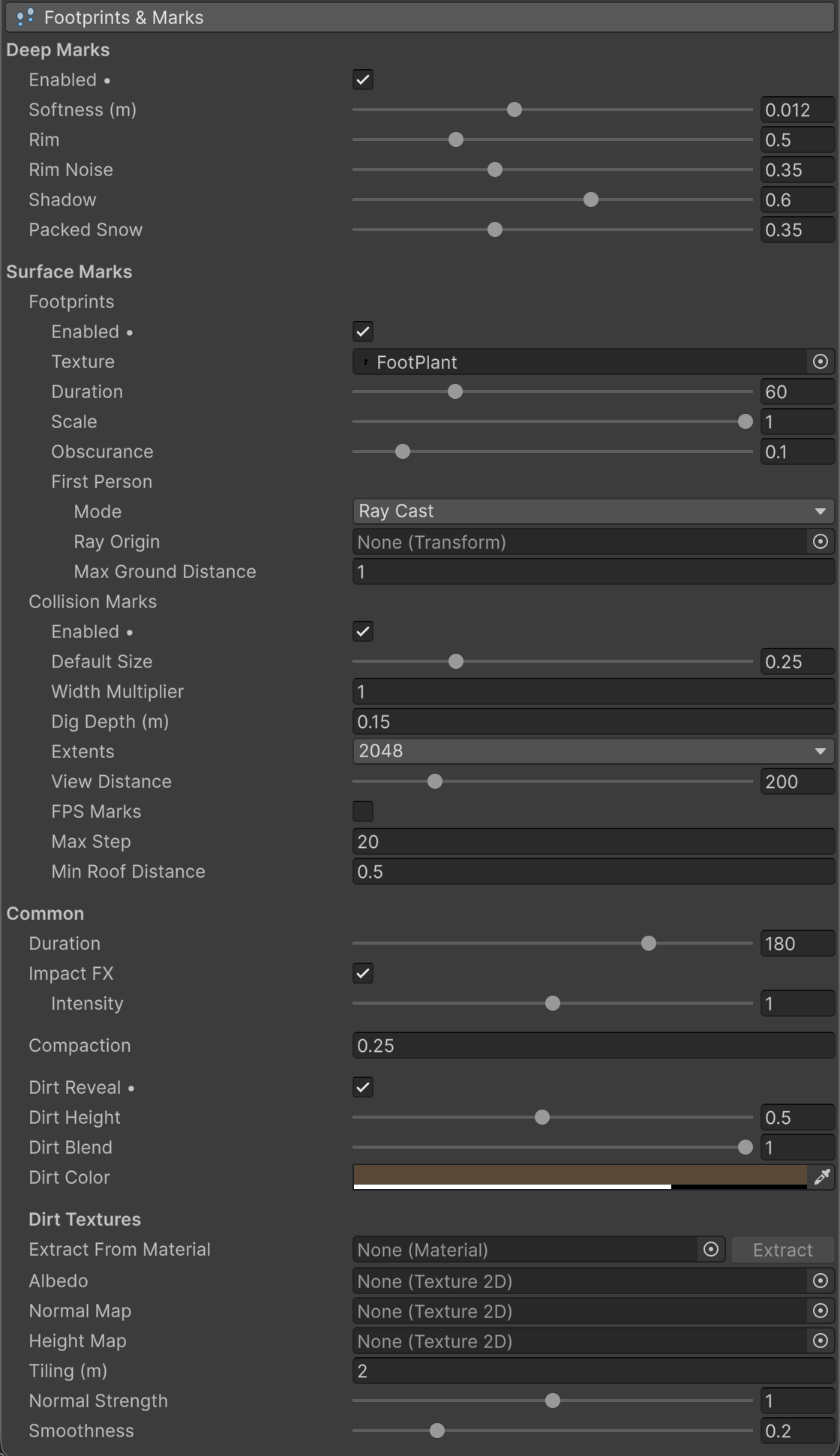
Deep Marks
Deep Marks work in Play mode and need Snow Accumulation on in Snow Appearance, with a Thickness above 0 and at least one Receiver, and a Performance Level other than Fastest. Without the snow accumulation they draw nothing, and the inspector shows a warning under Deep Marks. To mark the snow without it, turn on Footprints and Collision Marks. Objects with Global Snow Interaction (characters, physics objects and vehicles on wheel colliders), sources added by script and MarkAt() / MarkTrail() dig real marks into the snow accumulation, on any ground, roof or object they rest on.
Marks made within about 8 m of the Global Snow camera keep their full detail (sharp walls and the rim), also after the camera moves away, up to 32 areas of 1.5 x 1.5 m; when more are needed the farthest ones are reused. Other marks show with a coarser shape. All deep marks fade out between 30 and 38 m from the camera. Past 34 m, objects leave Collision Marks instead when those are on. The marks are cleared when Snow or the Thickness of the Snow Accumulation reaches 0, so new snow grows without the old marks.
| Parameter | Description |
|---|---|
| Enabled | Turns on Deep Marks. They need the Snow Accumulation. The options below show when it is on. Default off. |
| Softness (m) | Smallest detail the snow keeps. The edges of the marks crumble at the same scale. Range 0 to 0.03. Default 0.012. |
| Rim | Snow pushed up along the edges of the marks. Above 1 the rim can rise higher. Range 0 to 2. Default 1.48. |
| Rim Width (m) | Width of the rim around the marks. It is at least twice the Softness. Range 0.02 to 0.2. Default 0.0848. |
| Rim Noise | Irregularity of the rim. Range 0 to 1. Default 0.205. |
| Rim Noise Scale (m) | Size of the grain of the rim noise. Range 0.005 to 0.2. Default 0.0282. |
| Shadow | Strength of the shadow cast by the walls of the marks. 0 turns it off and skips its cost. Range 0 to 1. Default 0.3. |
Surface Marks
Footprints and Collision Marks are flat marks drawn on the snow, also on the snow accumulation, and they are hidden where Deep Marks dig. Each one draws only when its own Enabled box is on. If Coverage Update is set to Disabled, the inspector warns that they may not render correctly.
| Parameter | Description |
|---|---|
| Footprints > Enabled | Turns on footprints. Characters with the Global Snow Interaction component leave a footprint per foot. The options below, First Person included, show only when it is on. Default off. |
| Footprints > Texture | Sole texture stamped at each footprint. If empty, the bundled sole is used. The shape comes from the alpha channel with the toes at the top, and the texture covers Scale meters. |
| Footprints > Duration | Seconds before the footprints fade out completely. Range 1 to 240. Default 60. |
| Footprints > Scale | Footprint size: world meters covered by each footprint. Increase it to make the footprints larger. Range 0.04 to 1. Default 1. |
| Footprints > Obscurance | Makes the footprints darker. Range 0.05 to 0.5. Default 0.1. |
| First Person > Mode | Footprints left by the camera (or the Ray Origin) as it moves, one sole per step on alternate sides. None: only characters with Global Snow Interaction leave footprints. Character Controller: steps count while the Character Controller is grounded. Ray Cast: a ray down to the ground checks each step. Default Ray Cast. |
| First Person > Character Controller | Character Controller used to know if the player is grounded. If empty, Global Snow looks for one in the hierarchy of the camera. |
| First Person > Ray Origin | Ray Cast mode. Transform used for the movement and the ground ray. If empty, the camera is used. |
| First Person > Max Ground Distance | Ray Cast mode. Maximum distance from the ray origin to the ground. Default 1. |
| Collision Marks > Enabled | Marks drawn on the snow where objects with Global Snow Interaction touch it, and by MarkAt() and MarkTrail(). Nothing is needed on the ground. The options below show only when it is on. Default off. |
| Collision Marks > Default Size | Size of the marks made by automatic collisions. Call MarkAt() to set a custom size. Range 0 to 1. Default 0.25. |
| Collision Marks > Width Multiplier | Makes the collision marks wider. Plow Mode trails ignore it, since their width comes from the contact. Default 1. |
| Collision Marks > Dig Depth (m) | Visual depth a mark digs on plain terrain. Plow Mode objects also use it to get the width of their trail. Default 0.15. |
| Collision Marks > Extents | Size of the internal texture that holds the collision marks: 512, 1024, 2048, 4096 or 8192. A change applies at once. Performance Level limits it to 2048 at Best and Medium and 1024 at Fastest. Default 2048. |
| Collision Marks > View Distance | Maximum distance from the camera where collision marks render. Reduce it if marks repeat, or increase Extents. Range 0 to 1024. Default 200. |
| Collision Marks > FPS Marks | Adds marks automatically when the camera moves. Use it only with a first person camera. Default off. |
| Collision Marks > Max Step | Maximum distance an object can move between two frames and still leave a continuous trail. Default 20. |
| Collision Marks > Min Roof Distance | Minimum distance from the mark to a roof above it. Use it to control when collision marks appear under a roof. Default 0.5. |
Common
| Parameter | Description |
|---|---|
| Duration | Seconds that Deep Marks and Collision Marks take to fill back in. Footprints have their own Duration. Shown when Deep Marks or Collision Marks are on. Range 1 to 240. Default 180. |
| Impact FX | Snow burst particles when feet, colliders or EmitImpactFX() hit the snow. They show in Play mode, in view of the camera and within the Impact FX Distance, where the point has snow and no standing water, when Snow is above 0.5, at full strength from Snow 1. Wet snow (Snow Wetness or rain) throws less powder and a few bigger chunks. Objects wider than about 80 cm throw more and bigger snow, up to 2.5 times, and part of the powder hangs in the air as a cloud for a few seconds. When many objects hit the snow at once, they share the particles, so every object still throws some. Default on. |
| Impact FX > Intensity | Strength of the impact particles. Range 0 to 2. Default 1. |
| Impact FX > Distance | Impacts farther than this from the camera, in meters, throw no snow particles. The Contact Ripples on the puddles use the same distance. Range 5 to 200. Default 30. |
| Compaction | Extra smoothness of the pressed snow inside the marks. Default 0.25. |
| Dirt Reveal | Marks that reach the ground show dirt. When off, they show pressed snow. Default on. |
| Dirt Reveal > Dirt Floor (m) | Marks whose floor keeps less snow than this height over the ground show the dirt. 0 shows it only in the marks that reach the ground; an object with Sink Depth 1 always reaches it. Range 0 to 0.3. Default 0.02. |
| Dirt Reveal > Dirt Blend | 0 gives a hard edge at the Dirt Floor. 1 fades the dirt in from the Dirt Floor down to the bare ground. Range 0 to 1. Default 1. |
| Dirt Reveal > Dirt Color | Ground color shown by the marks. Alpha controls the intensity. |
| Dirt Textures > Extract From Material | The Dirt Textures group shows when Dirt Reveal is on. Pick a material that uses the URP Lit property names and click Extract to copy its albedo, normal and height maps, its smoothness and its normal strength into the slots below. |
| Dirt Textures > Albedo | Ground albedo, tiled in world space. If empty, the bundled gravel textures are used. |
| Dirt Textures > Normal Map | Normal map of the ground. |
| Dirt Textures > Height Map | Breaks up the edge between snow and dirt: the high parts of the ground (pebbles, roots) show first. |
| Dirt Textures > Tiling (m) | World size of one texture repeat. Default 2. |
| Dirt Textures > Normal Strength | Strength of the ground normal map. Range 0 to 2. Default 1. |
| Dirt Textures > Smoothness | Smoothness of the ground. Range 0 to 1. Default 0.2. |
Snowfall, Dust & Wind
Procedural snowfall around the camera, snow dust near the ground and the wind they share with the rain. The Snowfall and Snow Dust sliders are at the top of their groups, and Temperature and Intensity in the Weather block set them. Flakes do not fall under roofs seen by the top-down capture. Snow Dust needs the Depth Texture option in the URP asset, and the inspector shows an error when it is off.
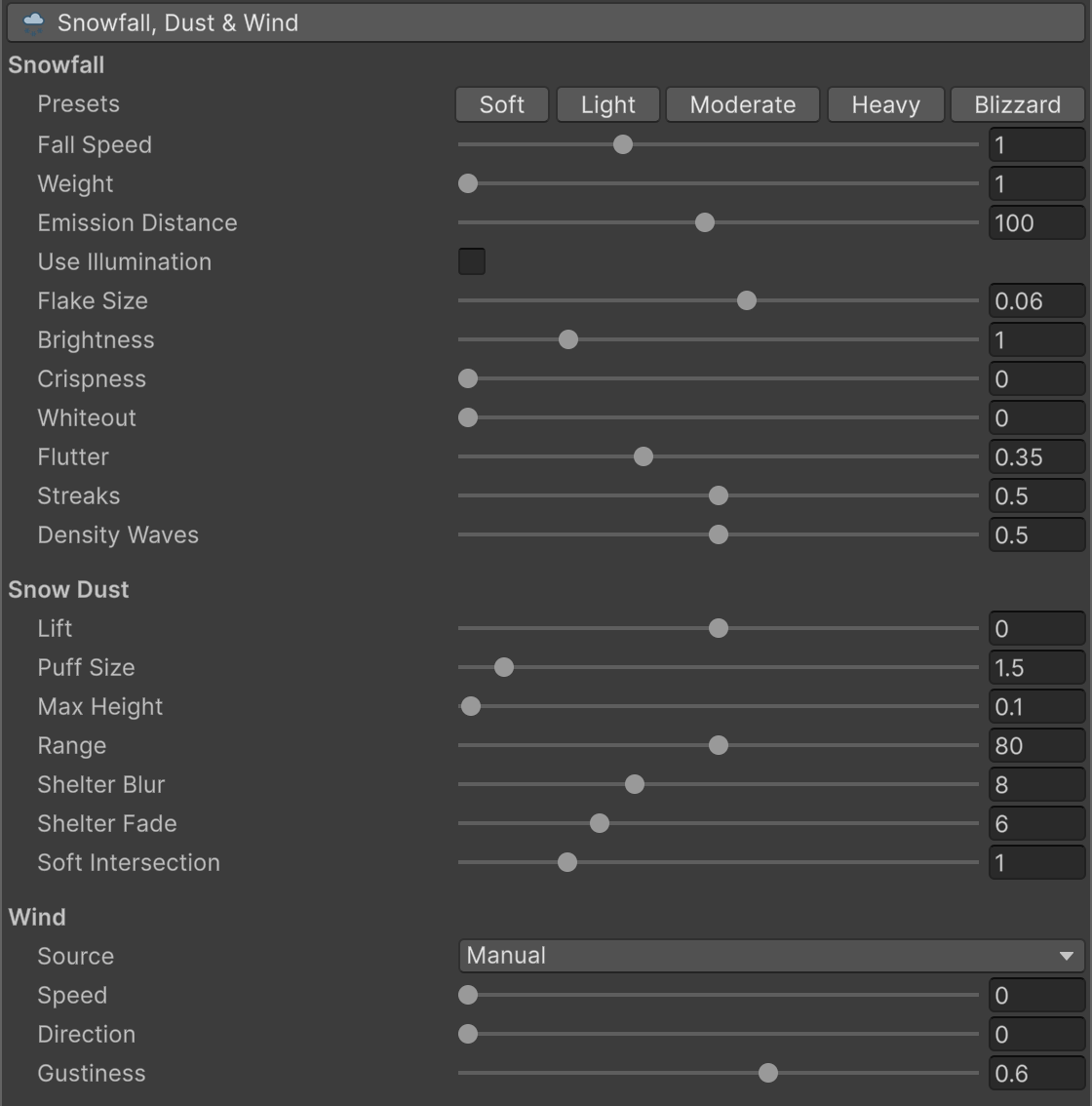
| Parameter | Description |
|---|---|
| Snowfall | Density of the falling snowflakes. Range 0 to 4. 0 turns snowfall off. Performance Level Fastest draws half the flakes. Default 0.1. |
| Snowfall > Fall Speed | Fall speed in meters per second (0.5 for light flakes, 1 to 2 for heavy snow). Small flakes fall slower and follow the wind more than large ones. Range 0.1 to 3. Default 1. |
| Snowfall > Weight | Resistance to wind and flutter. 1 keeps the normal motion, 2 halves the sideways response. It does not change Fall Speed, the wind or the snow dust. Range 1 to 10. Default 1. |
| Snowfall > Emission Distance | Size of the flake volume around the camera. Reduce it to concentrate the snowfall. Range 10 to 200. Default 100. |
| Snowfall > Use Illumination | Flakes catch light coming from the sun direction. Default off. |
| Snowfall > Flake Size | Base flake size in meters. Range 0.001 to 0.1. Default 0.06. |
| Snowfall > Brightness | Flake color multiplier. Above 1 pushes the flakes past white for bloom. Range 0.5 to 3. Default 1. |
| Snowfall > Crispness | 0 keeps the soft default look. Higher values make the flakes smaller and more solid. Range 0 to 1. Default 0. |
| Snowfall > Whiteout | Distance haze that fades the scene to white, for blizzards. Transparent objects, such as glass, stay clear through the whiteout unless their Global Snow Ignore Coverage has Include Transparents on. Range 0 to 1. Default 0. |
| Snowfall > Flutter | Sideways wobble of each flake as it falls, up to a few centimeters. Range 0 to 1. Default 0.35. |
| Snowfall > Streaks | How much a flake stretches along its motion, like in a camera exposure. Visible mostly with wind. Range 0 to 1. Default 0.5. |
| Snow Dust | Number of animated dust puffs near the ground, carried by the wind. It is not a transparency value. Range 0 to 1. 0 hides the dust. Default 0. It needs wind and shows fully from 1.5 m/s, and it needs Snow above 0. The inspector says when one of them is missing. Needs the Depth Texture option in the URP asset. With Snow Accumulation on, the dust rises only from the snow on the Receivers, so it does not come off rocks and other objects, and it fades before puddles and bare ground. The puffs are low, stretched along the wind and live about 9 s. The dust also runs on slopes up to about 50 degrees, and steeper faces get none. |
| Snow Dust > Lift | Vertical offset of the puff centers from the ground, in meters. Negative values lower the volume. Range -5 to 5. Default 0. |
| Snow Dust > Puff Size | World size of the puffs in meters. Range 0.05 to 20. Default 1.5. |
| Snow Dust > Max Height | Maximum height of the puff centers above the ground, before adding Lift. Range 0.02 to 15. Default 0.1. |
| Snow Dust > Range | Width of the dust volume around the camera in meters, with a soft border. Range 40 to 120. Default 80. |
| Snow Dust > Shelter Blur | Radius in meters used to soften the shelter detection around roofs and obstacles. Range 2 to 20. Default 8. |
| Snow Dust > Shelter Fade | Transition distance in meters at the shelter borders. Larger values also slow down visibility changes. Range 1 to 20. Default 6. |
| Snow Dust > Soft Intersection | Distance in meters over which the puffs fade near solid geometry. Range 0.01 to 5. Default 1. |
| Wind > Source | Manual uses the Speed and Direction below. Wind Zone reads a WindZone in the scene, so trees, snowfall, snow dust and rain share one wind. Default Manual. |
| Wind > Wind Zone | Wind Zone source. A directional WindZone sets the direction with its forward axis and the speed with its Main strength. A spherical zone only sets the speed. If empty, the manual speed and direction are used. |
| Wind > Speed Scale | Wind Zone source. Meters per second of wind per unit of WindZone Main strength. The inspector also shows the current wind. Range 0.1 to 20. Default 5. |
| Wind > Speed | Manual source. Horizontal wind speed in meters per second, shared by snowfall, snow dust and rain. Range 0 to 20. Default 0. |
| Wind > Direction | Manual source. Direction the wind blows toward, in degrees: 0 = +X, 90 = +Z, 180 = -X, 270 = -Z. Default 0. |
| Wind > Gustiness | Strength of the wind gusts on snowfall, snow dust and rain. The gusts move through the snowfall as waves, so nearby flakes swerve together, and higher values add small fast eddies. On the rain, each drop sways on its own with and across the wind, so the drops do not all fall at the same angle. The sway grows with the wind speed. Above 1 the gusts also turn the wind, up to 90 degrees at 2. Range 0 to 2. Default 0.6. |
Frost
Frost covers the ground and the lower part of walls with hoarfrost ice. Camera Frost adds frost to the camera view. Their amounts are the Frost and Camera Frost sliders at the top of each group. Temperature in the Weather block sets Frost: none above -2 °C, full at -15 °C. Temperature and Intensity also set Camera Frost from -2 °C, stronger with heavier snow. Each slider only changes its own effect: Frost does not change Camera Frost.
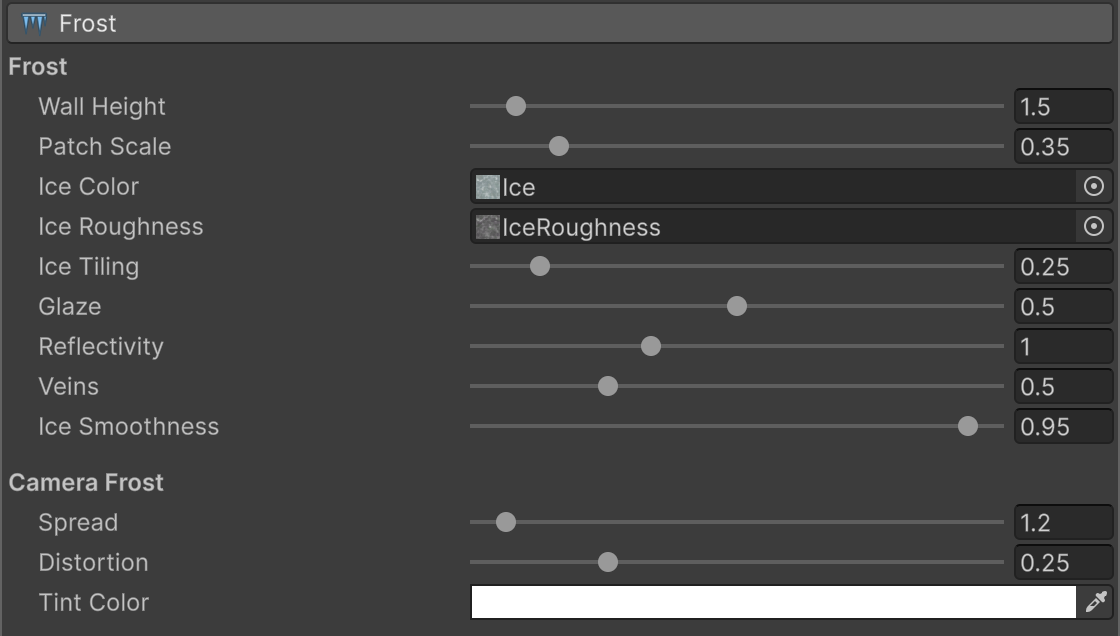
| Parameter | Description |
|---|---|
| Frost | Hoarfrost ice on the ground and walls. Range 0 to 1. 0 turns it off. Default 0. |
| Frost > Layer Mask | Layers that can get frost. Objects on other layers keep their snow but get no frost. Default: all layers. |
| Frost > Wall Height | How high the frost climbs walls, in meters, counted from the ground in front of each face. Faces sheltered from the sky stay free of frost. At the maximum, everything freezes, roofs and ceilings included. Range 0.1 to 20. Default 1.5. |
| Frost > Patch Scale | Scale of the frost patches when Frost is below 1. Higher values give smaller patches. The size of the ice detail is set by Ice Tiling. Range 0.05 to 2. Default 0.35. |
| Frost > Ice Color | Ice detail texture. Its bright areas become plate rims, cracks and frost specks. If empty, the bundled texture is used. |
| Frost > Ice Roughness | Roughness map of the ice detail. If empty, the bundled texture is used. |
| Frost > Ice Tiling | Ice detail repeats per meter. Range 0.02 to 2. Default 0.25. |
| Frost > Glaze | How much the ice darkens the surface below, like a wet glaze. Range 0 to 1. Default 0.5. |
| Frost > Reflectivity | Strength of the ice reflections: 0.5 for matte frost, 1 for real ice, 2 for a mirror pond. Range 0.5 to 2. Default 1. |
| Frost > Veins | Whiteness of the plate rims, cracks and frost specks. Range 0 to 2. Default 0.5. |
| Frost > Ice Smoothness | Glossiness of the ice plates. Range 0 to 1. Default 0.95. |
| Camera Frost | Intensity of the frost on the camera view, growing in from the edges of the screen. Temperature and Intensity set it: none above -2 °C, more as it gets colder and stronger with heavier snow. The Frost slider does not change it. Range 0 to 1.5. 0 turns it off. Default 0.35. |
| Camera Frost > Spread | Shape of the frost edge: low values let the frost reach the center of the screen sooner, high values keep it along the borders until the intensity is high. Range 1 to 5. Default 1.2. |
| Camera Frost > Distortion | How much the frost refracts the view behind it. Range 0 to 1. Default 0.25. |
| Camera Frost > Tint Color | Tint color of the camera frost. Default white. |
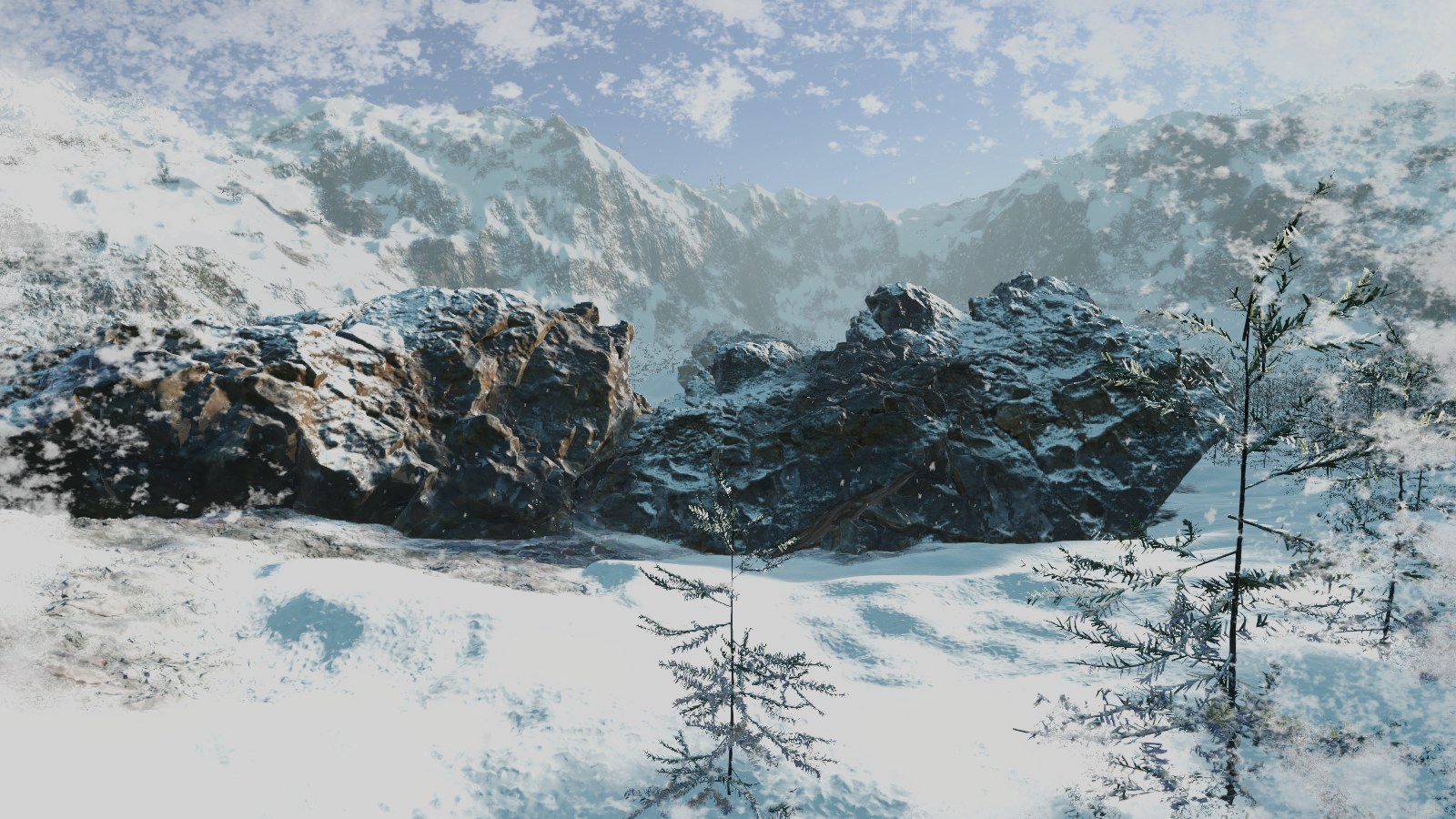
At -15 °C with light snow, the forest demo gets full Frost on the ground and the rocks, and Camera Frost along the edges of the view.
Rain & Wetness
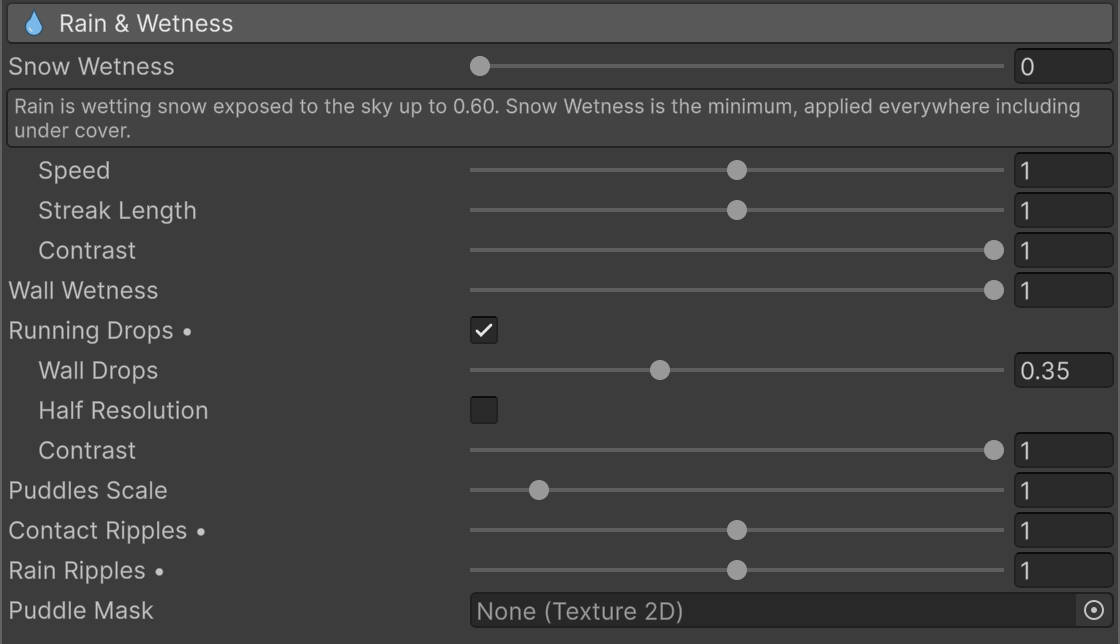
Falling rain, wet surfaces, running drops, splashes, puddles and drops on the camera lens. The Rain slider is at the top, and Temperature and Intensity in the Weather block set it. The Puddles slider of the Weather block also shows here, above the options that depend on it. Some options show only when Rain or Puddles is above 0. See Rain & Water for how they work together.
| Parameter | Description |
|---|---|
| Rain | How much it is raining: falling rain plus wet surfaces exposed to the sky. Range 0 to 1. Default 0. |
| Rain > Speed | Fall speed multiplier of the rain. Shown when Rain is above 0. Range 0.5 to 1.5. Default 1. |
| Rain > Streak Length | Length multiplier of the rain streaks. Range 0.5 to 1.5. Default 1. |
| Rain > Contrast | How visible the falling drops are, without changing the amount of rain. 1 keeps the streaks visible on bright sky or snow. At 0 the drops only bend the view behind them, like small lenses. Range 0 to 1. Default 1. |
| Snow Wetness | Wet or melting snow look: darker, smoother, softer normals and no sparkle. The snow on vegetation and terrain grass also gets darker. Rain also wets the snow exposed to the sky on its own. This value is the minimum, applied everywhere, also under cover. Snow Dust keeps blowing with wet snow. Range 0 to 1. Default 0. |
| Wall Wetness | How wet walls and other steep surfaces are on their own, rain or not. Rain adds to it, and wind also wets the walls that face it under small roofs, up to 1.5 m in. Range 0 to 1. Default 0. |
| Running Drops | Beads that appear on wet surfaces, run down under gravity, merge and leave trails. They show near the camera only, and they are the heaviest part of the rain. Performance Level Fastest turns them off: the setting keeps its value and shows "Off with Performance Level Fastest". Default on. |
| Running Drops > Wall Drops | How many running drops appear on walls and other steep surfaces, compared with gentle slopes. Higher values give more drops on walls. Range 0 to 1. Default 0.35. |
| Running Drops > Half Resolution | Draws the running drops at half resolution. About half the cost, with softer drops. Performance Level Medium and Fastest turn it on. Default off. |
| Running Drops > Contrast | How much the running drops stand out. At 1 they also darken bright surfaces such as snow. At 0 they only show reflections and sun glints. Range 0 to 1. Default 1. |
| Rain Splashes | Small splashes that the rain drops throw within 12 m of the camera wherever they hit, also with Puddles at 0. On standing water a drop throws a crown and droplets with a ring around it, strongest on a thin layer of water and smaller on deep puddles. On wet surfaces and running water, such as roads without puddles, roofs, rocks and car bodies, it spreads flat with a few low droplets and no crown. The value sets the size of each splash, not how many there are. Frozen puddles get none. They need Rain above 0. Performance Level Fastest turns them off. Range 0 to 2. 0 turns them off. Default 1. |
| Puddles > Puddles Scale | Scale of the procedural puddle pattern. Higher values give smaller, more isolated puddles. A Puddle Mask uses its own Mask World Size instead. The Puddles options show when Puddles is above 0. Range 0.1 to 8. Default 1. |
| Puddles > Puddles Smoothness | How smooth the water of the puddles is. Lower values give shorter, wider and softer reflections of lights such as headlights. Range 0.3 to 1. Default 0.95. |
| Puddles > Puddles Max Slope | Steepest ground, in degrees, that holds standing water. Steeper ground up to about 30 degrees gets a thin layer of water that runs downhill, with the rain rings carried along. Rounded tops never hold puddles. Range 0 to 20. Default 3. |
| Puddles > Ice | How frozen the puddles are, from 0 water to 1 still ice. Frozen puddles are pale, cloudy ice with white cracks, and they have no ripples, flowing water, wind ripples or splashes. The cracks follow the Ice Color and Ice Tiling of Frost. Temperature sets it, water from 0 °C and solid ice at -4 °C, and you can also set it by hand. Range 0 to 1. Default 0. |
| Puddles > Deep Water Tint | Color of the water that collects in deep marks, footprints and furrows in the snow, where it is deepest. Alpha sets how much it darkens the snow below. The thin water on the ground keeps its look. Default a light blue gray with alpha 0.8. |
| Puddles > Contact Ripples | Strength of the ripples that footprints, marks and impacts leave on the puddles. 0 turns them off. Range 0 to 2. Default 1. |
| Puddles > Rain Ripples | Strength of the rings that rain drops leave on the puddles. 0 turns them off. Range 0 to 2. Default 1. |
| Puddles > Puddle Mask | Optional texture mapped on the world that chooses where puddles can form (red channel). White areas get puddles first, black areas never get puddles. Without a mask, procedural patches are used. You can paint it with the Puddle Editor. |
| Puddles > Puddle Mask > Mask World Size | World meters covered by the puddle mask. The area outside the mask stays dry. Shown when a Puddle Mask is assigned. Default 512. |
| Puddles > Puddle Mask > Mask World Center | World X and Z position of the center of the puddle mask. Shown when a Puddle Mask is assigned. Default 0, 0. |
| Puddles > Enable Puddle Editor | Paints the Puddle Mask in the Scene View with the same brush, Shift and undo as the Mask Editor. While it is on, the Scene View shows the mask area in light blue and the painted puddles in darker blue. It only works in Edit mode: in Play mode its options are hidden. Turning it on turns off the Mask Editor. With a Puddle Mask, Puddles at 1 fills the painted areas and never floods the rest. Only on the Global Snow component, not on profiles. |
| Puddle Editor > Resolution | Size in pixels of a new puddle mask texture, from 256 to 8192. Create New Puddle Mask creates a mask with no puddles next to the scene, assigns it and sets Mask World Size and Mask World Center to cover the active terrain. Default 1024. |
| Puddle Editor > Brush Mode | Add Puddles or Remove Puddles. Hold Shift while painting to use the other mode. Default Add Puddles. |
| Puddle Editor > Radius / Fuzziness / Opacity | Brush radius in meters (default 1), soft edge of the brush (default 0.5), and how much each brush stamp changes the mask (default 1). With a soft edge, higher Puddles values grow the puddle toward the edge of the stroke. |
| Puddle Editor > Fill Puddles / Clear Puddles | Fills the whole mask with puddles, or removes them all. |
| Camera Rain | Drops on the camera lens while it rains, scaled by Rain, so it needs Rain above 0. More drops land when the camera faces the rain or moves into it, and none with its back to the rain or looking down. The drops grow in the rain and, once they are heavy enough, run down with the slant of the rain without stopping until they leave the lens, joining other drops and leaving wet trails that dry. The more the camera looks up or down, the slower they run, so looking straight up they stay on the lens, grow and join. When the camera turns, the drops and trails already on the lens stay where they are. Under a roof no new drops land and the ones on the lens dry out. Only on the camera with Global Snow, never in the Scene View. Range 0 to 1. Default 0. |
| Camera Rain > Drop Size | Size of the drops on the lens. Smaller drops bend the view the same way, only over a smaller area. Range 0.5 to 2. Default 1. |
| Camera Rain > Distortion | How much the drops bend the view behind them. Range 0 to 1. Default 0.5. |
| Lightning Rate | Lightning strikes per minute, on average. Strikes only fall while it rains, and only in Play mode. Global Snow plays no sound itself: the OnThunder event tells your scripts when the thunder of each strike arrives (see Events). Range 0 to 30. 0 turns it off. Default 0. |
| Lightning > Flash | Each strike lights the scene and the sky. Turn it off to keep only the thunder. The flash uses the light in the Sun field of the Weather block, and the sky flashes with the Unity skyboxes that have an Exposure setting. Shown when Lightning Rate is above 0. Default on. |
| Flash > Types | The types of flash that the strikes use. You can tick several types, and each strike uses one of the ticked types at random. Strike is a bright bolt with 2 to 6 short flashes and dark between them, each one with a random strength. Flicker is many quick, weak flashes inside the clouds. Glow is a soft flash behind the clouds. With no type ticked, the strikes do not flash and only the thunder remains, as with Flash off. Shown when Flash is on. Default Strike. |
| Flash > Brightness | The light that a near strike adds to the Sun, in the same units as the Sun intensity. The ambient light, the fog and the sky grow in the same proportion, so strikes show little in daylight and a lot at night. Far strikes flash less. Shown when Flash is on. Range 0 to 4. Default 1. |
| Lightning > Storm Distance | The nearest and the farthest strike, from 0.5 to 5 km. Each strike falls at a random distance in this range. Far strikes flash less, and their thunder comes later, about 3 seconds per km. Shown when Lightning Rate is above 0. Default 0.5 to 2 km, so the thunder comes about 1.5 to 6 seconds after the strike. |
Tools & Debug
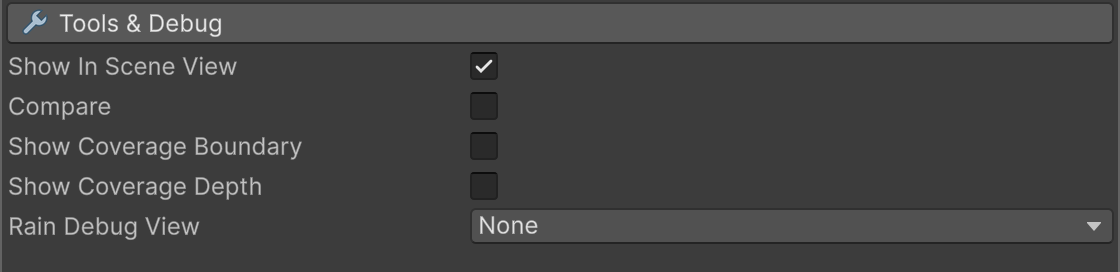
Scene View preview, a split view to compare the scene with and without Global Snow, and debug views.
| Parameter | Description |
|---|---|
| Show In Scene View | Renders the snow in the Scene View. Default on. |
| Compare | Split view: one side of a line shows the scene without Global Snow. Default off. |
| Compare > Same Side | Both sides show the same view: a copy of the game camera renders the scene without Global Snow. Game camera only, the Scene View keeps the split. Default off. |
| Compare > Panning | Shown with Same Side. Shifts the view along the split so you can center the area you compare. Range 0 to 0.5. Default 0.25. |
| Compare > Line Angle | Angle of the split line in degrees, from -180 to 180. Default 80. |
| Compare > Line Width | Thickness of the split line as a fraction of the screen. Range 0.0001 to 0.05. Default 0.002. |
| Update Coverage Now | Button shown in Play mode when Use Zenithal Coverage is on and Coverage Update is not Disabled. Captures the coverage again. |
| Rain Debug View | None. Impact Rings shows the rain impact field as brightness. Running Drops Receiver shows where running drops can appear: black where they cannot appear, gray where they can. Puddles shows the standing water in solid blue over the scene. Default None. |
Next Steps
- Rain & Water - how rain, wetness, puddles, ripples and running drops work together.
- Additional Topics - footprints, deep marks, exclusions, coverage mask and profiles.
- Scripting Support (C#) - runtime API reference.
Suggest an improvement
Help us improve this documentation page.