Demo Scenes
beginner tasksGlobal Snow & Rain 3 · Common Tasks
Demo Scenes
Global Snow includes a demo scene in the Demo folder. Open ForestDemo and press Play to explore it.
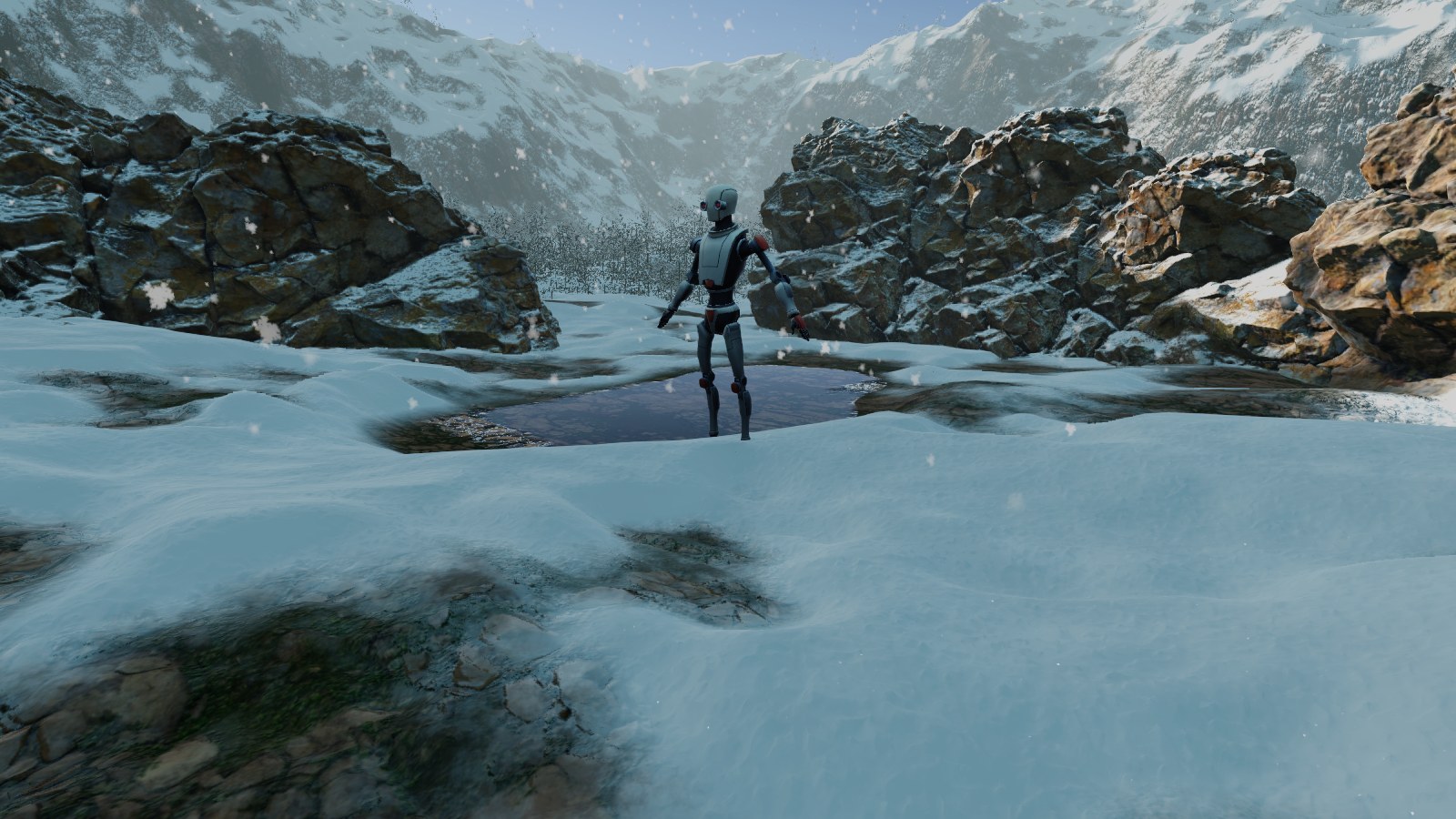
Included Scene
- ForestDemo - a forest clearing with fir trees, boulders and a pond in a valley of craggy terrains, with Robot Kyle walking in the snow and the Weather panel. The Global Snow component is on the camera, the terrains are in its Snow Accumulation Receivers, and ambience sounds follow the wind, the snowfall and the rain. Kyle's steps sound on snow, on water, on ice over frozen water and on bare ground.
The scene uses the Look_SnowDay look. To try another look, drag a prefab from Demo/DemoSources/LookPresets into the scene, such as Look_SnowNight or Look_RainDay, and disable Look_SnowDay. Keep only one look active.
Controls
The camera starts following Kyle. Press T to switch between following Kyle and a free camera.
| Key | Action |
|---|---|
| T | Switch camera: follow Kyle, free camera |
| W A S D or arrow keys | Walk with Kyle, or fly the free camera |
| Spacebar | Kyle jumps |
| Right mouse button + move | Orbit around Kyle, or look around with the free camera |
| Mouse wheel | Zoom in and out while following Kyle |
| Q / E | Free camera: move down / up |
| Left Shift | Free camera: fly faster |
When the camera does not follow Kyle, Kyle walks in circles on its own.
The on-screen Weather panel at the bottom right has these rows: Snow (On and Coverage), Temperature (°C), Intensity (it shows what falls, such as Medium Wet Snow or Rain Storm), Transition (seconds each change takes to blend, 0 to 20, 4 by default), Sound (On and Volume, which starts at 50%) and Camera Effects (On turns the drops and the frost on the lens on and off, and the Lightning toggle next to it turns the lightning strikes on and off while it rains). The scene starts at 0 °C with medium wet snow and a liquid pond. Camera Frost and Lightning are on in the scene. The wind sound follows the wind speed, and the snowfall and rain sounds follow how much falls. The DemoWeatherAmbience component plays a thunder clip on each OnThunder event, quieter and duller for far strikes, and you can use it in any scene. The Hide button hides the Weather panel and the controls help.
Features Demonstrated
- Snow coverage with relief shading, and the Snow Accumulation on the terrains of the valley.
- Deep Marks in the snow accumulation under Kyle, with the Global Snow Interaction component.
- Impact FX snow bursts where Kyle touches the snow.
- Snowfall and snow dust, from cold snow to wet snow with the Temperature and Intensity rows of the panel.
- Rain, puddles and Camera Rain drops on the lens above +1 °C, with wind ripples and rain rings on the pond, and ripples where Kyle touches the water. Below 0 °C the pond freezes.
- Camera Frost on the lens when it is cold enough for frost, growing in from the edges as the Temperature drops.
- Object exclusion with Global Snow Ignore Coverage on Kyle.
Each change of the Weather panel blends over the Transition time. Change the settings of the Global Snow component on the camera to try other mixes of snow, rain and frost.
Demo/URP Settings folder contains a URP asset and a Universal Renderer already set to Deferred with the Global Snow Render Feature. If the snow does not appear in the demo, check that your active URP asset uses a deferred renderer with the Global Snow Render Feature, or assign this one in Project Settings > Graphics.
Demo folder before building your game. Do not ship demo assets with your production build.
Next Steps
- Quick Start - set up Global Snow in your own scene.
- Control Snow Placement - choose where the snow goes in your scene.
Suggest an improvement
Help us improve this documentation page.