Demo
Lines Plus for Unreal · Demo
The plugin includes a demo level with ten examples of use, one on each pad, in two rows. The level, its materials and its styles are in the content of the plugin, in the folder Demo. The demo uses only content of the plugin and the basic shapes of the engine.
Open the demo level
- In the Content Browser, click the gear icon at the top right and, under Content, enable Plugin Content. If you installed the plugin to the engine from Fab, enable Engine Content too.
- Open the folder Plugins > Lines Plus > Demo, or Engine > Plugins > Lines Plus > Demo if the plugin is installed to the engine.
- Double-click the level Demo and press Play.
The examples are drawn while the game plays. In the editor, the pads are empty.
Controls
The view starts with all the pads.
- Click a pad to see it closer. From the view of one pad, click another pad to go to it.
- Right-click to go back to all the pads.
- On a touch screen, tap a pad to see it closer and tap with a second finger to go back.
- In each example the pointer changes something. The text at the top of the screen says what it does.
- The space bar and the right arrow key move the view to the next pad.
- After 20 seconds without input, the view moves from one pad to the next by itself.
If the project uses Temporal Super Resolution, the demo uses Temporal Anti-Aliasing while it plays, for a higher frame rate, and sets the method of the project again when it ends. To keep the method of the project, disable Fast Anti Aliasing in the actor Lines Plus Demo of the level.
The examples
| Pad | What it shows | What the pointer does |
|---|---|---|
| Aim | A projectile path with glow and shadow made with Draw Trajectory, with a ring at the point of the hit. | The path lands at the pointer. |
| Path | A flat ribbon on the ground with moving arrow shapes and an arrow, drawn through four points. | Hold the button on a point of the path, or on its end, and move the pointer to move that point. |
| Draw | A line with a color gradient and glow that draws itself and then erases itself. | Hold the button and move the pointer to draw on the board a line with a brush texture. Click a color at the top of the board to change the color. The line fades out after some seconds. |
| Tubes | Lit tubes that cast shadows: hanging cables, a tube with a round start and an arrow, and a tube that gets thinner. | Hold the button on a tube and move the pointer to bend it. |
| Through Walls | Three links to an object behind a wall. The green line is visible through the wall, the yellow line shows its hidden part in red, like an X-ray, and the wall hides the blue line. Each line shows its mode in a label: Always Visible, See-Through and Normal. | The object behind the wall follows the pointer. |
| Performance | Thousands of lines attached to an object that turns. The text shows the number of lines, the number of meshes and the frames per second. | A click changes the number of lines: 1,000, 10,000, 50,000 or 100,000. |
| Pixel Width | Two wire cubes. The lines of the left cube have a width in world units, so they look thinner from far. The lines of the right cube have a width in screen pixels, so they keep their width on the screen. | The mouse wheel moves the view closer or farther. On a touch screen, drag up and down. |
| Links | Lines with glow made with Draw Link that follow moving objects. | One of the objects follows the pointer. |
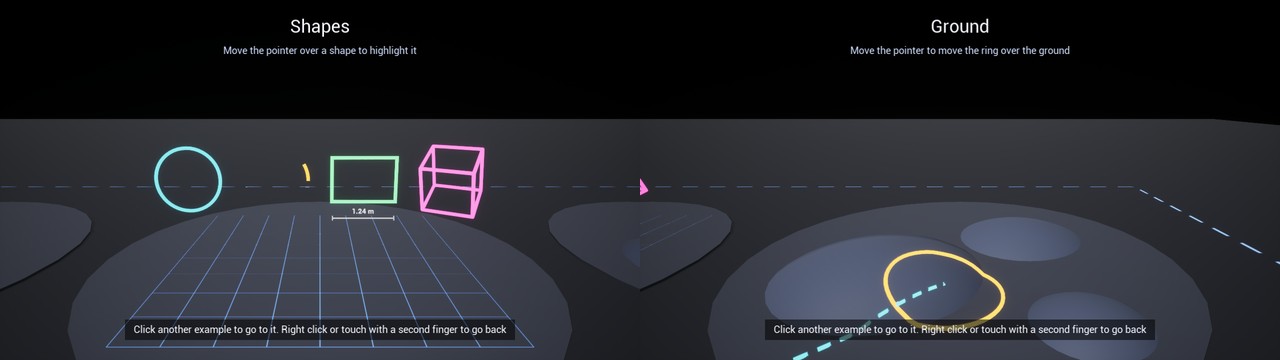
| Shapes | A circle, an arc that opens and closes, a rectangle, a box and a grid, made with the shape nodes. Under the rectangle, a measure line with bars at its ends shows its length. | The shape under the pointer gets wider and white. The example finds it with Find Line Near Ray. |
| Ground | A ring and a dashed line that use Snap to Ground, over three hills. | The ring follows the pointer over the hills. |
How each example is made
| Pad | Nodes | Style settings |
|---|---|---|
| Aim | Draw Trajectory once, then Update Trajectory in each frame. The velocity comes from the engine node Suggest Projectile Velocity Custom Arc. The ring is a closed Draw Polyline moved with Set Line Points and hidden with Set Line Visible when the path hits nothing. | Pattern = Dashed with Pattern Speed, Glow Width, Cast Shadow, End Cap = Arrow. |
| Path | Draw Curve through four points, then Set Line Points with Make Curve Points while a point moves. | Shape = Flat Ribbon, Pattern = Chevrons with Pattern Speed, End Cap = Arrow. |
| Draw | The star is a Draw Polyline with Play Draw and Play Erase. The line of the pointer is a Draw Polyline that receives the whole list of points again with Set Line Points, and then Set Line Lifetime. | Star: Gradient, Blend = Additive, Glow Width, round caps, Draw Easing. Pointer line: Shape = Flat Ribbon, Texture, Texture Length, Fade Out Duration. |
| Tubes | Draw Curve, then Set Line Points with Make Curve Points while a tube bends. | Shape = Tube, Blend = Opaque, Lit, Cast Shadow, Start Cap = Round, End Cap = Arrow, End Width Scale. |
| Through Walls | Three Draw Link nodes. | Visible Through Walls, Use Hidden Color, Hidden Color, X-Ray, Label. |
| Performance | Draw Line and Attach Line for each line, Remove Line, Get Line Count and Get Group Count. | Blend = Opaque. |
| Pixel Width | Draw Segments with the twelve edges of each cube. | Width Unit = World Units or Screen Pixels. |
| Links | Draw Link between each pair of objects. | Use End Color, Blend = Additive, Glow Width. |
| Shapes | Draw Circle, Draw Arc, Draw Rectangle, Draw Box and Draw Grid. The arc changes with Make Circle Points and Set Line Points. The highlight uses Find Line Near Ray and Set Line Style. The measure is a Draw Line. | Corner = Sharp. Measure: Start Cap and End Cap = Bar, Show Length. |
| Ground | Draw Circle and Draw Line, moved with Make Circle Points, Set Line Points and Set Line Ends. | Snap to Ground, Ground Offset, Ground Spacing, Pattern = Dashed. |
The dashed border and the underline of the title are Lines Plus actors placed in the level, with style assets of the folder Demo > Styles. You can select them to see their settings.
The code of the demo
The actor Lines Plus Demo of the level draws all the examples with the functions of the plugin. Its code is in the files LinesPlusDemo.h and LinesPlusDemo.cpp, in the folder Source/LinesPlus/Private/Demo of the plugin. You can use it as a reference for your own code.
Suggest an improvement
Help us improve this documentation page.