Action History
beginner conceptsEditor Doctor Pro · Core Concepts
Action History
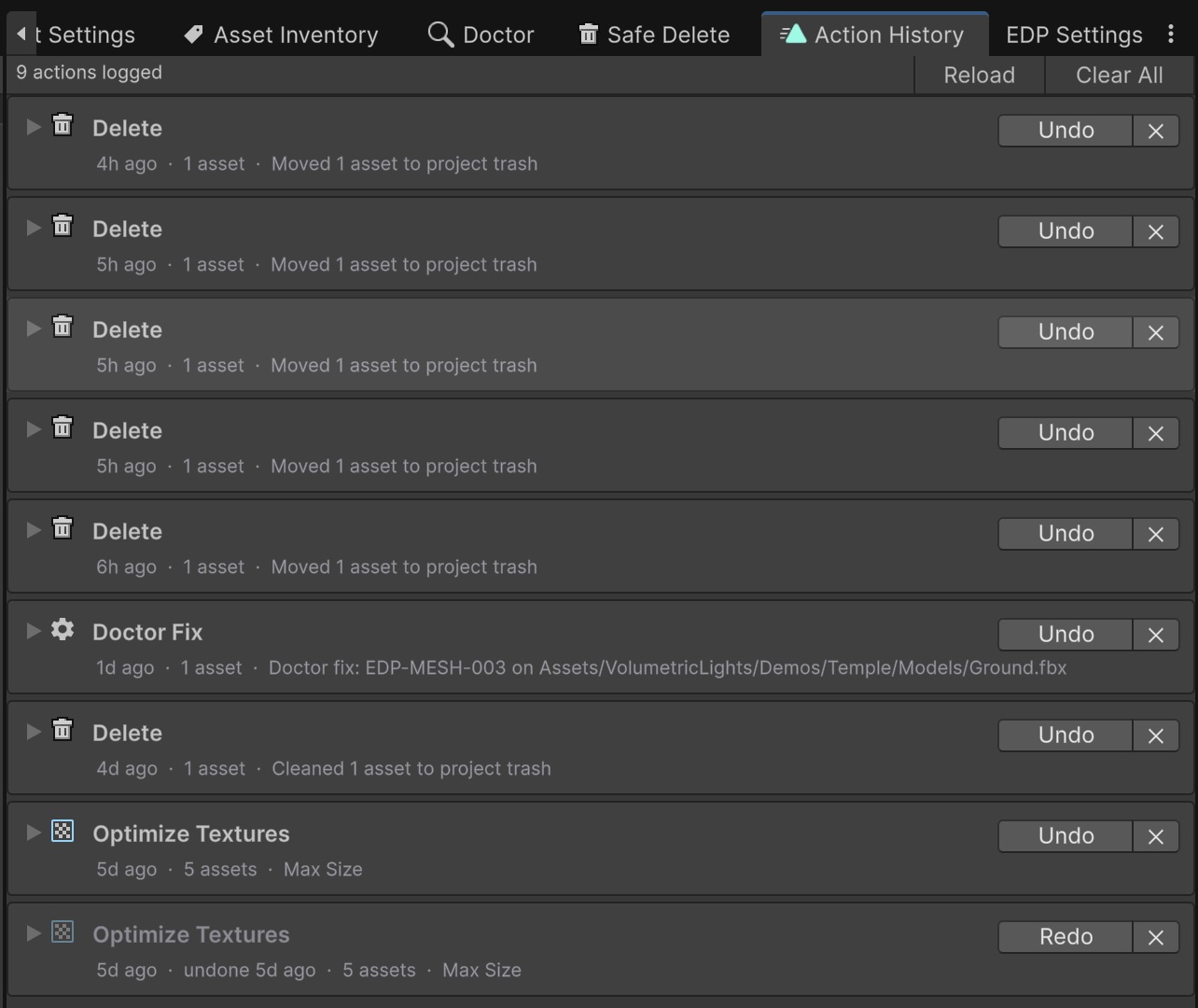
Action History is the journal of every fix, soft-delete and restore EDP has performed in this project. It is the canonical place to revert any change EDP has made: entries persist across editor restarts in Library/EDP/journal.json (gitignored, per-machine).
Open it from Window > Kronnect > Editor Doctor Pro > Action History.
What gets journaled
| Action | Journaled? | Reversible from Action History? |
|---|---|---|
| Auto-tier fix from the Doctor | Yes | Yes |
| Apply All Auto Fixes (batch) | Yes — undoable fixes and log-only fixes are recorded separately | Partial: fixes that captured before/after snapshots undo as Doctor Fix; others appear as Doctor (log only) |
| Manual fix (e.g. Conventions MoveAsset / Rename) | Yes (Doctor Fix) | Yes when the fix implements journal-driven undo |
| Per-rule severity override from the Doctor row menu | Yes | Yes |
| Soft-delete via Safe Delete or Project Inventory delete | Yes (Delete, one entry per batch) | Yes — whole batch from Action History, or per-item from Trash |
| Bulk Optimize (Textures / Audio / Meshes) | Yes | Yes |
| Restore from Trash | No new entry — the original Delete row updates its undone state | Restore again via Safe Delete if needed |
Entry fields
Each row carries:
- Timestamp - ISO 8601 UTC (
TimestampUtc). - Type - Doctor Fix, Doctor (log-only bulk), Delete, Optimize Textures, Optimize Audio, Optimize Meshes, or Severity Override.
- Summary - human-readable description of the batch.
- Item count - how many assets the action touched. Expand a row to see per-asset paths and before / after field values.
- Undo state - active entries offer Undo; undone entries offer Redo. Log-only rows show Log only instead.
Reverting (full and partial)
Most actions can be reverted directly from the Action History row:
- Full undo. Click Undo on a batch row to revert every item at once. The status flips to Undone. Click Redo to re-apply the whole batch.
- Partial undo. Soft-delete batches can be partially undone: restore individual items from the Trash window and the corresponding Action History entry flips to Partially Undone. The remaining items still appear in the entry and can still be restored later.
- Suppressions. Select the row and click Toggle; the suppression flips state.
The Action History row is the canonical place to revert any EDP-applied action. Every entry persists across editor restarts so you can revert (or simply review) what changed long after the original session has ended.
Toolbar
The toolbar shows the entry count plus Reload (re-read Library/EDP/journal.json) and Clear All (remove every journal row without reverting the underlying changes).
Storage and caps
The journal lives at Library/EDP/journal.json. The file is per-machine state (under Library/ rather than ProjectSettings/) and is gitignored by Unity's defaults. Copy details from the expanded row if you need to attach a slice to a ticket.
To keep the journal cheap to load on every editor open, two caps apply: a maximum of 50 entries and 5 MB on disk. When either cap is hit, the oldest entries roll off. If you need a permanent record, export to CSV after each significant batch.
Suggest an improvement
Help us improve this documentation page.