Zones
intermediate conceptsBy default Global Dirt covers the whole scene. Zones customize it inside chosen areas without touching the rest: a clean showroom in a dirty city, a rusty corner of a factory, the area around a leaking pipe. A zone does for a volume of space what a Global Dirt Object does for a renderer: exclude it from the effect, or give it its own profile with optional inheritance from the global volume.
This video walks through zones and the Global Dirt Object component in a real scene, step by step:
Adding a zone
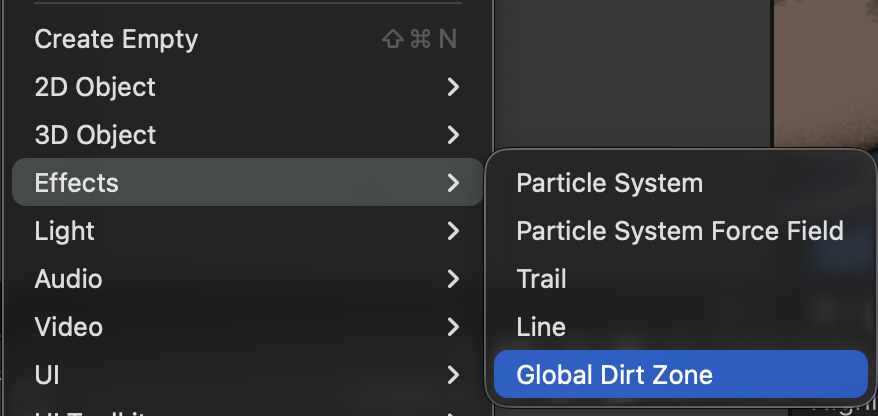
- Pick GameObject / Effects / Global Dirt Zone. The zone is created in front of the Scene view camera, already selected, as a 10 meter box.
- Move, rotate and scale it. The transform is the area, and the scale is its size in meters. It is drawn as a gizmo when the object is selected.
- Turn on Exclude From Global Dirt to keep the area clean, or assign a Profile to give it its own look. New creates an empty profile and From Global starts from a copy of the global Global Dirt override.
Outside the box the global volume applies exactly as before, unless Limit To Zones is on. The zone is the unit box of its transform, or the sphere or ellipsoid that fits inside it when Roundness is raised, tested per pixel: nothing is rasterized and no mask texture is written, so rotating or scaling the object costs nothing.
Limit the effect to zones
To show the effect only inside zones and keep the rest of the scene clean, turn on Limit To Zones in the General Settings of the global volume. Then a zone with no profile and no exclusion shows the global look inside its box, a zone with a profile shows that profile, and outside every zone nothing is rendered. Any number of zones can share the scene, each with its own look, and Weight and Fade Distance keep their meaning: Weight is the share of the global Intensity inside the box, Fade Distance blends it toward clean at the border.
A renderer with its own Global Dirt Object profile keeps that look anywhere, inside or outside a zone. With no zone and no such object in view the effect skips rendering entirely, so an empty scene costs nothing. The inspector warns when the option is on and the scene has no zone.
Zone properties
The position, rotation and scale of the GameObject define the area, so the component only carries what the transform cannot say:
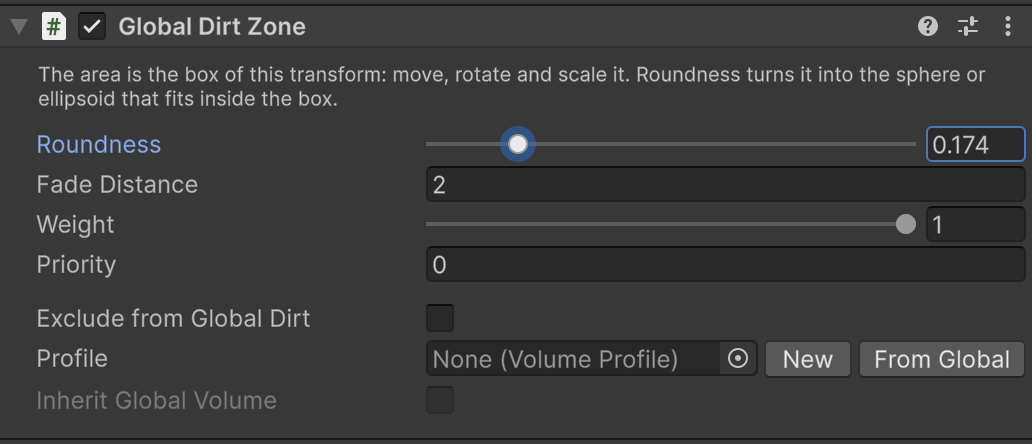
| Exclude From Global Dirt | Keeps the area clean of the global effect. A renderer with its own Global Dirt Object still keeps its explicit settings. |
| Profile | A Volume Profile with a Global Dirt override, applied inside the area instead of the global one. Leave it empty to keep the global look. |
| Inherit Global Volume | On: parameters without an override come from the global volume, so the area gets the scene look plus its own overrides. Off: they use the neutral defaults and the area shows only what its profile enables. |
| Priority | When areas overlap, the highest priority wins. Equal priorities have no meaningful order, so give overlapping areas different priorities. |
| Roundness | Shape of the area. 0 is the box of the transform, 1 is the sphere or ellipsoid that fits inside it, and values in between round the box progressively. The gizmo follows the shape. Version 1.4 or later. |
| Fade Distance | Meters over which the intensity blends between the surroundings and the zone at its border, so zones never end with a hard edge. |
| Weight | Share of the global Intensity inside the area. With a profile, 1 keeps the full intensity and lower values dim it. With Exclude on, 1 removes the effect entirely and lower values only dim it. |
Good to know
- Up to 8 zones can be visible at once. When there are more, the highest priority ones are used and the rest are ignored with a warning.
- Zone and object profiles share one 16-slot table, so they count together toward that limit.
- Roundness costs nothing on box zones (Roundness 0). A rounded zone adds a few instructions, only for the pixels inside its box.
- Zones can move at runtime. A zone parented to a moving object carries its area along.
- A zone with neither a profile nor Exclude, at Weight 1, changes nothing and is skipped, unless Limit To Zones is on: then it is where the effect shows. Zones outside the camera view are skipped as well.
- An explicit object profile or exclusion wins over a zone at the same pixels.
Suggest an improvement
Help us improve this documentation page.