Object Settings
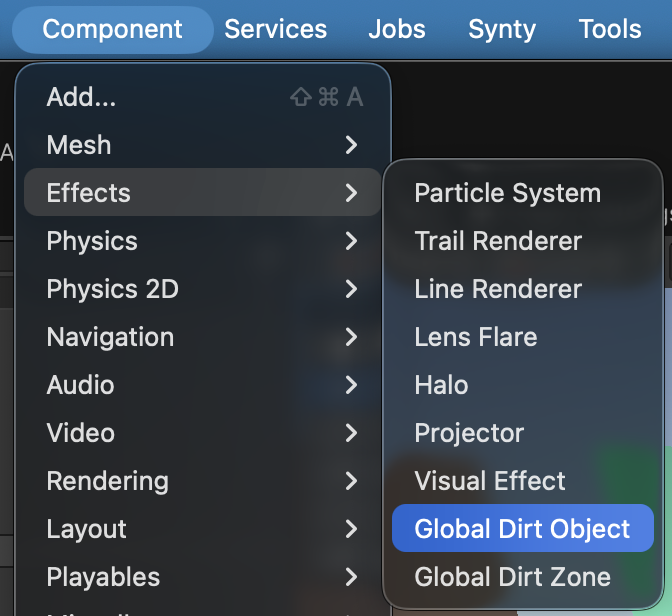
intermediate conceptsEverything an individual object needs lives in one component: Global Dirt Object. Add it from Component / Effects / Global Dirt Object with the objects selected, or from Add Component (Effects / Global Dirt Object). It does three independent jobs, and you can use any combination of them.
This video walks through the component and the zones in a real scene, step by step:
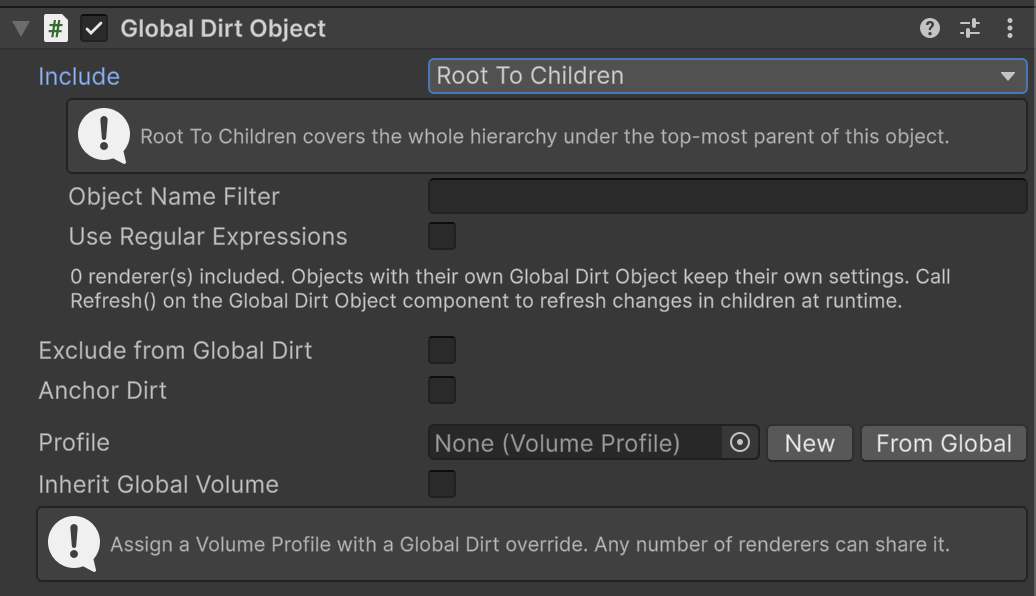
Anchor Dirt
Global Dirt places its patterns in world space, which is exactly right for buildings and terrain. An object that moves would slide under its own dirt, like driving a car under a shadow. Turn on Anchor Dirt and the effect is computed in the object's own space instead, so the dirt travels with it through movement and rotation.
Anchored renderers are drawn one extra time to record their positions, so anchor what moves, not the whole scene. Static geometry never needs it. Anchor Layers in the volume override does the same for every object on a layer, which is the better tool when you have many movers that already share one; the component is the per-object way to it. When an object is already covered by Anchor Layers the inspector says so, because the checkbox then changes nothing.
Exclude From Global Dirt
Turn on Exclude From Global Dirt and the included renderers stay clean: their pixels are masked and the effect exits early on them. The global effect, every zone and every profile skip them. No profile is needed, and the rest of the component is hidden while it is on.
For whole layers, use Excluded Layers in the volume override instead. See Moving Objects & Exclusions.
Object profile
An object profile is an ordinary Volume Profile with a Global Dirt override. Assign one to Profile and every parameter whose override checkbox is on replaces the global value on that object: dirt color, moss coverage, metal aging, rust strength, seeds, offsets, patch sizes, color variation, sun bleach, the vertical gradient.
Two buttons next to the field make one for you. New creates an empty profile and assigns it; From Global duplicates the profile of the active global volume, overrides included, so you start from the look you already have. The profile editor is embedded in the component, so you tune the object without leaving it.
| Inherit Global Volume | Off (the default): parameters without an override use the neutral defaults, so the object shows only what its profile enables. On: they take the global volume values, so the object gets the scene deposits plus its own overrides. The same profile used both ways resolves to two different slots. |
Intensity, Quality, the layer masks, Show In Scene View and Compare are global only. They are hidden when the profile is edited from the component and ignored if a profile carries them.
Include: which renderers the component covers
All three jobs act on the same set of renderers, chosen by Include. One component on a root can therefore anchor, clean or re-skin a whole hierarchy.
| Only This Object | The renderer on this GameObject. The default. |
| Children | This object and everything under it. |
| Root To Children | The whole hierarchy under the top-most parent of this object. |
| Layer In Children | Objects under this one that are on the chosen Layer. |
| Layer In Scene | Every object in the scene on the chosen Layer. |
| Scripting | The list you pass to SetRenderers(). |
| Object Name Filter | Narrows any of the multi-object modes to names containing this text, or matching it as a regular expression with Use Regular Expressions. The inspector reports a bad expression and counts the renderers that ended up included. |
An object that carries its own Global Dirt Object keeps its own settings, so a component on a child always wins over a parent that includes it. Renderers without a mesh, and renderers whose materials are all transparent, are left out. The set is rebuilt when the component is enabled, when a value changes and on every hierarchy change in the editor; at runtime call Refresh() after you change the hierarchy, the layers or the names.
Good to know
- Any number of renderers can share one profile. Up to 16 different Zone and Object profiles visible to one camera can be in use at once; the extras are ignored and named in a warning.
- Only renderers whose world bounds are inside the camera frustum are collected, so a profile off screen enables none of its costly features for that camera.
- An explicit object profile or exclusion wins over a Zone covering the same pixels.
- Materials that displace vertices in their shader do not receive an object profile.
- Alpha-clipped materials work in the usual case. When the background sits at the same depth as the clipped surface the profile can leak into the hole, and alpha to coverage with MSAA is not validated.
Suggest an improvement
Help us improve this documentation page.