Set a New World — Step by Step
beginner quick startLearn how to configure a new world in Voxel Play 3, step by step, in a few minutes.
Step 1:
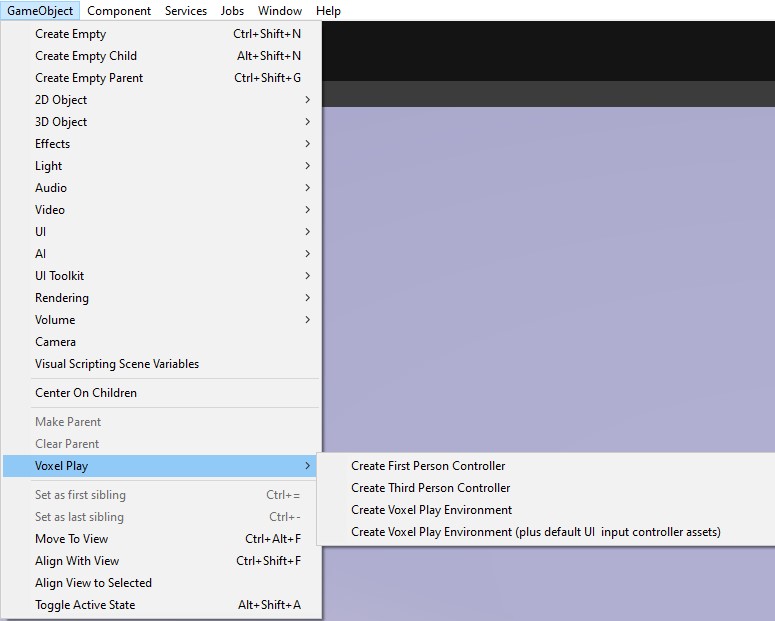
Go to GameObject - Voxel Play - Create Voxel Play Environment (you can select the default Voxel Play Environment, or with the UI elements). In our case, and to make things more fluid, we will select the second option that will also save you time.
Step 2:
Create or assign a new World Definition asset, by selecting Voxel Play Environment and hitting “Create”.
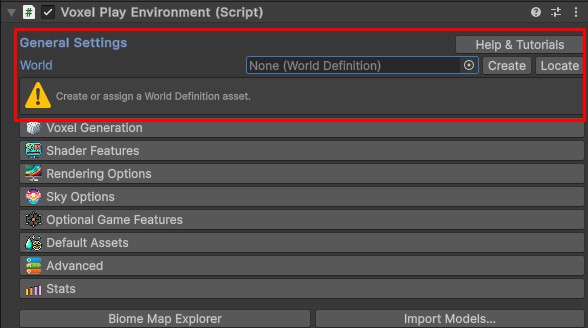
You will see that the world editor now is enabled, and you can start editing the chunks that are generated in the world.
Step 3:
Now define how the terrain is shaped. Select the Voxel Play Environment, go to World Settings > Terrain Generator and open the assigned Terrain Generator. The generation pipeline is built visually in the Terrain Graph Editor: click Open in Graph Editor in the generator’s Inspector (the old inline Steps list has been replaced by this node-based editor).
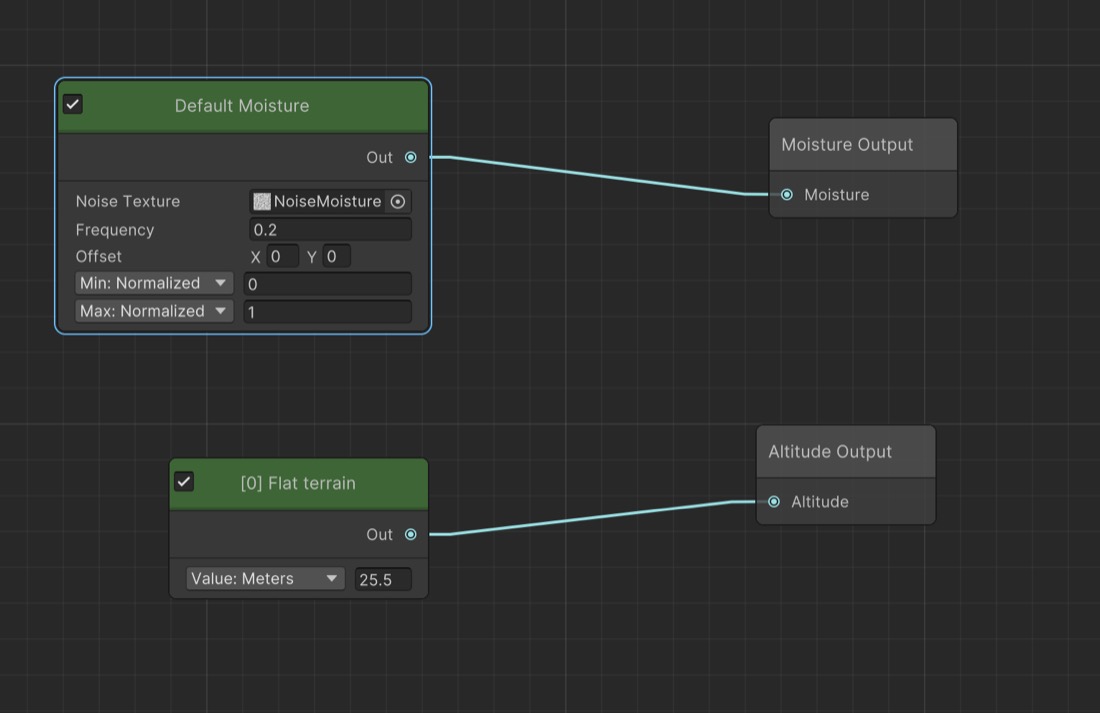
When you hit Create, Voxel Play also generates a default Terrain Generator so the world is playable right away. Opening it in the Graph Editor reveals two node chains: a [0] Flat terrain node, a constant altitude of 25.5 meters (0.1 of the 255 Max Height), wired to the Altitude Output; and a Default Moisture node, which samples the built-in NoiseMoisture texture, wired to the Moisture Output.
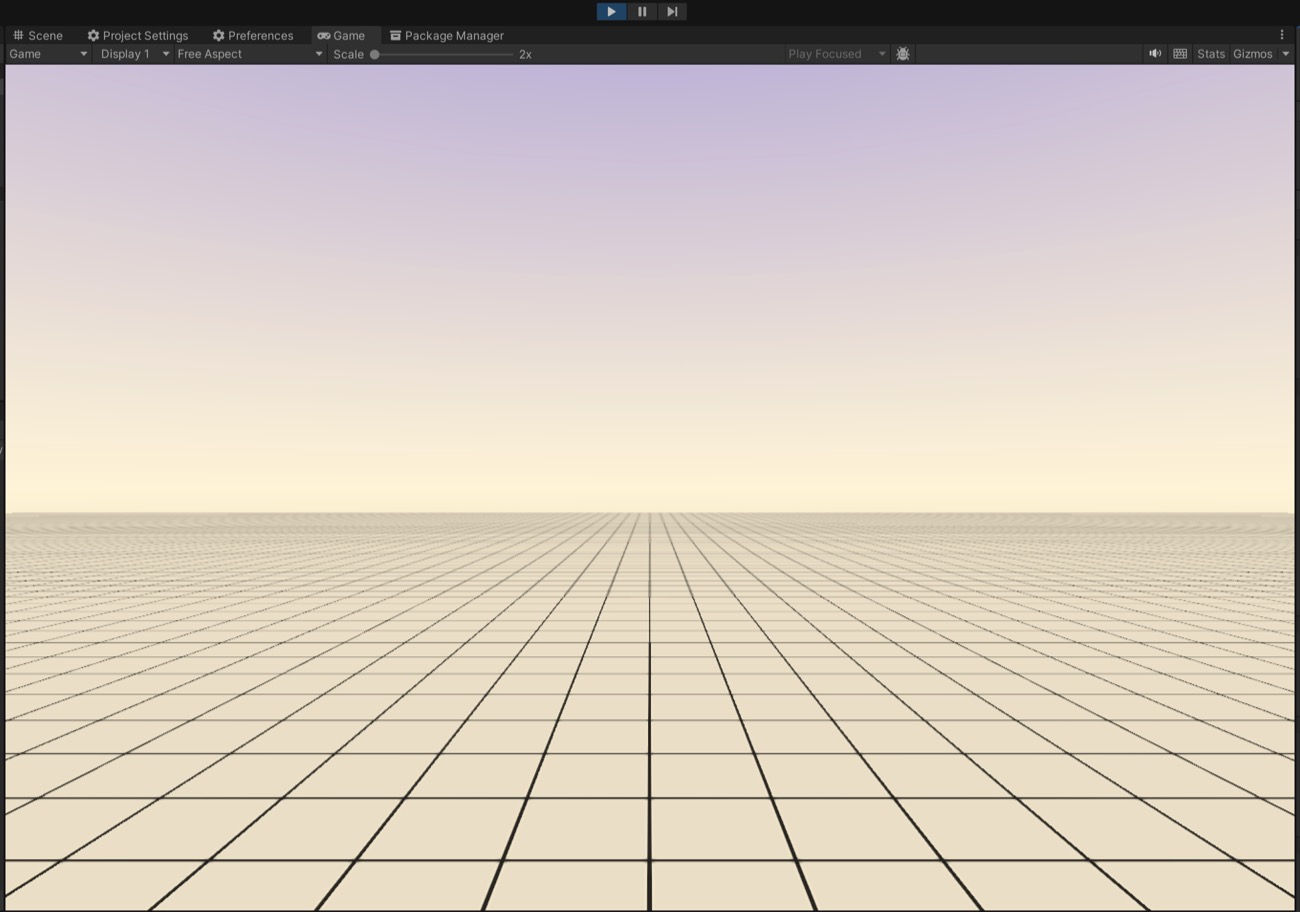
With this default setup, if you place the camera at an altitude of 30 and press Play, you will see a flat plain stretching to the horizon:
In the graph you connect nodes that produce an altitude value for every world position. Right-click on the canvas to open the Create Node menu and pick the nodes you need, then drag from each node’s output port to the next node’s input port. Every graph ends in an Altitude Output node, whose value (normalized 0 to 1) is multiplied by the environment’s Max Height to set the world altitude.
Our goal is to create a Desert environment. The new generator already contains two default nodes, [0] Flat terrain (wired to Altitude Output) and Default Moisture (wired to Moisture Output). Delete both of them first, then build the graph below:
- Sample Height Map Texture (Samplers category): generates the base relief from a heightmap texture, which you assign in the node's texture slot. The Frequency controls how stretched or repeated the pattern is; here we use 1. Switch the output range to Meters and set Min = 0 and Max = 20, so the sampled relief spans from 0 to 20 meters of altitude.
- Threshold (Filters category): this is the node that turns the noisy relief into a flat desert floor with isolated dunes, and it is the part that usually causes confusion, so here is exactly what it does. It acts as a cutoff on the incoming altitude: if the value is greater than or equal to the Threshold it passes through unchanged (plus the optional If Greater, Add); if it is below, it is replaced by the constant If Not, Output value. With Threshold = 10, If Greater, Add = 0 and If Not, Output = 10 (all in meters), every point lower than 10 m collapses to a flat floor at 10 m, while only the parts of the heightmap that rise above 10 m keep their height and stand out as dunes. The result is flat desert ground with isolated dune clusters poking out, instead of one continuous bumpy surface. Connect the sampler output into the Threshold input, and the Threshold output into Altitude Output.
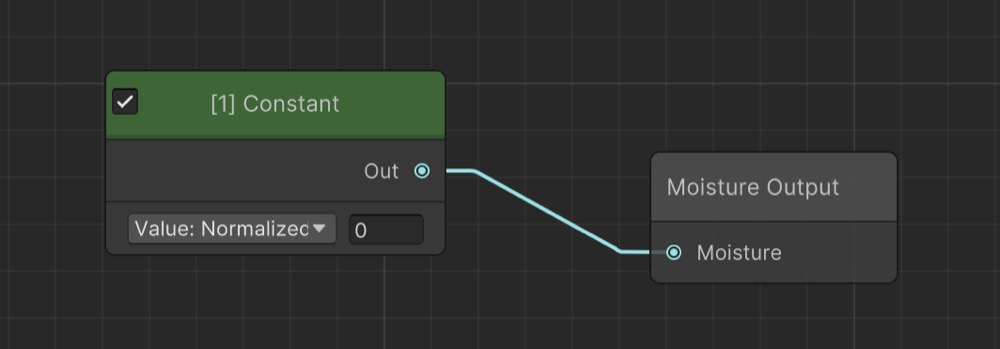
- Constant into Moisture Output: a desert is dry, so it should carry no moisture. Add a Constant node, leave its value at 0 (Normalized), and wire it to the Moisture Output. This overrides the default moisture noise and keeps the whole map dry.
Enable the Sync toggle in the toolbar (or press Update World) to see the terrain refresh in the scene as you tweak the nodes. When you are happy with the result, hit Save (Ctrl+S / Cmd+S). For a full reference of every node and toolbar option, see the Terrain Graph Editor page.
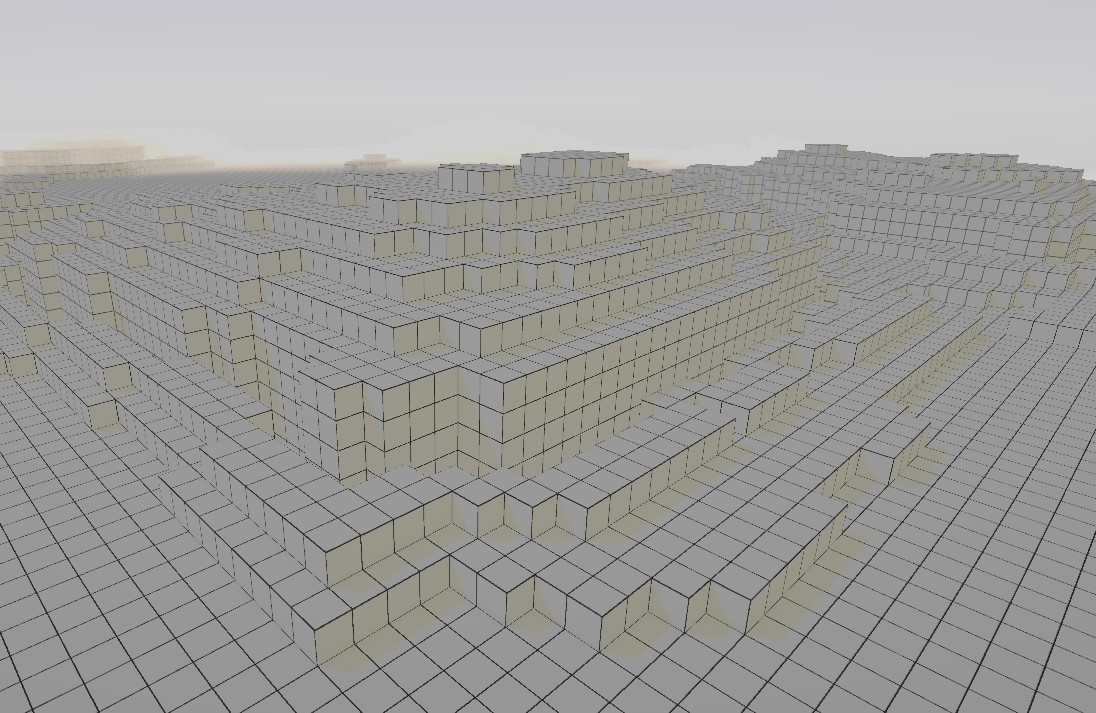
For the moisture, a single Constant node set to 0 wired into the Moisture Output keeps the desert dry:
Step 4:
When you hit Create back in Step 2, Voxel Play already generated a Biomes folder under Voxel Play - Resources - Worlds - [Name of your World], containing a default Biome asset. This folder is where we define the visual components of the scene, like textures, trees, vegetation and more. Open it and, inside, create a folder to hold your Voxel Definitions.
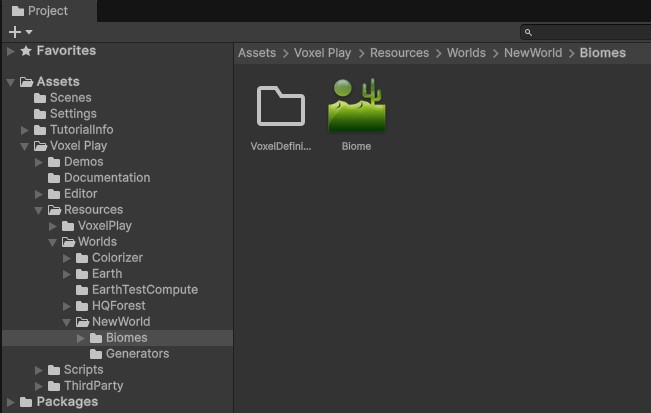
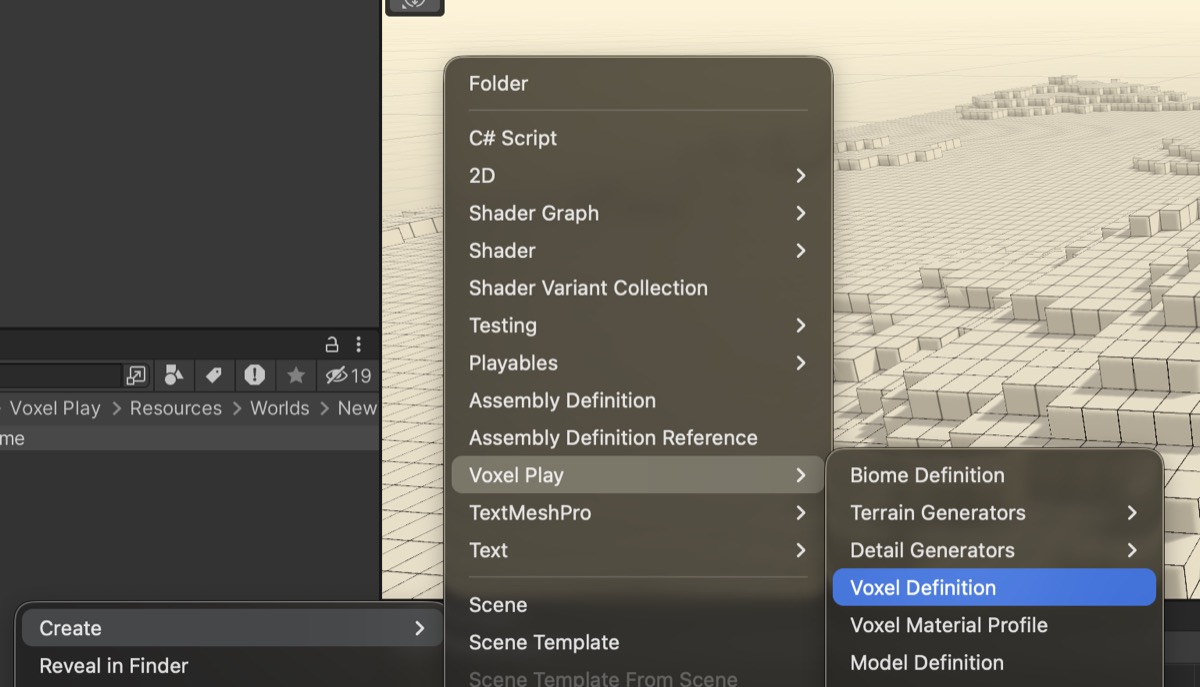
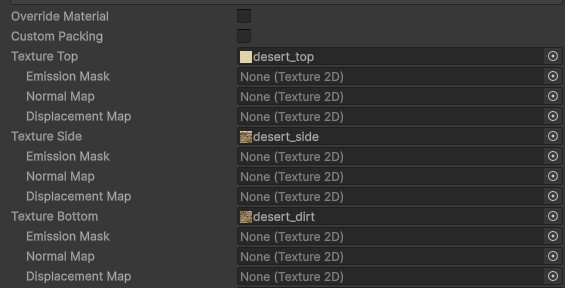
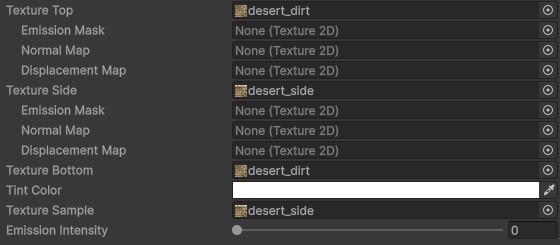
Inside the folder, Right Click - Create - Voxel Play - Voxel Definition and give it a name, for example DesertTop. Assign the Texture Top, Texture Side and Texture Bottom in their slots. Now duplicate the Voxel Definition, name it DesertDirt for example. And assign the dirt texture.
Step 5:
Open the default Biome asset (inside the Biomes folder) and assign your desert Voxel Definitions to its slots: DesertTop goes in Voxel Top (the surface voxel) and DesertDirt goes in Voxel Dirt (the underground voxel, shown on the exposed dune sides and below the surface). Hit Reset World and the textures will be applied, giving your voxel scene its first real look.
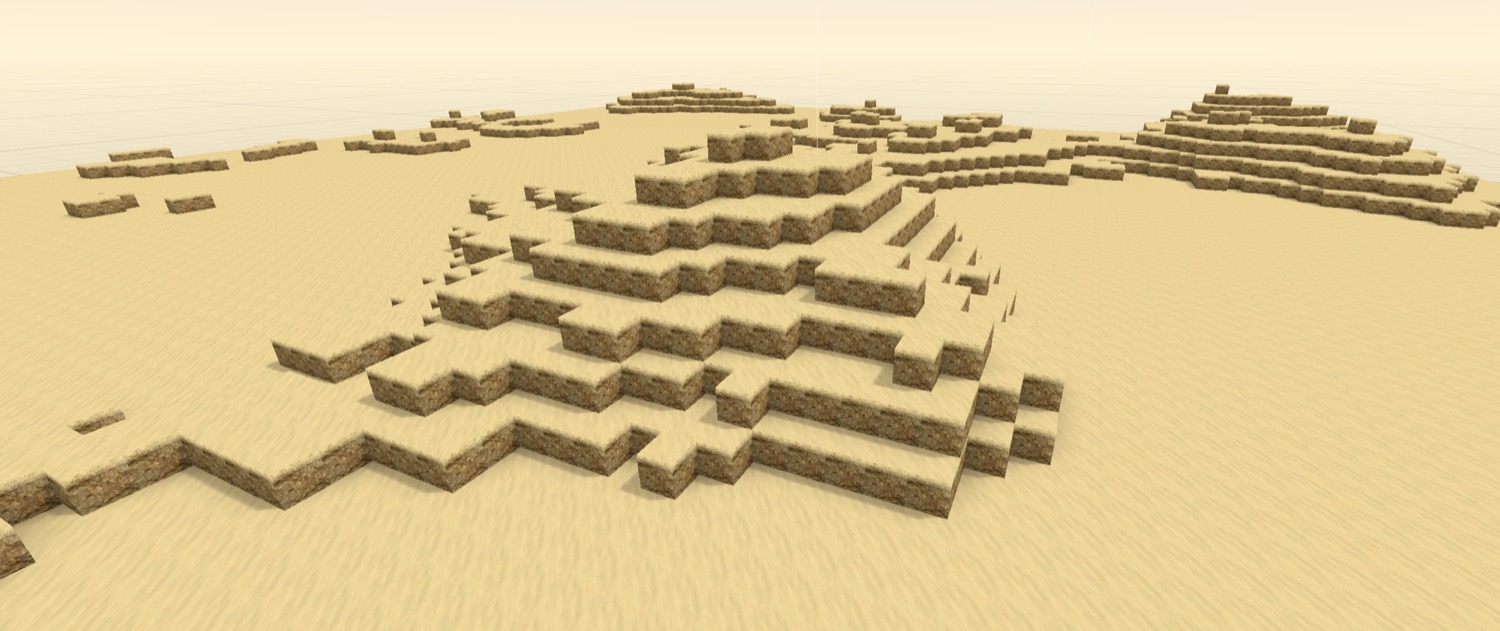
Press Play with the camera placed close to but above the surface (around 50 meters of altitude) and you will see the textured desert: a sandy surface with the dirt sides of the dunes exposed.
Step 6:
Now that the world is created and ready to be played on, the next step is to create our First Person Controller. Go to "GameObject - Voxel Play - Create First Person Controller".
Now we have a First Person Controller created with all the dependencies. As a hint, we recommend activating the “Start on Flat” option, which allows the First Person Controller to start on a flat surface in the project, instead of being placed on an irregular surface.
At this point, if you hit play, everything will work well and your voxel world is ready to further be shaped as you desire.
Step 7:
It's time to add some trees, vegetation, ores and define other additional settings that might correspond to your scene, like underwater plants and more, which is not our case.
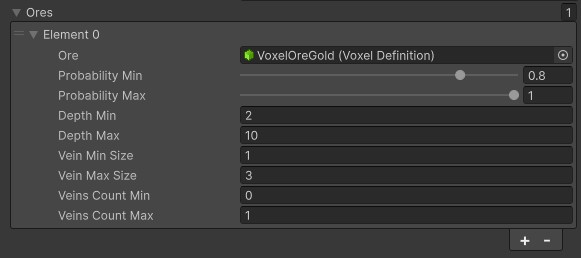
I will define a gold element in the “Ores” tab (found in the Biome element):
- Add the element
- Assign de Voxel Definition (texture)
- Define the probability of finding this ore
- Set the veins size end count
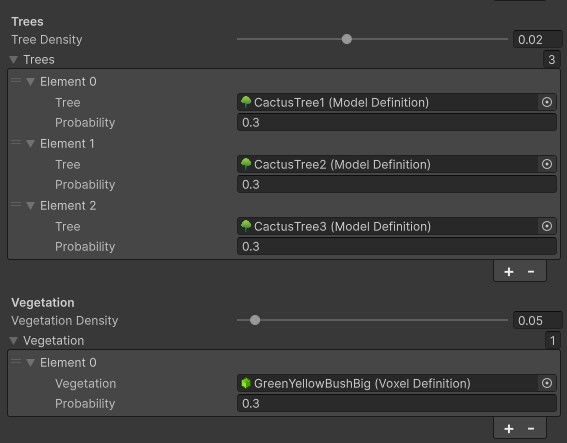
Now set the tree density and add the tree elements with the probability of spawning from 0 to 1. In this case we configured 3 cactus types with equal probability of spawning.
The same steps apply for the vegetation:
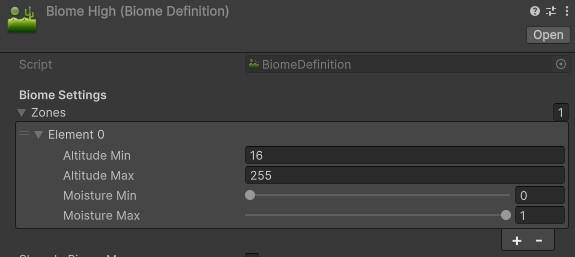
Additionally, you can assign different biomes with different settings. For example, I want higher points of the environment to avoid spawning trees and vegetation. To do that, I will duplicate my current biome, give it a different name, and disable trees and vegetation, and finally define the altitude from which each biome should be rendered.

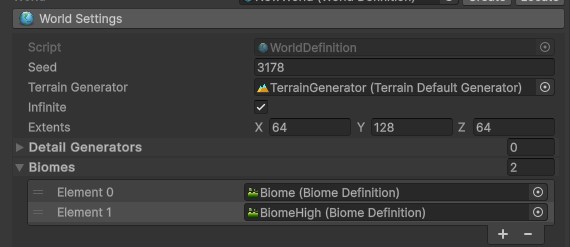
For these biomes to work, go to Voxel Play Environment - World Settings - Biomes, and assign all the biomes in their slots. Finally, hit “Reset World” and everything should look based on the previous settings.
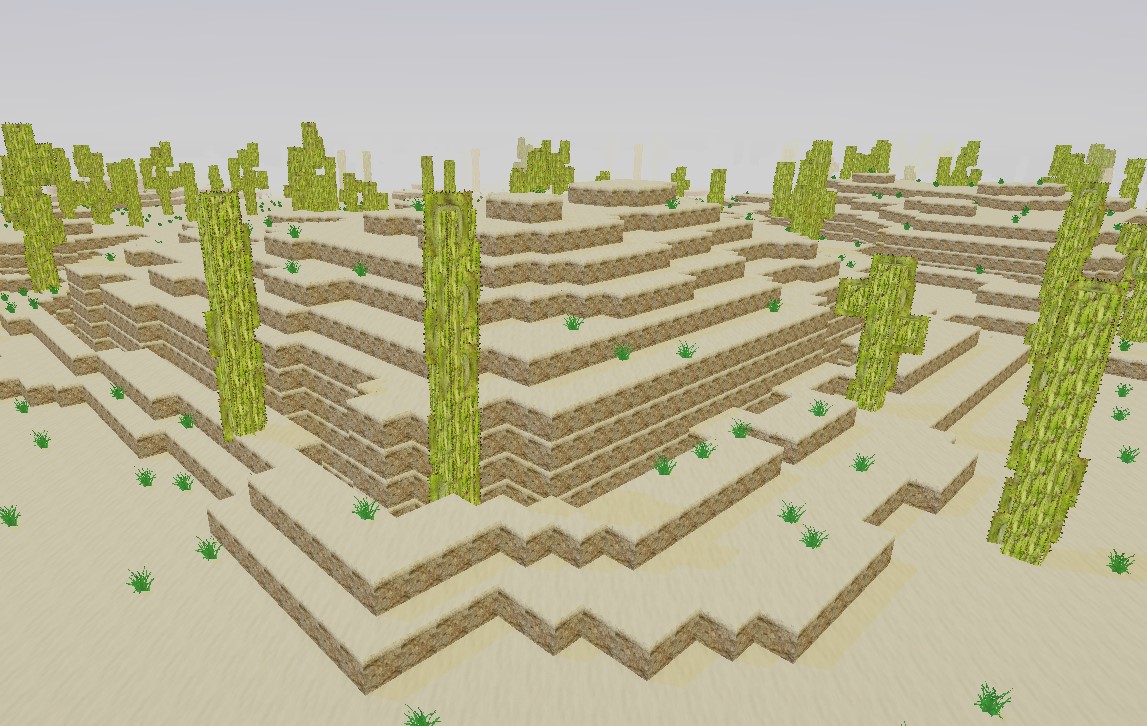
This is how our world looks after all the finished configuration:
Suggest an improvement
Help us improve this documentation page.