Setup
beginner conceptsVolumetric Lights 2 (URP) · Core Concepts
Setup — URP Configuration
These instructions walk you through the one-time URP configuration required before using Volumetric Lights 2.
Step 1 — Install the Universal Render Pipeline
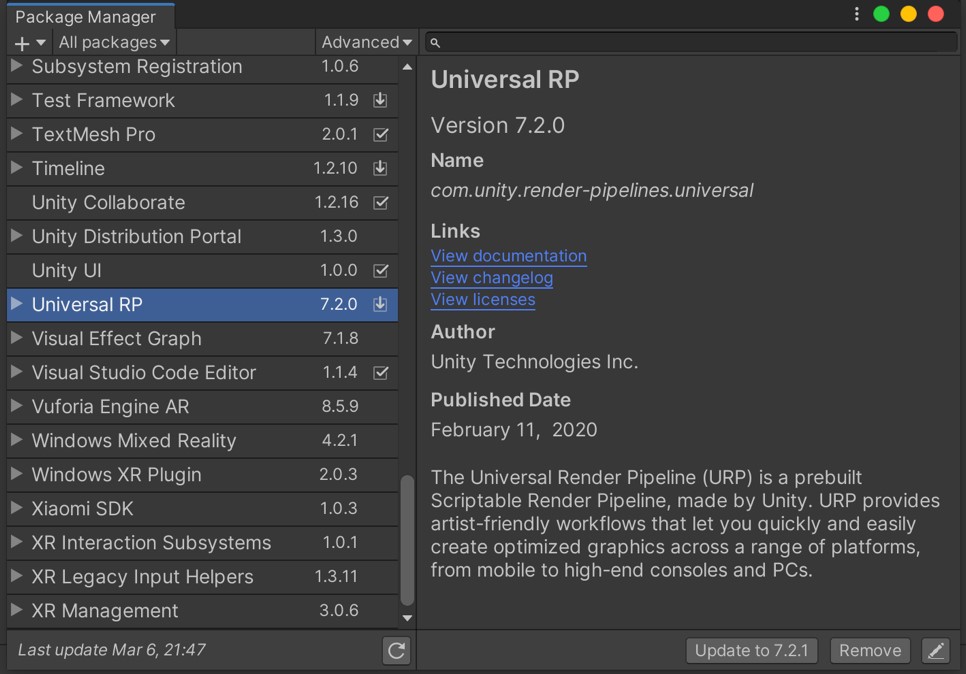
Open Window > Package Manager. Select Universal RP and click Install (version 12 or later recommended).
Step 2 — Assign the URP Asset
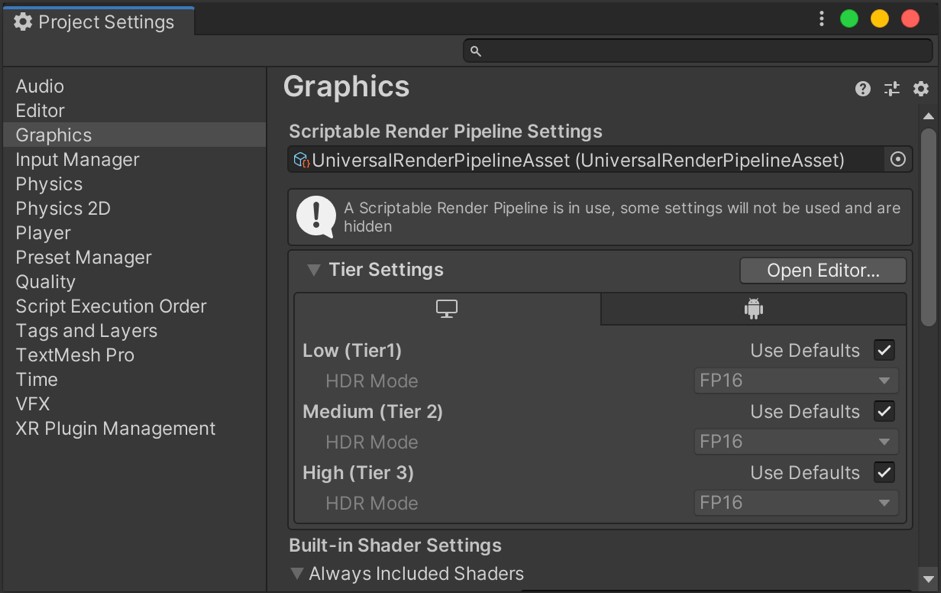
Go to Project Settings > Graphics and assign a Universal Rendering Pipeline Asset. You can use the asset included in the demo folder (VolumetricLights/Demo/URP Pipeline Settings).
Step 3 — Enable Depth Texture
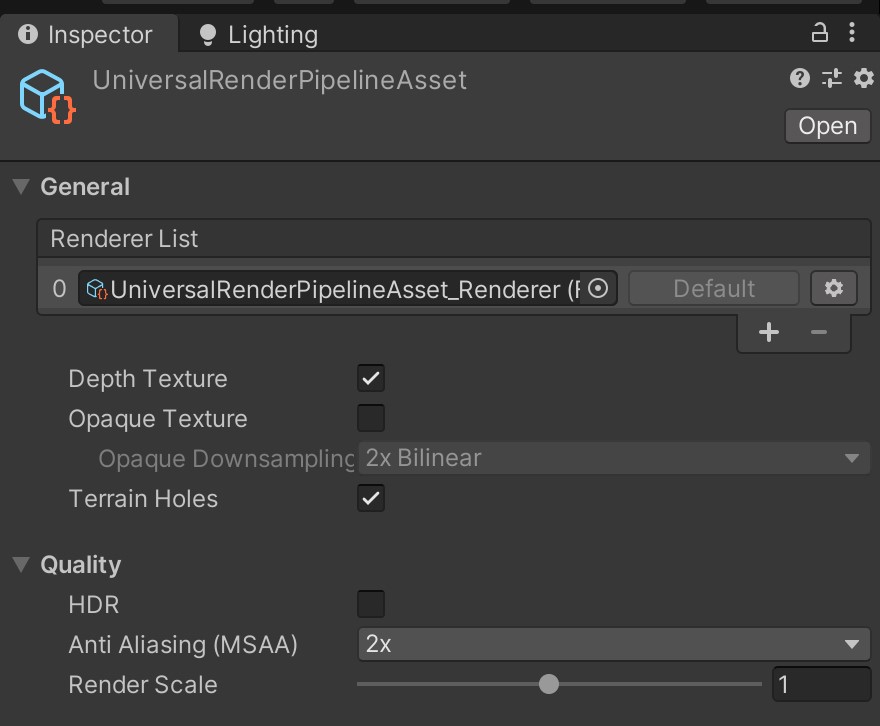
Double-click the URP Asset to open its properties. Enable Depth Texture. Enabling MSAA is also recommended.
Android Note
If you experience shadow issues on Android, switch to the Vulkan graphics API in Player Settings > Player.
Done!
Your project is now ready for volumetric lights. See Quick Start to add your first light.
Suggest an improvement
Help us improve this documentation page.