Unity Terrain to Voxel World
intermediate how toVoxel Play includes a Unity Terrain Generator that converts an existing Unity terrain into a fully playable voxel world. It reads the heightmap, terrain textures, trees and vegetation from a standard Unity Terrain and generates voxel equivalents automatically.
This is ideal when you want to leverage Unity's built-in terrain sculpting tools (or third-party tools like Gaia, MapMagic, etc.) to design your landscape, then convert the result into a destructible voxel world.
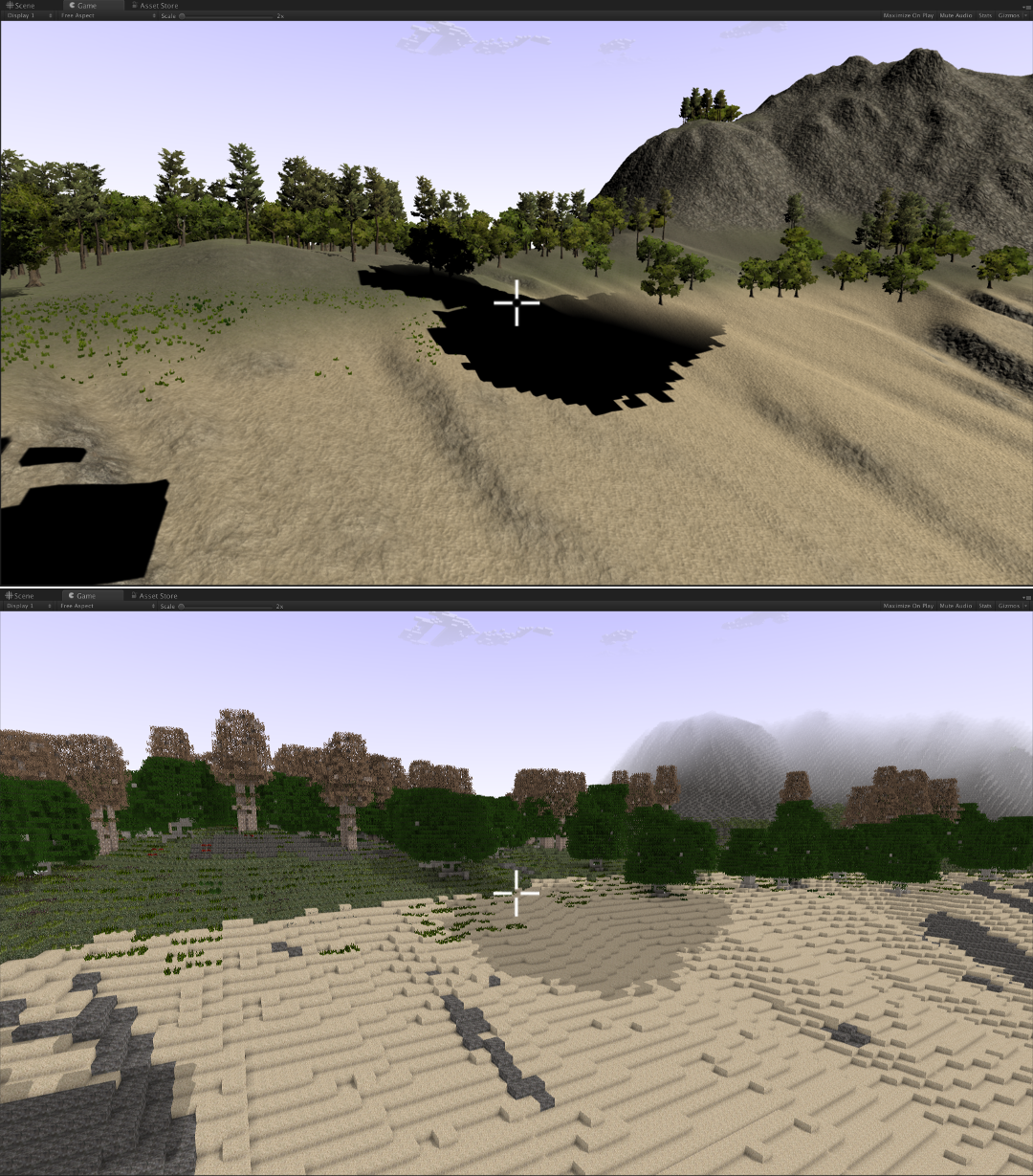
Watch this tutorial to learn the full workflow:
Creating the Unity Terrain Generator
To create a Unity Terrain Generator asset, right-click on the Project panel and select Create -> Voxel Play -> Terrain Generators -> Unity Terrain Generator.
Then, assign this terrain generator to the Terrain Generator field of your World Definition asset. Voxel Play will use it to generate the voxel world at runtime.
Setting up the Terrain Data
The Unity Terrain Generator inspector shows the following main settings:
- Terrain Data: drag your Unity Terrain's TerrainData asset here (or it will be auto-detected from the active terrain in the scene). Click Refresh to reload terrain data if you make changes to the source terrain.
- Show/Hide Terrain: toggles the visibility of the original Unity terrain in the scene, useful for comparing the original and the voxelized result side by side.
- Water Level: sets the water level (0..1 range relative to max terrain height). Areas below this level will be filled with water voxels.
- Water Voxel: the voxel definition used for water. Defaults to the built-in Sea Water voxel if left empty.
Terrain Textures
The Terrain Textures section lists all terrain layers (splat textures) found in the TerrainData. Each texture is shown with a thumbnail preview and the following settings:
- Voxel Top: the voxel definition used for the top surface layer where this terrain texture is dominant.
- Smooth: controls how much the texture is smoothed when generating the voxel texture (0 = pixel-perfect, 1 = fully smoothed).
- Dirt With: selects which terrain texture to blend with for the underground (dirt) layers.
- Blend Power: controls how much the dirt texture blends with the selected "Dirt With" texture.
- Voxel Dirt: the voxel definition used for underground layers where this terrain texture is dominant.
- Action: determines what happens with this texture:
- Create: automatically generates voxel definitions (top, dirt and side textures) from the terrain texture. This is the recommended starting point.
- Assigned: uses the manually assigned voxel definitions.
- Ignore: skips this terrain texture entirely.
Texture Size controls the resolution of the generated voxel textures (in pixels). The default of 16 works well for most cases. Higher values preserve more detail but increase memory usage.
Trees
The Trees section lists all tree prototypes found in the TerrainData. Each tree shows a preview thumbnail and the following settings:
- Model Def.: the Model Definition asset used to represent this tree in the voxel world.
- Smooth: controls texture smoothing for the generated tree voxels.
- Action: same as terrain textures - Create to auto-generate, Assigned to use existing, or Ignore to skip.
Additional tree settings:
- Texture Size: resolution for the generated tree textures (default: 64).
- Frond Density: controls the density of leaf/frond voxels in the generated tree models (0 = sparse, 1 = dense).
- Tree Scale: multiplier for tree size in voxel units (0.1 to 2.0). Adjust this to match the desired visual scale.
The converter reads tree mesh geometry and materials from the LOD0 mesh of each tree prefab. It separates bark/branch materials (rendered as opaque voxels) from leaf/frond materials (rendered as cutout voxels with wind animation).
Vegetation
The Vegetation section lists all detail prototypes (grass, flowers, small plants) found in the TerrainData:
- Vegetation Density: global density multiplier for vegetation placement (0 = none, 1 = full density matching the original terrain).
- Texture Size: resolution for the generated vegetation textures (default: 64).
- Voxel Def.: the voxel definition used for this vegetation type. Generated voxels use the CutoutCross render type with wind animation enabled.
- Action: same options - Create, Assigned, or Ignore.
Generating Voxel Assets
Once you have configured the terrain textures, trees, and vegetation settings:
- Set the Action to Create for each resource you want to convert (or leave as Ignore to skip).
- Optionally enable Clean Folders to delete previously generated assets before regenerating.
- Press the Generate button.
Voxel Play will create all necessary voxel definitions, textures and model definitions in a Resources subfolder next to your World Definition asset. The generated assets include:
- TerrainVoxels/: voxel definitions for each terrain texture (top, side and dirt variants with properly generated textures).
- Trees/: model definitions and voxel definitions for each tree prototype.
- Vegetation/: voxel definitions for each vegetation/detail prototype.
After generation, all Actions switch to Assigned automatically. You can press Generate Again at any time to regenerate the assets.
How It Works at Runtime
When the game starts, the Unity Terrain Generator:
- Reads the full heightmap from the TerrainData and caches altitude values.
- Samples the alpha/splat maps to determine which terrain texture is dominant at each position.
- Reads the detail layers for vegetation placement and tree instance positions.
- As Voxel Play requests chunks, the generator fills each chunk with the appropriate voxels based on the cached terrain data, placing surface voxels, underground dirt, water, trees and vegetation.
The original Unity Terrain can remain in the scene (hidden) or be removed entirely - the voxel world is generated from the TerrainData asset, not from the live terrain object.
Tips
- Refresh and Generate with elevated cameras: when the camera is too far above the terrain surface, the Refresh and Generate buttons automatically force a terrain patch below the camera position. This ensures you can preview the voxelized terrain even when editing from a high altitude.
- Use Render In Editor toggle on the Voxel Play Environment to preview the voxelized terrain directly in the Scene View without entering Play mode.
- Hide the original Unity terrain using the Show/Hide Terrain toggle to compare results.
- If the terrain looks too flat or too steep, adjust the Max Height in the World Definition.
- For large terrains, the conversion may take a moment on first load as the heightmap and splat maps are cached.
- You can mix the Unity Terrain Generator with custom biome definitions for additional variety.
- The generated voxel textures combine top, side and dirt variants automatically. The side texture blends the top and dirt textures with a natural gradient transition.
Community Tutorial
This video by Messy Coder covers the Unity terrain conversion process and shows additional tips:
Suggest an improvement
Help us improve this documentation page.