Shaders & Curved Effect
advanced featureVoxel Play uses custom shaders to deliver fast and rich options. It uses two group of shaders for voxel rendering. A group of shaders compatible with geometry shaders architecture and another group for non-geometry compatible systems. Voxel Play will use the default/non-geometry compatible shaders if the platform does not support it (you can also disable "Use Geometry Shaders" option). All shaders can be found in Voxel Play/Resources/Defaults/Shaders folder.
The asset also includes a few shaders which are compatible with Voxel Play lighting system:
Voxel Play/Models/VertexLit
Voxel Play/Models/Texture
Voxel Play/Models/Texture Cut Out
Voxel Play/Models/Texture Alpha
Voxel Play/Models/Texture Alpha Double Sided
Voxel Play/Models/Texture Triplanar
And 3 more standard shaders compatible with curvature option:
Voxel Play/FX/Curved/Unlit
Voxel Play/FX/Curved/Surface
Voxel Play/FX/Curved/Surface Emission
Curvature effect
The curvature option is enabled with the macro VOXELPLAY_CURVATURE found in VPCommonVertexModifier.cginc. This setting is modified automatically by Voxel Play when you enable/disable the "Enable Curvature" checkbox in the Voxel Play Environment inspector.
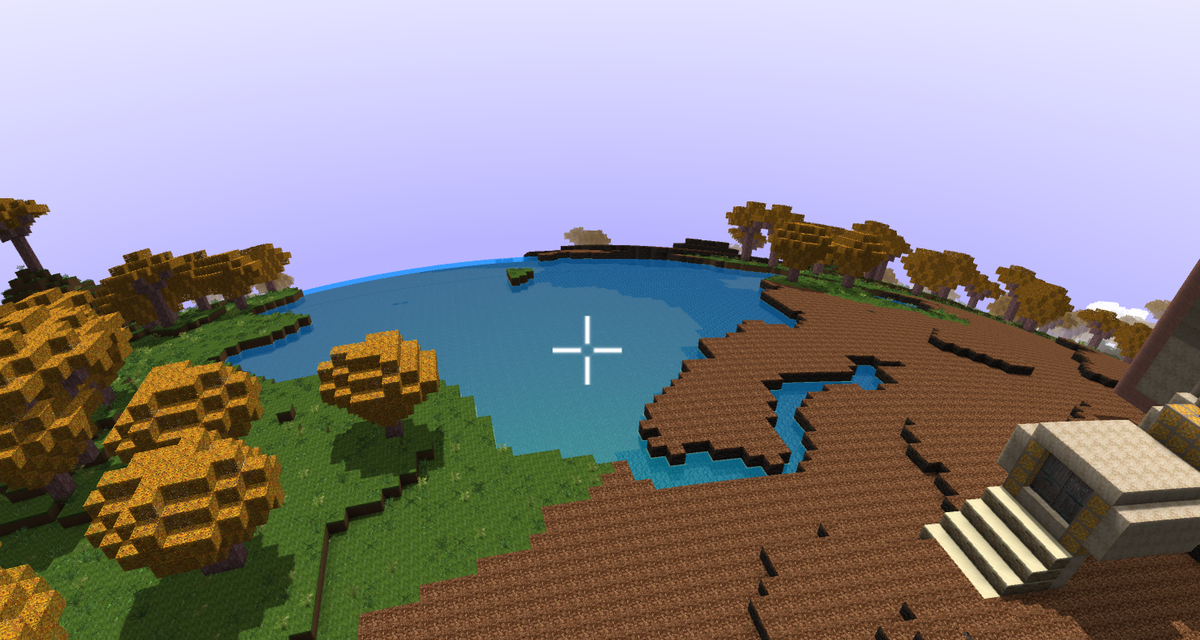
If you want to add support for curvature effect to your own shaders, add #include "path.../VPCommonVertexModifier.cginc" to your shader and use the macros VOXELPLAY_MODIFY_VERTEX(vertex, worldPos) or VOXELPLAY_MODIFY_VERTEX_NO_WPOS(vertex) in your vertex shader as follows:
CGPROGRAM
#pragma vertex vert
#pragma fragment frag

#include "VPCommon.cginc"
#include "VPCommonVertexModifier.cginc"

...
v2f vert (appdata v) {
    v2f o;
    VOXELPLAY_MODIFY_VERTEX_NO_WPOS(v.vertex)
    o.vertex = UnityObjectToClipPos(v.vertex);
    o.uv = TRANSFORM_TEX(v.uv, _MainTex);
    return o;
}
Check out the Voxel Play/FX/Curved/Unlit shader for a full example.
Suggest an improvement
Help us improve this documentation page.