Environment Options
intermediate conceptsSelect your Voxel Play Environment in the hierarchy to show the current environment options:
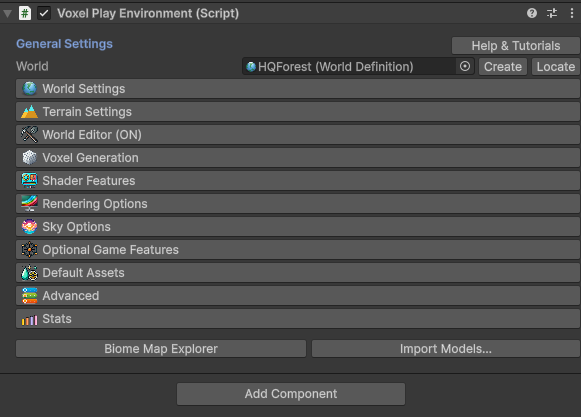
The Voxel Play Environment script allows you to customize general gameplay settings, quality and effects, voxel generation as well as the sky properties.
Note that you can define any number of worlds separately (see Creating Worlds section) and assign one of them to the Voxel Play Environment component.
Also, you can customize any of these properties from script using VoxelPlayEnvironment.instance.property = xxx.
World Settings
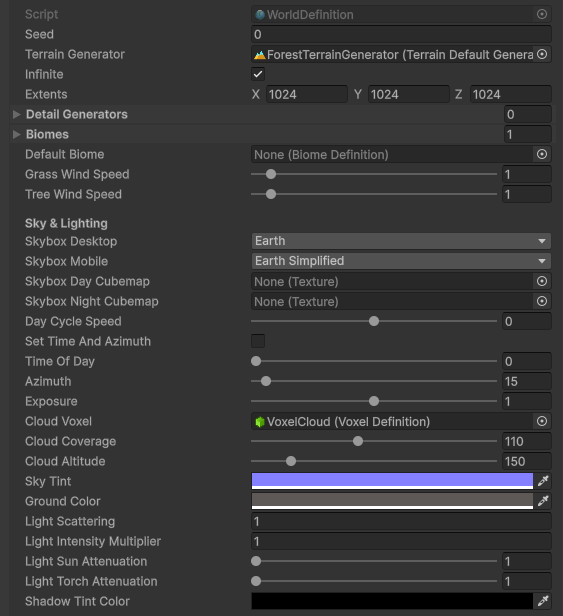
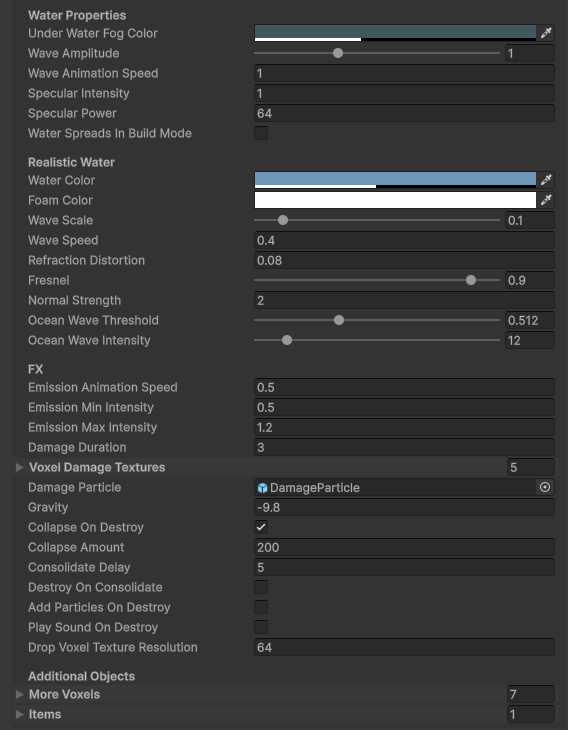
- In this section you can edit allthe options that control the generation behavior of your environment. Add detail generators, biomes,control sky appearance and lighting, define water properties plus other additional voxel effects, each with their oun controls.
Terrain Settings
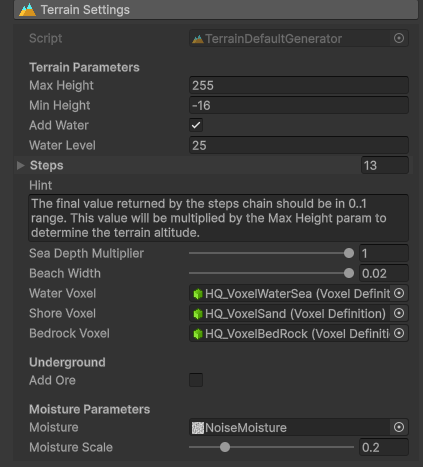
- Control the terrain generation options, its height, size, altitude differences and much more. For detailed setp by step guide on how to setup a terrain from scratch follow this video:
World Editor
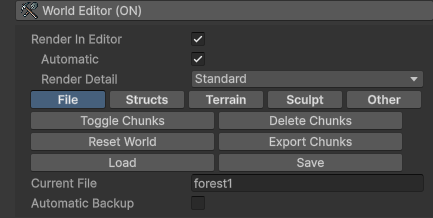
- Distance Multiplier: multiplies the visible chunk distances when editing in the Scene View (default x3, range 1-5). Helps with elevated camera setups in the World Editor.
- File: In this section you can toggle on/off, delete, reset, export and finally load or save the generated chunks.
- Structs: Create predefined structure elements.
- Terrain: Access tools to start building and editing the terrain, like raise or lower, smooth, reset, add rivers, vegetation or trees.
- Sculpt: Access sculpting tools to modify your terrain shape at will.
- Other: Additional tools to have more control over positioning and other important stats.
Voxel Generation
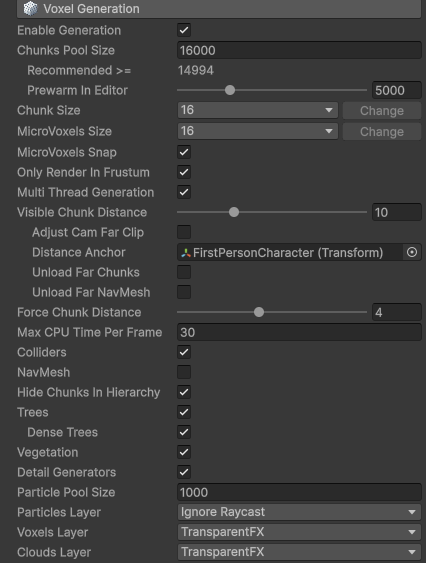
- Enable Generation: Enables/disables world/voxel generation updates.
- Chunk Pool Size: Number of total chunks allowed in memory.
- Chunk Size: Total size of chunk.
- Microvoxel Size: Size of the microvoxels based on the total size of the chunk.
- Microvoxels Snap: When enabled, microvoxels space will snap to nearest microvoxel position.
- Only Render in Frustum: When enabled, only chunks inside the camera frustum will be rendered.
- Multi Thread Generation: When enabled, uses a dedicated background thread for chunks generation (only in build, deactivated when inside Unity Editor)
- Visible Chunks Distance: Distance of the visible chunks based on their number.
- Visible Chunks Vertical Distance: Maximum vertical render distance in chunks (default 8, range 1-40). Useful for elevated camera setups where you need more vertical range without increasing horizontal distance.
- Force chunks distance: Distance measured in chunks that will be rendered completely before starting the game.
- Max CPU Time per frame: Maximum milliseconds that can be used by the CPU to generate the world.
- Colliders: Enable/disable collider generation for opaque objects.
- Navmesh: Enable/disable navmesh generation.
- Hide Chunks in Hierarchy: Disable chunk visibility in hierarchy.
- Trees: Enable/disable tree generation.
- Vegetation: Enable/disable vegetation generation.
- Detail Generators: Enable Disable World Detail Generation.
- Particle Pool Size: Maximum number of active particles.
- Particles Layer: The layer used by the particles.
- Voxel Layer: Layer used by the voxels.
- Clouds Layer: Layer used by the clouds.
Shader Features
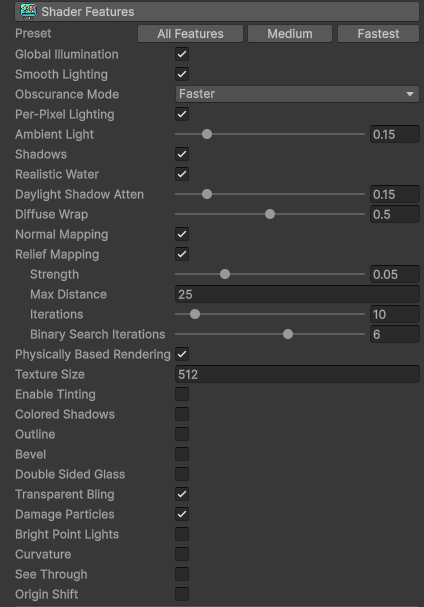
- Preset: Select a set of predefined features.
- Global Illumination: Enables Voxel Play's own lightmap computation that works at chunk level spreading the Sun and torch lights across voxel space.
- Smooth Lighting: Interpolates lighting between voxel vertices producing a smoother transition between light and dark.
- Obscurance Mode: Controls the built-in ambient occlusion (AO) function baked per-voxel into vertex colors. This is much cheaper than screen-space AO (SSAO) since it is computed during mesh generation, not at render time - ideal for mobile. Requires Smooth Lighting to be enabled. Three modes available: Faster (default) uses a quadratic falloff for quick, subtle AO; Custom uses a power function and exposes an Intensity slider (0-3, default 0.5) for fine-tuning the AO strength; Lineal applies raw linear AO values with no curve adjustment. For stronger ambient occlusion, switch to Custom mode and increase the Intensity value. If you want certain voxel types to skip AO entirely, use the Opaque No AO render type in their Voxel Definition. Each Voxel Definition also has per-face Occlusion Strength multipliers (0-1) for fine control. Note: Obscurance is computed at mesh build time, so changes to settings require chunks to be refreshed.
- Per-Pixel Lighting: If disabled, lighting will be calculated per vertex. Otherwise, lighting will be calculated per pixel which produces the most realistic results. Only use per-vertex if you need the maximum performance possible (ie. targeting old mobile devices).
- Ambient Light: Minimum amount of light in the scene affecting voxels. The ambient light is configured in the Environment tab of the Unity Lighting window.
- Shadows: Turn on/off shadows casting on voxels.
- Realistic Water: Use realistic water shader with underwater fog, caustics and other effects.
- Daylight Shadow Attenuation: Reduces shadow intensity when Sun is high.
- Diffuse Wrap: Diffuse wrap factor. Simulates indirect lighting.
- Normal Mapping: Enables use of normal maps. Disable if there're zero voxels using normals.
- Relief Mapping: Enables parallax occlusion (relief mapping). Disable if there's zero voxels using relief mapping.
- Physically Based Rendering: Enables use of PBR maps including metallic, smoothness and occlusion.
- Texture Size: Texture size in multiples of 2.
- Enable Tinting: Toggle individual voxel tinting.
- Colored Shadows: When enabled you can customize shadow color in the world definition.
- Outline: Enables outline on solid voxels.
- Bevel: Enables bevel effect by tweaking top face normals.
- Double Sided Glass: Renders both faces of transparent voxels.
- Transparent Bling: Enables shining effect on transparent voxels.
- Bright Point Lights: Improves appearance of point lights.
- Curvature: Enables curvature vertex modifier on Voxel Play shaders.
- See Through: Hides voxels between camera and desired target.
- Origin Shift: Shift player to origin when its position passes a specific threshold.
Rendering Options
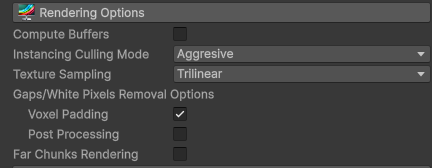
- Compute Buffers: Enable compute buffers for custom voxels.
- Instancing Culling Mode: Choose voxels occlusion culling mode.
- Texture Sampling: Texture sampling filter mode.
- Gaps/White Pixels Removal Options: This option tackle sub-pixel gaps which can lead to white pixels when underground in the dark. Voxel padding can cause some texture artifacts at the edges of voxels. Post processing produces the best result but it's slower.
- Far Chunks Rendering: Enable rendering of far chunks.
Sky Properties
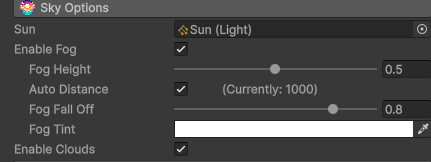
Common settings related to the sky shared by all worlds:
- Sun: choose a directional light in your scene that represent the Sun.
- Fog Amount, Fog Distance, Fog Falloff: controls the appearance of the fog in the scene. The fog produces a smooth transition between terrain and the far clip distance of the camera. You can configure additional sky properties in the World Definition file.
- Enable Clouds: generates and animates random cloud voxel shapes.
Optional Game Features

- Load Saved Game at Start: Load the file with a previous saved game.
- Loading Screen: Display a loading screen with a custom text.
- Initial Wait Time: Additional seconds to wait before loading the scene.
- Biome Mixing: enables transitions at biome borders by randomly mixing voxel types from neighboring biomes. The Mixing Spread sub-option controls the width of the transition zone.
- Enable Build Mode: Enables allowing build mode.
- Enable Console: Enable/disable console in the scene.
- Enable Status Bar: Toggle status bar on/off.
- Enable Inventory: Enables inventory UI when pressing TAB.
- Enable Debug Window: Enables debug window, pressing F2.
- Show FPS: Display the fps count on screen.
Default Assets
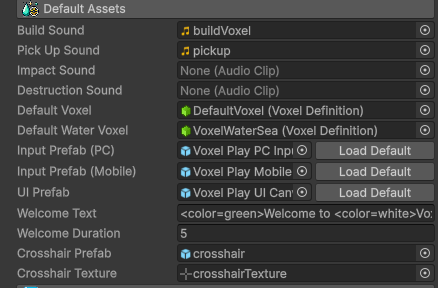
- Define the assets that will be used to generate the environment, like default voxels, UI prefab and much more.
Advanced & Stats
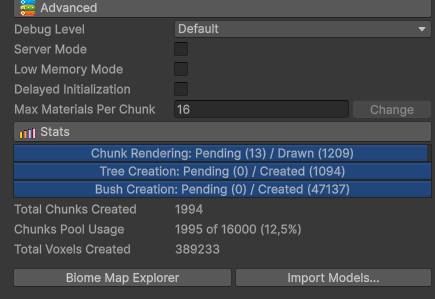
Access additional advanced features and control other display stats.
Was this page helpful?
Suggest an improvement
Help us improve this documentation page.