Biomes
intermediate conceptsVoxel Play 3 · World Architecture
A biome defines which voxels are used for terrain painting as well as vegetation, trees and ores.
Each biome can be applied to a range of "zones". A zone is just an altitude and moisture range. For example, you can specify that the "forest" biome is applied to any altitude between 0 and 65 meters and a moisture from 0.35 and 0.65 (moisture is defined in the 0-1 range while the altitude is defined in meters). A zone that has altitude min and max set to 0 will be applied to any altitude (only moisture range is considered in this case).
A biome definition can be created pretty much like a World Definition. Right click in the Project window and select Create -> Voxel Play -> Biome Definition.
This is the contents of the Grassland biome provided in the Earth demo world:
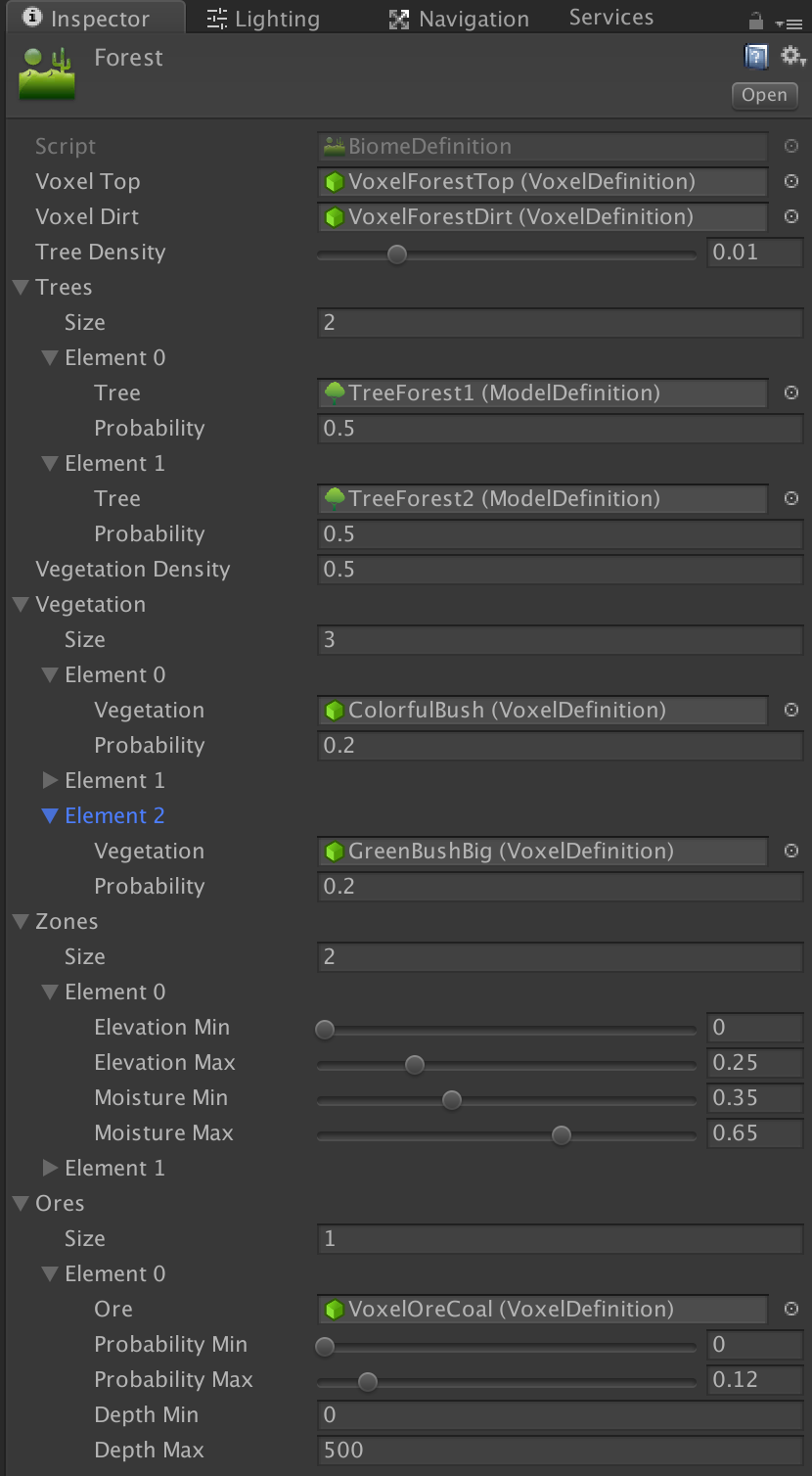
- The Voxel Top specifies the voxel that should be used for voxels at the surface level of the biome while the Voxel Dirt specifies the underground voxel for that biome.
- Biome Smart Surface: when enabled, the voxel dirt will be rendered as voxel top automatically when it becomes the surface (for example when digging). The voxel type doesn't change, only is appearance.
- Tree Density defines the chance of tree growing on random positions inside the biome. The greater the value the more trees your biome will have. This value only governs the amount of trees. See tree probability below.
- Trees: the list of Model Definitions that contains a tree (you can create new trees or models using the Constructor). You can define any number of trees. The sum of Tree Probability for all tree types for a biome must be 1. For example, if Tree 1 has a probability of 0.25 and Tree 2 has a probability of 0.75, that means that Tree 1 will be chosen 25% of times.
- Vegetation Density and Vegetation List: similar to trees but related to bushes. A bush is defined by a single voxel and not a model. Probabilities work the same as with trees.
- Underwater Vegetation Density and Underwater Vegetation List: similar to vegatation but related to underwater plants. A bush is defined by a single voxel and not a model. Probabilities work the same as with trees.
- Zones: here you define where this biome can occur. A biome is placed according to two factors: elevation and moisture. You can create any number of zones including two ranges: one for elevation and another for the moisture.
Ores
Ore can be defined per biome. Any number of ore types can be added per biome. Expand the Ores section and enter the number of ore types in Size field, then populate the properties for each ore type.
You can limit each ore type to a depth range. The probability range determines the chance that a specific ore is placed in each chunk. In the example above, the ore type VoxelOreCoal has a chance of 12% of appearing in any chunk of this biome. Probabilities should stack If you add a second ore type for this biome. For example, if you add a Gold ore type you could choose Probability Min = 0.12 and Probability Max = 0.15. That will give a 3% chance of Gold appearing in a voxel under the surface.
Once an ore has been selected for placement in a chunk, the VeinsCountMin and VeinsCountMax fields are used to determine the amount of veins in that chunk. The length/size of each vein is randomly determined by the VeinSizeMin and VeinSizeMax fields.
Note that the terrain is generated randomly by Voxel Play using the Terrain Generation properties of the World Definition. You can also override the generated voxels using the OnChunkBeforeCreate and OnChunkAfterCreate events or even code your own terrain generator (see appropriate sections).
Biome Map Color
Each biome has a biomeMapColor property. This color is used exclusively by the Biome Map Explorer editor tool to visually distinguish biomes in the chart. It has no effect on in-game rendering.
Biome Mixing
Voxel Play supports Biome Mixing, which creates transitions at biome borders by randomly swapping voxel types from neighboring biomes. This is not a smooth pixel-level blend - it works at the voxel level, randomly picking voxels from either biome in the transition zone. This can produce checkerboard-like patterns at borders, which looks natural in a voxel world.
To enable biome mixing, check the Biome Mixing option in the Voxel Play Environment inspector (under the In Game section). The Mixing Spread slider controls the width of the transition zone - higher values produce wider mixing areas.
Biome mixing affects both near chunks (full voxel terrain) and far chunks (low-detail rendering). For per-voxel color variation beyond biome mixing, use the tint color system via the VoxelPlace() or VoxelSetColor() API methods, or use the Tint Gradient feature in Voxel Definitions.
Suggest an improvement
Help us improve this documentation page.