Quick Start
beginner quick startVolumetric Lights 2 (Built-in) · Quick Start
Quick Start — First volumetric light in 5 minutes
Follow these steps to add your first volumetric light to a Built-in pipeline scene. No scripting required.
Step 1 — Import the package
Open Window > Package Manager, locate Volumetric Lights 2 in My Assets and click Import. If you downloaded the .unitypackage manually, double-click it and import all files.
Step 2 — Add a volumetric light to an existing light
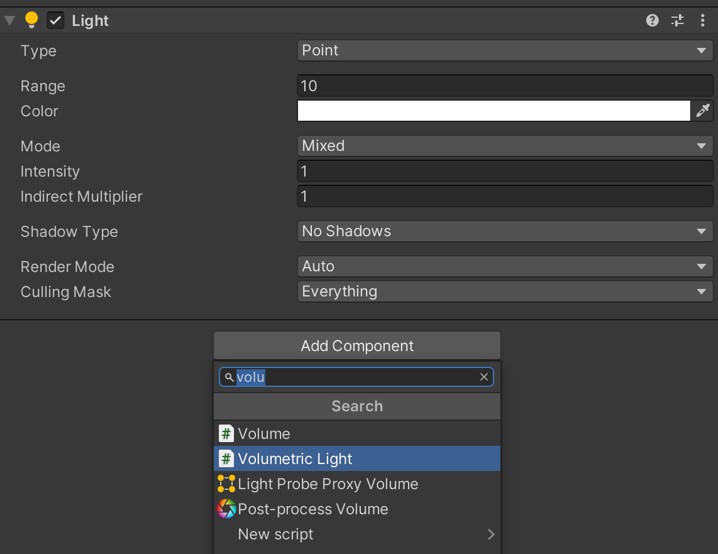
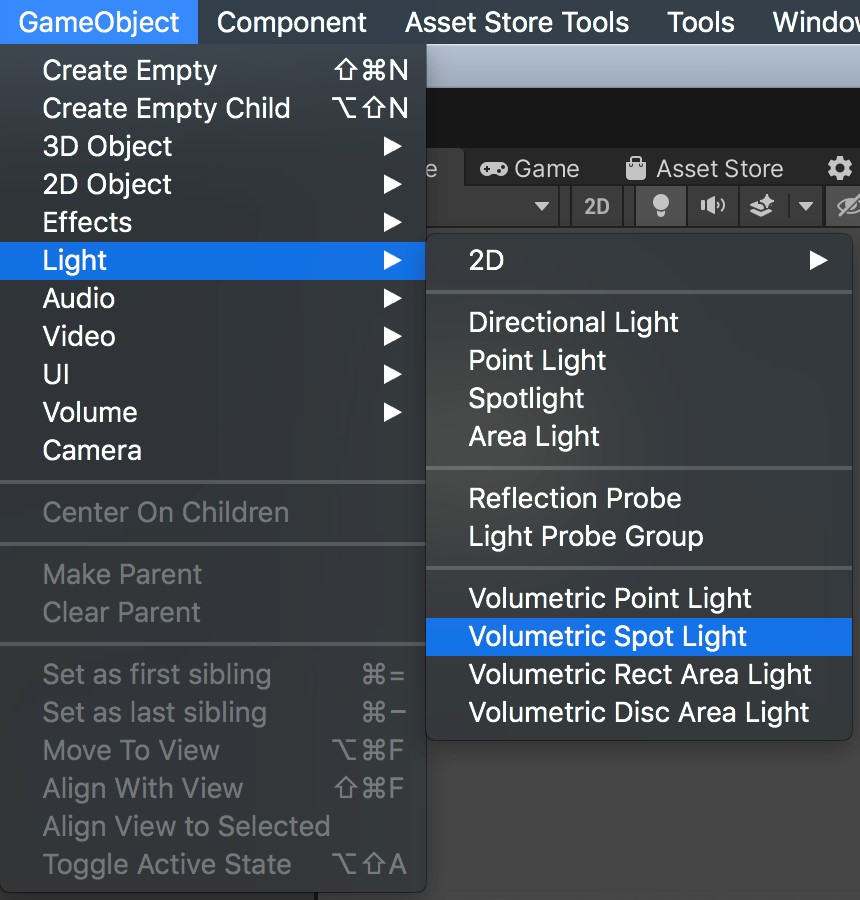
Select any Point, Spot, or Area light in your scene. In the Inspector, click Add Component and search for Volumetric Light.
Step 3 — Choose a light mode
In the Volumetric Light component, select your Light Mode:
- Simple — faster, simplified volumetric effect. Great for mobile or many simultaneous lights.
- Volumetric — full ray-marched effect with noise, shadows, and dust support.
Step 4 — Tweak basic settings
Start with these beginner-friendly adjustments:
- Density — controls fog thickness. Try
0.2–0.5for a subtle effect. - Brightness — overall intensity. Default is usually fine; increase for darker scenes.
- Use Noise — enable for organic, non-uniform fog. Increases realism significantly.
Step 5 — Verify in Game view
Enter Play Mode and observe the volumetric effect. Adjust Density and Raymarch Quality to balance visual quality against performance.
Optional — Create a reusable profile
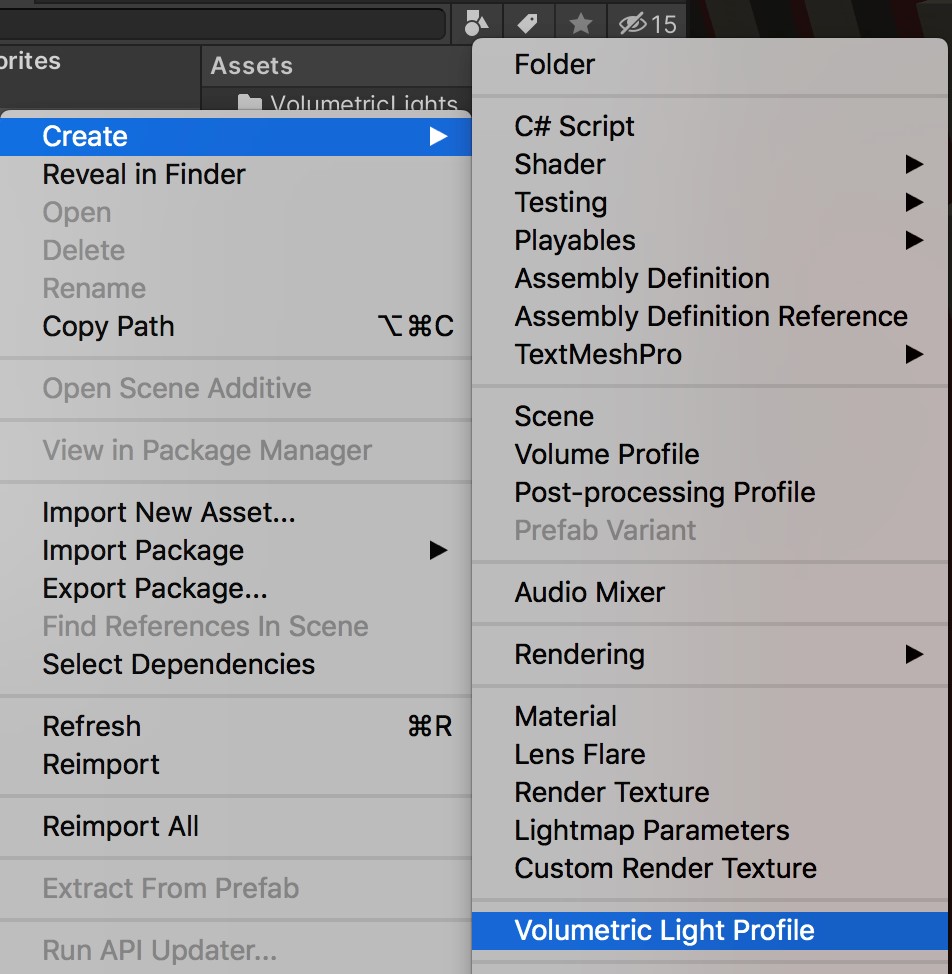
Right-click in the Project panel and select Create > Volumetric Light Profile. Assign it to the component's Profile field to save and share settings across multiple lights.
Optional — Add the Post Process component
For smoother results, click Show Global Settings in any Volumetric Light inspector to add the Volumetric Lights Post Process component to the camera. This enables global downscaling and bilateral blur. See Post Process Feature for details.
Next Steps
- Parameters Reference — understand every inspector setting.
- Shadows & Translucency — add shadow occlusion and translucent colored shadows.
- Performance Tips — optimize for your target platform.
Suggest an improvement
Help us improve this documentation page.