Post Process Feature
intermediate conceptsVolumetric Lights 2 (Built-in) · Core Concepts
Volumetric Lights Post Process
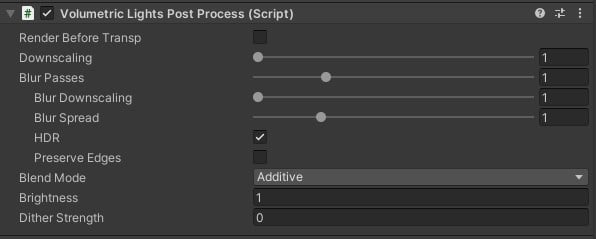
The Volumetric Lights Post Process component attaches to the camera and provides global settings that affect all volumetric lights in the scene. It improves both image quality and performance through downscaling and blur passes.
Setup
- Select any Volumetric Light in the scene and click Show Global Settings in its inspector.
- Unity will prompt you to create the Volumetric Lights Post Process component on the camera. Click Yes.
- Alternatively, manually add the component: select your Camera and click Add Component > Volumetric Lights Post Process.
Parameters
| Parameter | Description | Default |
|---|---|---|
| Render Before Transparent | Forces the volumetric effect to render before other transparent objects in the scene. | Off |
| Downscaling | Reduces the resolution of the volumetric effect buffer. 1 = full resolution, 2 = half, etc. Significant performance improvement on GPU-bound scenes. | 1 |
| Blur Passes | Number of Gaussian blur passes applied to the volumetric effect. Reduces noise and banding at the cost of sharpness. | 0 |
| Blur Downscaling | Reduces the resolution of blur buffers for faster blur processing. | 1 |
| Blur Spread | Kernel size of the blur. Larger values produce softer results. | 1.0 |
| HDR | Uses HDR format for blur buffers. Enable when volumetric lights use very bright colors that would otherwise clip. | Off |
| Preserve Edges | Enables a bilateral filter when blending the blurred effect onto the scene. Keeps geometry edges crisp at a slight performance cost. | Off |
| Blend Mode | How the final effect composites onto the scene image. | Additive |
| Brightness | Global brightness multiplier applied to all volumetric lights in the scene. | 1.0 |
| Dither Strength | Reduces banding in volumetric lights that use very dark, smooth settings. | 0 |
Recommended workflow: Start with Downscaling =
2 and Blur Passes = 2, then adjust. This typically gives the best balance between quality and performance.
Was this page helpful?
Suggest an improvement
Help us improve this documentation page.