Setup
beginner conceptsDynamic Fog & Mist 2 (URP) · Core Concepts
Prerequisites
Before setting up Dynamic Fog & Mist 2, make sure your project meets these requirements:
- Unity 2022.3 LTS or newer.
- Universal Render Pipeline (URP) installed via the Package Manager (Window > Package Manager > Unity Registry).
- A URP Settings asset assigned in Edit > Project Settings > Graphics and in Project Settings > Quality.
Video Walkthrough
Prefer watching? This video covers the full setup process:
Step-by-Step Setup
1. Install Universal Render Pipeline
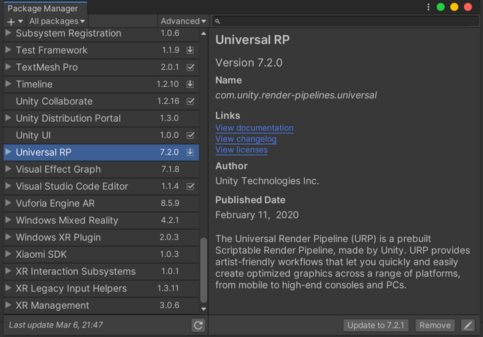
Go to Window > Package Manager. Select Universal RP from the Unity Registry and click Install.
2. Assign the URP Asset
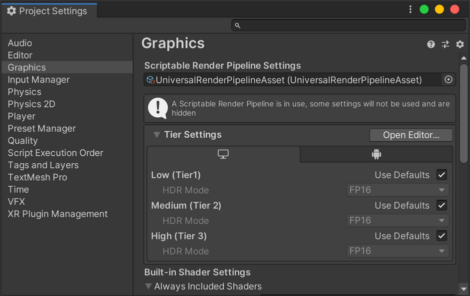
Go to Edit > Project Settings > Graphics and assign a Universal Rendering Pipeline asset. You can use the asset included in the Dynamic Fog 2/Demo/URP Pipeline Settings folder.
3. Enable Depth Texture
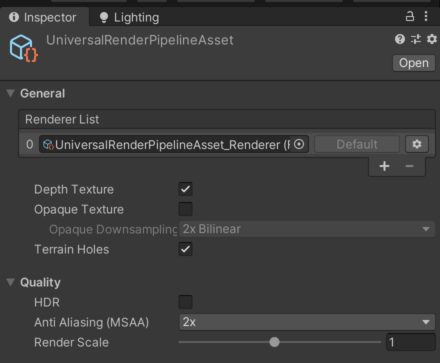
Double-click the URP Asset to open its properties. Enable Depth Texture. Enabling MSAA is also recommended for better visual quality.
4. Add Dynamic Fog to Your Scene
In the Hierarchy, right-click and choose Effects > Dynamic Fog 2 > Fog Volume. Assign a fog profile and you are ready to go.
Verify the Setup
After completing these steps, enter Play Mode. You should see animated fog in your scene. If the fog does not appear, check the Troubleshooting page.
Suggest an improvement
Help us improve this documentation page.