Viewport Feature
intermediate conceptsWorld Map 2D Edition · Core Concepts
Viewport Feature
The viewport renders the map inside a rectangular area, allowing proper cropping during pan and zoom. This is essential when embedding the map into a UI layout.
Setting Up the Viewport
- Go to GameObject > 3D Object > World Map 2D Edition – Viewport (or drag the prefab from
Resources/Prefabs). - In the WorldMap2D inspector, assign the new Viewport GameObject to the Render Viewport field.
- The map now renders inside the viewport.
Removing the Viewport
- Clear the Render Viewport field in the WorldMap2D inspector.
- Delete the Viewport GameObject from the scene.
Screen Overlay Mode
When a viewport is assigned, you can enable Screen Overlay Mode to position the map like a Canvas UI element. This works by parenting the viewport in front of the main camera at a position and size defined by a normalized rectangle (0 = left/bottom, 1 = right/top).
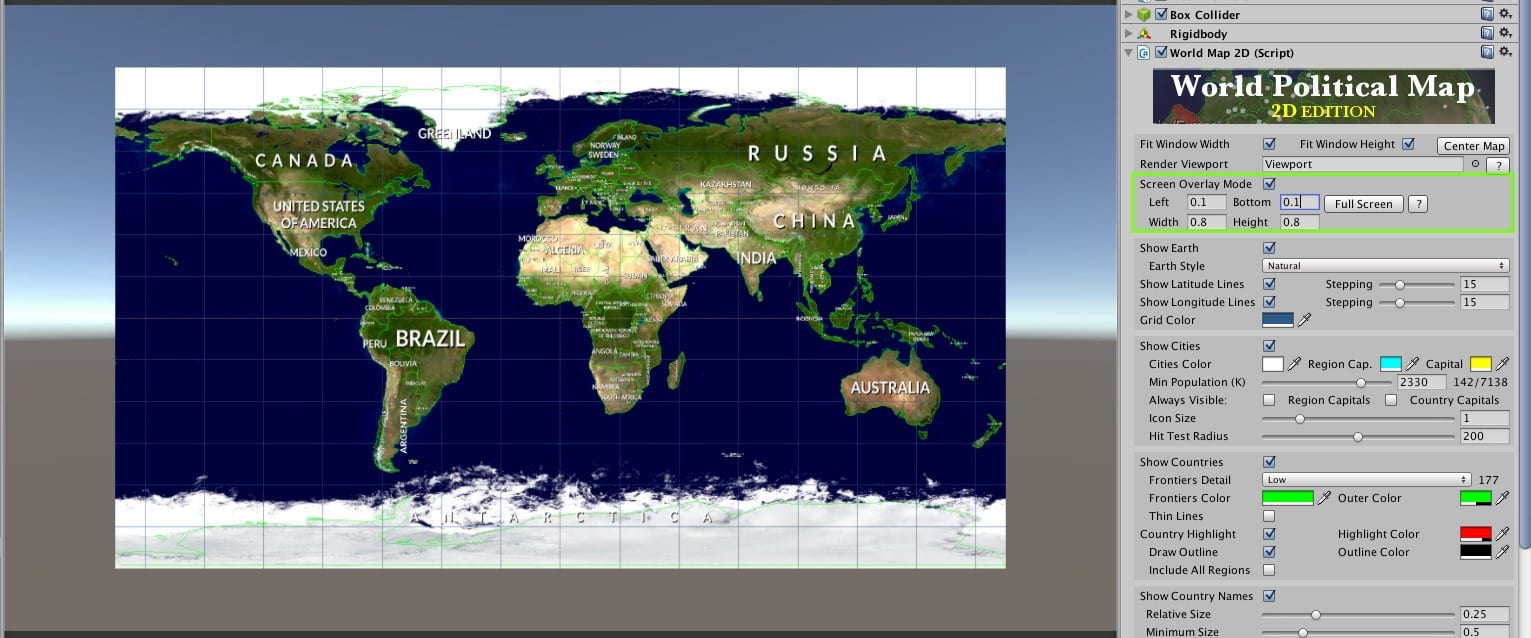
To enable it:
- Assign a Render Viewport to the map.
- Check the Screen Overlay Mode toggle.
- Specify the screen rectangle using the normalized coordinates.
Tip: The demo scene includes sample code illustrating viewport setup from C#. See the
Demo.cs script.
Positioning the Map on Screen
While the map can be positioned anywhere using transform properties, the viewport with Screen Overlay Mode provides precise UI-like positioning with proper cropping. This is the recommended approach for HUD-style map displays.
Was this page helpful?
Suggest an improvement
Help us improve this documentation page.