Toolbar & Overlay
beginner conceptsScene Pilot Pro · Core Concepts
Scene Pilot Pro Toolbar

Scene Pilot Pro adds a dedicated overlay toolbar to every Scene View. This toolbar provides quick access to camera bookmarks, scene capture, mini viewports, and health check visualization.
Toolbar Elements
The toolbar contains the following buttons, from left to right:
| Button | Description |
|---|---|
| Back / Forward | Cycle through saved camera bookmarks (Places). Wraps around so you can loop through all entries. |
| Places | Dropdown listing saved camera bookmarks. Click one to recall that viewpoint. |
| Smart Focus | Fly the camera to the best unoccluded viewpoint for the currently selected object. Click again to cycle through alternative viewpoints. See Smart Focus. |
| Screenshot | Opens the Screenshot popup to capture the Scene View or Game View. |
| Overlay | Toggle health check overlay visualization in the Scene View (colored wireframe spheres). |
| Mini Viewports | Toggle multi-angle viewport panels. |
Screenshot
Click the Screenshot button to open a popup with capture settings:
| Setting | Description |
|---|---|
| Source | Select which view to capture: any open Scene View or Game View. |
| Folder | Output folder relative to the project (default: Screenshots). |
| Prefix | Filename prefix (default: Screenshot). |
| Format | PNG (lossless) or JPG (with quality slider 1-100, default 90). |
| Suffix | Timestamp (YYYYMMDD_HHMMSS) or Sequential (0001, 0002...). |
| Resolution | 50%, 75%, 100%, 150%, 200%, or Custom (1-8192 px width and height). |
| Delay | Countdown timer 0-10 seconds with visual notification in the Scene View. |
All settings persist between sessions via EditorPrefs.
Mini Viewports
Mini Viewports are small floating panels that render the scene from different angles. Toggle them from the toolbar button.
View Angles
Each viewport starts at one of 6 preset angles: Top Down, Bottom, Front, Back, Left, Right. You can also orbit freely to any custom angle.
Controls
| Action | Input |
|---|---|
| Orbit | Right-click drag (yaw and pitch) |
| Pan | Middle-click drag |
| Zoom | Scroll wheel (range: 0.1x to 500x) |
| Resize | Drag corner handle (128-512 px) |
| Move | Drag title bar (snaps to edges within 20 px) |
| Toggle projection | Click the Perspective/Ortho button in the title bar |
Pinning
Pin a viewport to the selected object - the viewport will follow the object and show its name in the title bar. Supports up to 9 bookmark targets.
Layout
Use the layout menu to arrange viewports in predefined positions. Maximum 4 active viewports per Scene View.
Visual Features
- Wireframe rendering option
- Crosshair at center
- Selection outline for targeted objects
- Resolution scales automatically with zoom level
Health Overlay
When enabled, the overlay renders wireframe spheres around objects flagged by the Health Window. Spheres are color-coded by severity:
- Red - Errors
- Yellow - Warnings
- Cyan - Info
Click a label in the overlay to select the corresponding object.
Favorites Strip
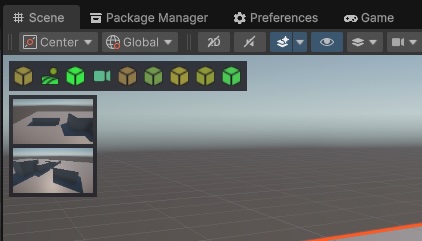
A horizontal bar at the top of the Scene View showing objects marked as favorites in the Browse Window. Click an entry to select and focus the object.
Right-click any favorite in the strip to access a context menu with:
- Select - select and focus the object in the scene.
- Customize Icon - choose a custom background color and icon for the favorite.
- Remove from Favorites - remove the object from the favorites list.
- Hide - hide the Favorites Strip from the Scene View.
Use the Favorites button in the overlay toolbar to toggle the strip visibility.
Places Strip
Similar to the Favorites Strip, the Places Strip displays your saved camera bookmarks as a horizontal bar in the Scene View. Click any entry to instantly jump to that viewpoint.
Right-click a bookmark in the strip for:
- Go to Place - recall the camera viewpoint.
- Delete Place - remove the bookmark.
- Hide Places Strip - hide the strip from the Scene View.
Toggle the Places Strip visibility using the Info button in the overlay toolbar.
Suggest an improvement
Help us improve this documentation page.