Object Notes
beginner conceptsScene Pilot Pro · Core Concepts
Object Notes
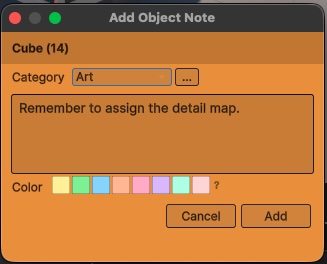
Object Notes let you attach persistent sticky notes to any GameObject in your scene. Each note has a category, color, priority, and optional done state - making it easy to track bugs, design decisions, and tasks right inside the Unity Editor.
Open the Notes window from Window > Kronnect > Scene Pilot Pro > Notes or press Ctrl+Shift+N (Cmd+Shift+N on macOS).
Categories
Notes are organized into four default categories, each with its own color:
| Category | Color | Typical Use |
|---|---|---|
| General | Gray | General-purpose notes and observations. |
| Gameplay | Blue | Gameplay-related notes (spawn points, triggers, balance). |
| Art | Orange | Art and visual polish tasks (materials, lighting, placement). |
| Bug | Red | Known bugs or issues to investigate. |
Note Properties
Each note stores the following properties:
- Text content - free-form text describing the note.
- Category / Color - one of the four categories listed above.
- Priority - None, Low, Medium, or High.
- Done state - a boolean toggle indicating whether the note's task has been completed.
- Timestamp - automatically recorded when the note is created or modified.
View Modes
List View
Each note appears as a row with the category icon, color indicator, text preview, and priority badge. Click a row to select the associated GameObject. This is the default view and the best for scanning many notes quickly. Clicking the object link in a note triggers Smart Focus, flying the camera to the best viewpoint.
Icon / Grid View
Notes display as thumbnail-sized icons arranged in a grid. Each icon shows the category color and a truncated text label. This view is compact and useful for scenes with many notes. Clicking an object link in the grid also triggers Smart Focus.
Sort Modes
Sort notes using the toolbar dropdown:
- Default - creation order.
- Priority - High first, then Medium, Low, None.
- Category - grouped by category name.
- Done - incomplete notes first, completed notes at the bottom.
- Date - most recently modified first.
Floating Windows
Double-click any note to open it as a floating sticky note in the Scene View. Floating notes are:
- Resizable - drag the edges or corners. Minimum size is 160x120 pixels.
- Draggable - move by dragging the title bar.
- Auto-font-sizing - text scales between 10pt and 200pt to fit the window size.
- Persistent - positions and sizes are saved and restored between sessions.
Context Menu
Right-click a note to access:
- Priority - submenu to set None, Low, Medium, or High.
- Done - toggle the done state.
- Delete - remove the note permanently.
- Pin - pin the note to the top of the list.
Custom Categories
You can add, rename, recolor, and reorder note categories in Edit > Project Settings > Scene Pilot Pro. Custom categories appear in every context menu and dropdown alongside the defaults. At least one category must always exist.
Hierarchy Integration
You can create notes directly from the Hierarchy: right-click any GameObject, then go to Scene Pilot Pro > Add Object Note and choose a category from the submenu (General, Gameplay, Art, Bug). The note is created and linked to that object immediately.
Persistence
Object notes are stored per scene in ProjectSettings/ScenePilotPro/. This folder should be committed to your version control system so that notes are shared across your team.
Suggest an improvement
Help us improve this documentation page.