Health Window
beginner conceptsScene Pilot Pro · Core Concepts
Health Window
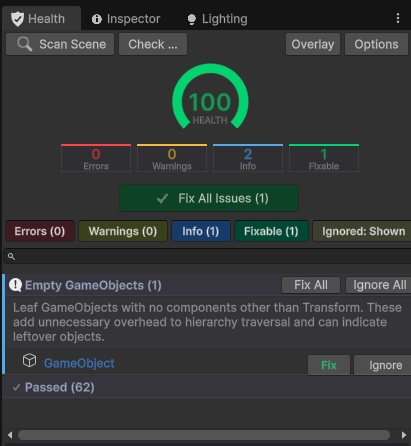
The Health window is Scene Pilot Pro's diagnostic scanner. It runs 64 checks across your scene's objects, materials, meshes, and textures, producing a health score and an actionable list of findings.
Open it from Window > Kronnect > Scene Pilot Pro > Health or press Ctrl+Shift+H (Cmd+Shift+H on macOS).
Health Score
At the top of the window a ring gauge displays a score from 0 to 100. The score reflects the weighted severity of all detected issues: errors have the highest impact, warnings moderate, and informational findings are minor. Below the gauge the exact count of errors, warnings, and info results is shown.
Scan Modes
- Auto-scan on open - by default the Health window scans the active scene as soon as it opens. You can disable this in the settings.
- Manual re-scan - click the Scan button in the toolbar to run a fresh scan at any time. The scan uses an 8 ms per-frame budget so the editor remains responsive.
Results List
Each result row displays:
- A severity icon color-coded by level: red for errors, yellow for warnings, cyan for informational.
- The check name and a brief description of the finding.
- The affected GameObject name. Click it to select the object in the Hierarchy and ping it in the Scene View.
Actions
| Action | Description |
|---|---|
| Fix | Automatically fix a single issue (only shown for auto-fixable checks). |
| Fix All | Batch-fix every auto-fixable issue in the current results. |
| Ignore | Hide a specific result. The finding will not appear in future scans until you unignore it. |
| Unignore | Restore a previously ignored result so it appears in scans again. |
Severity Filtering
Use the Error, Warning, and Info toggle buttons in the toolbar to show or hide results by severity level. This lets you focus on the most critical problems first.
Sort Modes
The results list supports four sort modes:
- Default - the order in which checks were executed.
- Severity - errors first, then warnings, then info.
- Name - alphabetical by affected GameObject name.
- Check Type - grouped by the health check that produced each result.
Search
Type in the search field to filter results by text. The search supports regex, so you can use patterns like missing.*reference to find specific issues.
Passed Checks
Below the results list, an expandable Passed Checks section lists every check that found no issues. This is useful for confirming that specific areas of your scene are clean.
Export
Export is available inside the Options menu. It saves the scan results in one of two formats:
- CSV - comma-separated values, suitable for spreadsheets and automated processing.
- Text - human-readable plain text report.
Both formats include a timestamp, the health score, and the full list of findings with severity, check type, and object name.
Scene View Overlay
When the Health window is open, the Scene View draws wireframe spheres around objects with findings. Spheres are color-coded by severity (red, yellow, cyan). Each sphere shows a clickable label - click it to select the object and highlight the corresponding result in the Health window.
Action Log
At the bottom of the Health window, an expandable Action Log records every fix you apply. Each entry shows the timestamp, action type (Fix or Fix All), check name, and the affected object. Click an object name in the log to select it in the scene. Use the Clear button to reset the log.
Options
Click Options in the toolbar to open the options menu. These settings are also available in Edit > Project Settings > Scene Pilot Pro:
| Setting | Default | Description |
|---|---|---|
| Auto-scan on open | Enabled | Run a scan automatically when the Health window is opened. |
| Auto-scan on save | Disabled | Run a scan automatically when the scene is saved. Shows a notification if errors or warnings are found. |
| Show info checks | Enabled | Include informational (low-severity) results in the scan. |
| Disabled checks | None | List of checks to skip during scanning. |
| Hierarchy depth threshold | 10 | Maximum nesting depth before the Hierarchy Depth check triggers. |
| Shader keywords threshold | 10 | Maximum material shader keywords before the check triggers. |
| Oversized texture threshold | 4096 px | Maximum texture dimension before the Oversized check triggers. |
| Texture memory threshold | 512 MB | Total texture memory before the Memory Budget check triggers. |
| Show ignored results | Disabled | When enabled, previously ignored findings appear in the results list so you can review or unignore them. |
| Clear ignore list | - | Remove all entries from the ignore list, restoring every previously hidden finding. |
Suggest an improvement
Help us improve this documentation page.