Browse Window
beginner conceptsScene Pilot Pro · Core Concepts
Browse Window
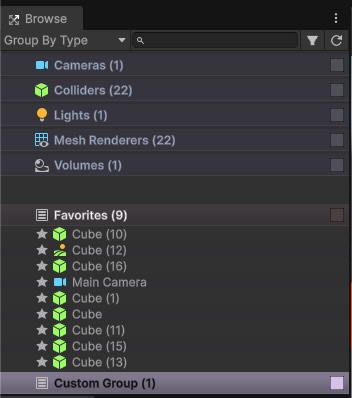
The Browse window organizes every GameObject in your scene into logical groups, letting you explore, select, and manage objects by component type, tag, layer, or distance. Open it from Window > Kronnect > Scene Pilot Pro > Browse or press Ctrl+Shift+B (Cmd+Shift+B on macOS).
Grouping Modes
The Browse window supports five primary grouping modes, selectable from the toolbar:
| Mode | Description |
|---|---|
| Type | Groups objects by their primary component type (Cameras, Lights, Renderers, etc.). |
| Tag | Groups objects by their assigned tag (Untagged, Player, Enemy, etc.). |
| Layer | Groups objects by their layer assignment. |
| Distance | Groups objects by proximity to a configurable target (Scene Camera, Main Camera, World Origin, Custom Object, or Custom Position). |
| Material | Groups objects by shared material, making it easy to find all renderers using the same material. |
Type Mode
In Type mode, objects are sorted into 16 component categories:
- Cameras
- Lights
- Volumes
- Mesh Renderers
- Skinned Meshes
- Colliders
- Particle Systems
- UI Canvases
- Audio Sources
- Reflection Probes
- LOD Groups
- Terrains
- Animators
- Sprite Renderers
- NavMesh Agents
- Other
Each category shows the object count in parentheses. Expand a category to see all matching GameObjects.
Distance Mode
In Distance mode, objects are sorted by their distance from a configurable reference point. The available targets are:
- Scene Camera - distance from the current Scene View camera position.
- Main Camera - distance from the Main Camera in the scene.
- World Origin - distance from (0, 0, 0).
- Custom Object - distance from a specific GameObject you assign.
- Custom Position - distance from an arbitrary world-space coordinate.
Name Grouping
For renderers, a Name grouping option is also available. It auto-detects common naming patterns (e.g., Wall_01, Wall_02) and groups objects with matching prefixes together.
Selection
| Action | Behavior |
|---|---|
| Single click | Select the object. The Hierarchy and Inspector update accordingly. |
| Double-click | Smart Focus - the Scene View camera flies to the best viewpoint for the object, framing it based on its bounds. |
| Shift-click | Extend the selection range from the last selected object to the clicked one. |
| Ctrl-click (Cmd-click) | Toggle the clicked object in/out of the current selection. |
Selection in the Browse window syncs bidirectionally with the Hierarchy - selecting an object in one updates the other.
Visibility and Picking
Each object row includes two toggle icons:
- Eye icon - toggles the object's visibility in the Scene View.
- Target icon - toggles the object's pickability (whether it can be clicked in the Scene View).
Both toggles can be applied in bulk per group: click the eye or target icon on a group header to toggle all objects in that group at once.
Custom Groups
You can create your own groups to organize objects however you like:
- Create - click the + button in the toolbar and name the group.
- Rename - right-click a custom group header and choose Rename.
- Delete - right-click a custom group header and choose Delete.
- Reorder - drag and drop custom group headers to rearrange them.
- Custom icons - right-click a group or smart group header to set a custom icon and background color.
- Remove from Group - right-click an object in a group or use the Hierarchy context menu to remove it.
- Favorites - a built-in favorites group is always shown at the top. Star any object to add it. Right-click a favorite in the Scene View strip to customize its background color and icon.
Smart Groups
Smart Groups are saved filter criteria that update automatically. When you create a filter in the Advanced Filtering panel, click Save to store it as a smart group. The group re-evaluates its membership every time you open the Browse window or re-scan.
Filter Toolbar
The filter toolbar sits at the top of the Browse window and provides:
- Search field - type to filter objects by name with live sync. Results update as you type.
- Results counter - shows how many objects match the current filter.
- Select All - select every object matching the current filter.
- Save filter - save the current filter criteria as a Smart Group.
Search Modes
Beyond simple name filtering, the Browse window supports multiple search modes. Click the search mode dropdown next to the search field to switch between:
| Mode | Description |
|---|---|
| Name | Filter by GameObject name (default). |
| Component | Find objects with a specific component type (e.g., "Rigidbody"). |
| Material | Find objects using a material by name. |
| Shader | Find objects using a specific shader. |
| Layer | Filter by layer name. |
| Tag | Filter by tag. |
| Texture | Find objects using a specific texture. |
| Mesh | Find objects referencing a specific mesh asset. |
| Static Flags | Filter by static flag configuration. |
| Active State | Filter by active/inactive state. |
Suggest an improvement
Help us improve this documentation page.