Custom Art
intermediate tasksCompass Navigator Pro 3 · Common Tasks
Compass Navigator Pro lets you replace every visual element — compass bar backgrounds, cardinal icons, POI icons — with your own artwork.
Sprite Import Guidelines
| Element | Expected Size | Pixels Per Unit Rule |
|---|---|---|
| Compass Bar background | 32 px height (base) | Divide actual height by 32, then multiply by 100. E.g., a 128 px sprite uses PPU = 400. |
| POI Icons | 128 × 128 (base) | For 256 × 256 icons, set PPU to 200. |
- Import custom art as Sprite (2D and UI).
- Set the correct Pixels Per Unit so the sprite displays at the expected physical size.
- Higher-resolution sprites look better on HDPI/Retina displays.
Editing the Compass Bar Sprite
The bar sprite uses 9-slice scaling. Open the Sprite Editor and define the center stretchable region so the end caps remain undistorted when the bar resizes to fill the screen.
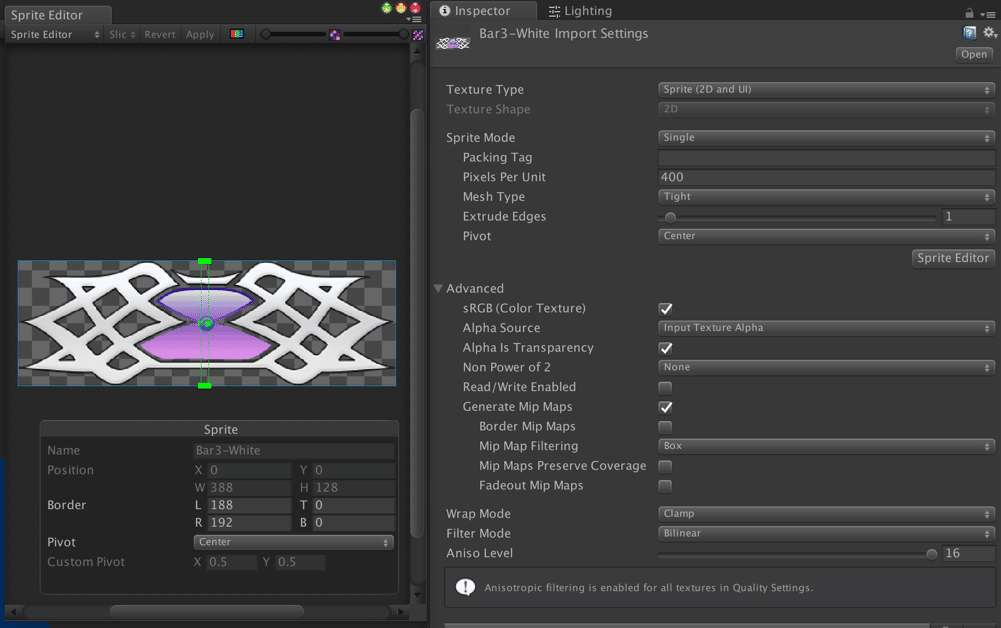
Replacing Compass Bar Elements
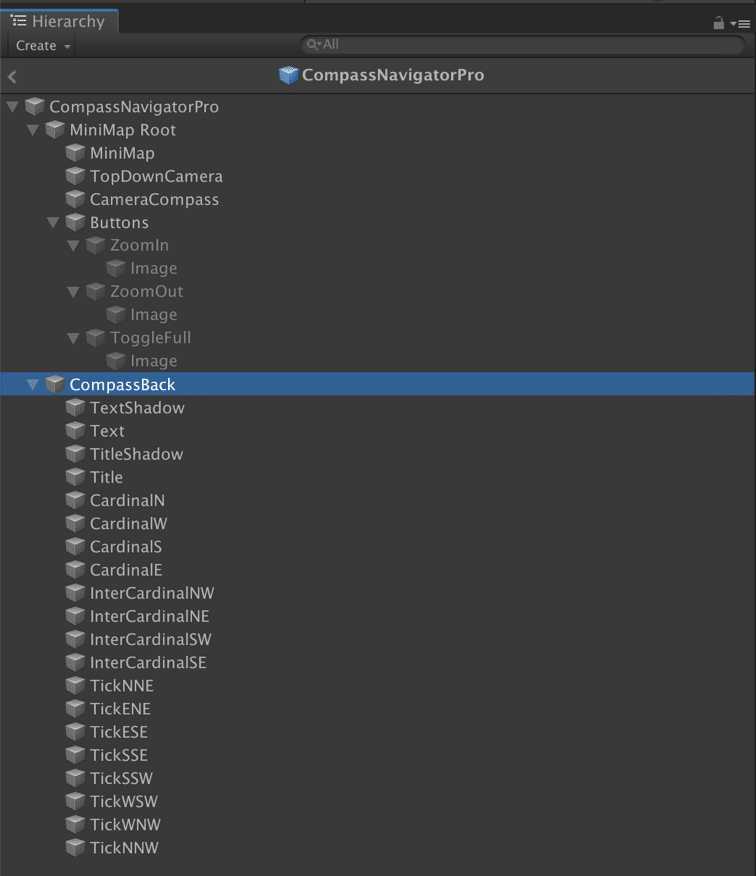
- In the CompassNavigatorPro inspector, set Style to Custom.
- Expand the
CompassNavigatorProhierarchy and locate the CompassBack child object. - Replace its sprite with your custom compass bar background.
- You can also customize
CardinalN,CardinalW,CardinalS,interCardinalNW,TickNNE, etc.
Important: Do not rename or reorder the child objects inside the CompassNavigatorPro prefab. Changing names or hierarchy order can break the asset.
Was this page helpful?
Suggest an improvement
Help us improve this documentation page.